Automations
Workflows automate the repetitive work: update records when something changes, send notifications, call other systems, or run whole processes like an import. You build them visually as a flowchart of steps, preview them safely, and watch every run in a searchable history.
Where to find them
Open Workflows from Settings → Automation. The page has up to four tabs, depending on your permissions: Definitions, Runs, Approvals and Health.
Definitions
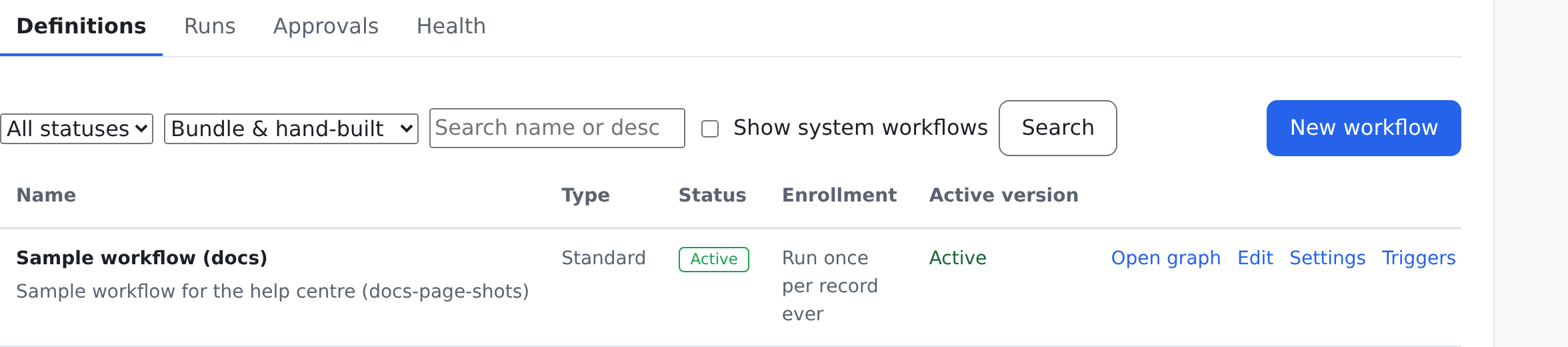
The Definitions tab lists every workflow in your space with its Name, Type, Status, Enrollment and Active version (Active, or — (draft) until a version is activated). Search by name or description, filter by status, and choose Bundle & hand-built, Bundle-installed only or Hand-built only. Show system workflows adds the ones the platform runs itself.
Each row offers, as your permissions allow:
- Open graph — the workflow's flowchart, read-only.
- Edit — the same flowchart in the builder.
- Settings — the run settings (see below).
- Triggers — what starts it automatically.
- Data access — which tables it may read or write, and which outside addresses it may call.
- Details and Versions — the saved versions, each with its note; Activate this version makes one the live version.
- Run now — start an active workflow by hand, optionally for one record.
- Delete — the workflow stops firing and leaves the lists, but its run history is kept.
New workflow opens an empty builder.
Building a workflow
The builder shows the workflow as a Canvas of connected steps, or as a List — switch with Builder view. In Edit layout mode you add steps from the Step palette, drag them into place, and connect them. Select several steps to move, Copy, Duplicate or Delete selected together; Undo and Redo are always to hand.
Click a connection to say when it runs: Always, When… a condition is true, or Default (only when no "When…" connection from that step matched). Several "When…" connections can all run — this is not an either/or choice.
Name the workflow, add an optional Version note, and press Create workflow (the first time) or Save draft. Every save is a new version; nothing goes live until a version is activated. A workflow with errors cannot be saved, and the builder lists what to fix. If someone else saved the workflow while you were editing, you choose Save mine anyway or Reload theirs.
How a workflow starts
Open Triggers on a workflow and press Add trigger:
| Event | Fires when |
|---|---|
| When a record is created | A record is added to the chosen Table. |
| When a record is updated | A record in the chosen table changes. |
A trigger can carry an optional condition — a Field, an Operator (such as equals, contains or is empty) and a Value — so it fires only for the records that match. The workflow must be active for its triggers to fire, and each trigger can be disabled or deleted. A workflow with no triggers runs only when started by hand.
System workflows can also start On a schedule, When a field changes, When a record is deleted, When a webhook arrives or When a poll finds changes. Those triggers are managed by the platform; the panel shows them read-only, with whether each one will fire (for example Armed — next fire … or Off — never fires).
Preview before you trust: the dry run
You never have to guess what a workflow would do. In the builder, Dry run → Run preview runs the saved version with real reads, but every write, email and notification simulated. Save your changes first to preview them.
The Test Report that comes back names the workflow and version, gives the outcome, and lists a Step trace: each step and its effect — Real, Simulated or Refused — with a short detail. Where the run returned something, it is shown under Outputs.
Test a workflow on a contact
On a contact's page, Test a workflow on this record sends that real record through a chosen workflow's test version and shows the same report. This is a real run, not a preview: its step-by-step trace is in the Runs tab. Only workflows that have a test version and work on that kind of record are offered. To give a workflow a test version, open it in the builder and press Save as test version — it saves the canvas as a new version marked test, and the active version does not change.
other runs — see Billing & Plans.
Run settings
Settings on a workflow opens its Run settings:
- Enrollment — how often a record may go through it: Run once per record ever, Run every time, or Run once, then never again.
- Billing multipliers for Time, Memory, IPC and Verbose log, with the Projected cost / run.
- When the run quota is exceeded — show the error, or drop the run quietly.
- Verbose logging — records every step's full timings and output in the run history. The setting warns you plainly: secret-looking values are masked, but a secret your steps return under any other name is not, so review what they return before you turn it on.
- Snapshot retention and the other recovery options.
Run history
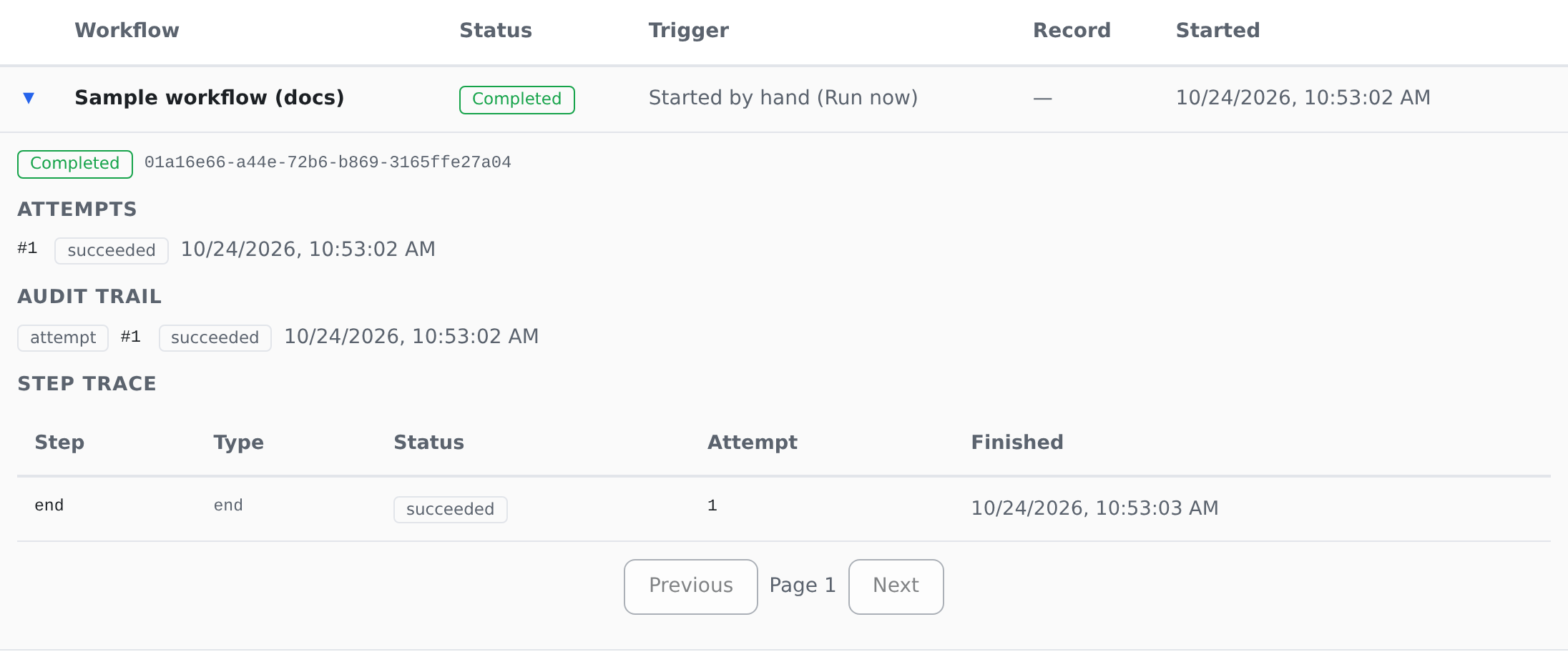
The Runs tab lists every run with its Workflow, Status, Trigger, Record and when it Started. A failed run shows a short error under its name, and an unresolved dead letter carries a Dead-letter badge. Search the error messages, filter by status, or tick Dead-letters only.
| Status | Meaning |
|---|---|
| Queued, Running, Waiting | Not finished yet — waiting may mean an approval or a delay. |
| Completed | Finished cleanly. |
| Failed | Failed; it may still be retried automatically. |
| Dead-lettered | Gave up after its retries and needs a person. |
| Canceled | Stopped by a person. |
| Blocked by quota | Not run because the plan's limit was reached. |
| Call ended | A phone workflow whose call ended. |
Expanding a row shows its Attempts, its Snapshots, its Audit trail and the Step trace — every step and where an error occurred. Secret values in a run's outputs and errors are stored encrypted and shown as a marker. From there you can Replay a run that is dead-lettered, or one that failed and has no retry still pending, optionally from a chosen snapshot. A dead letter's Dead-letter case file can be closed with Mark resolved (with optional notes) or Give up.
Ending a run that is still Queued, Running or Waiting happens on the row itself, and there are two ways to do it, each its own permission. Stop lets the step that is running now finish and then stops the run — whatever that step already saved stays saved; if the run is being carried out by another process, it finishes the step it is on and stops at the next one. Force stop ends the run at once, in the middle of its step: the step does not finish, any sub-runs stop too, and it cannot be undone. Both ask you to confirm first, and both say plainly what actually happened. If you may see a run but hold neither permission, the row says so instead of leaving a blank.
responsible for reviewing failures) receives a notification automatically — failures do not sit
unnoticed. You can tune these in your notification preferences.
Approvals
When a workflow reaches an approval step, it waits for a person. The Approvals tab's Inbox lists the Pending approvals awaiting your decision; All shows every approval, with a search and For me only. Review opens the approval: its description, the run's status, the data to review, and Approve or Reject with optional notes. The run then resumes — down its rejection path if you rejected it.
Health
The Health tab sums up your workflows: Total runs, Workflows, Active, Stuck, Failure rate and Last run, with a row per workflow. Someone responsible for a group of spaces can elevate to see the totals across all of them.
Good to know
- Runs are metered: each finished run counts toward your plan's workflow usage, and heavy workflows can be given bigger multipliers in their run settings.
- Imports are workflows under the hood, so run history, retries and notifications apply to import runs too. See Importing & Exporting.
- An alert rule can start a workflow when it fires, or offer one in the alert's menu.
Where to find it
| Screen | Where it lives | What it is for |
|---|---|---|
Workflows — /admin/workflows | Settings → Automation → Workflows | definitions, runs, dead letters, approvals and health |
Who can do this
| To do this | You need |
|---|---|
| Open the page; see definitions, runs and health | workflows.view |
| Decide the approvals addressed to you | workflows.approvals.decide |
| Run a workflow, dry-run or test it; replay a run | workflows.run |
| Create, edit, version, activate and delete workflows; change triggers, settings and data access (you will be asked for your password) | workflows.manage |
| Resolve dead letters | workflows.run or workflows.review_dead_letters |
| Stop a run | workflows.runs.stop |
| Force stop a run (you will be asked for your password) | workflows.runs.force_stop |
Two other surfaces install or start workflows, and both are worth knowing about when a workflow appears that nobody wrote: a scheduling bundle installs its own workflows (and can repair or uninstall them) — see Scheduling — and a phone workflow routes a live call into one, gathering keypad digits and recordings for the rest of the workflow to use, under The Phone System.