Roles & Extension Fields
Roles are the reason record pages configure themselves. A role tags what a contact is — a client, a member, a parent — and each role brings its own panels of extra fields along. Add the role, and the panels appear; no page setup, no waiting for a developer.
What roles do
A role is a label like Client, Member, or Mother. Three roles are built in:
- Contact — everyone has it; it carries the basic personal panels.
- Client — whatever "client" means in your space, with the panels your space attached to it.
- User — contacts who can sign in to the app themselves.
Your space can define any number of additional roles. When a role is added to a contact, every extension panel attached to that role appears on the contact's page on the next load. Removing the role hides those panels again — the data underneath is kept, not deleted.

The shapes of an extension
Every extension answers two questions, and the designer asks them in this order:
| Question | The answers |
|---|---|
| What does each row describe? | A contact — extra fields on contact records; A relationship — fields on links between records (like "Role at agency"); or A row of another extension table — fields on each row of a table you already made (pick that table from the list) |
| How many rows per record? | One set of extra fields (one row per record) — for example Insurance details; or A list (many rows per record) — for example Enrollments, Payments, Visits |
The Extension Tables list shows each extension's Shape as fields or list, and which table it Extends (hover over it to see the technical name). A table made on the rows of another table is listed under it, indented, with its level — a table on contacts or relationships is level 1, a table on its rows level 2. How deep tables may go is the Deepest nested extension table setting (System settings, default 5). A table that has tables under it cannot be dropped until those are dropped first, and a dropped one comes back only after its parent is restored. For now a table on another table's rows is created and listed only; showing it on those rows comes in a later update. Fields on a relationship show on the relationships card of every link of the chosen link types — see Linking Records.
Creating a role (administrators)
You need the role management permission.
- Open the Role designer and click + Add role.
- Give it a Key (slug) and a Label, optionally a Description, then a Rank (lower wins) and a Color. Rank orders the role chips and decides which role's panels come first. Leave Enabled ticked. Under Hidden when the contact also has… choose Never hide it (the default), Any other role, or One of these roles: and tick the roles — see A role you do not need to see below.
- Save, then click Extensions on the role's row. In Extensions of … use + Add extension to pick each extension this role switches on, tick Required where it must be filled in, and set its Order.
- Save. Every contact holding the role shows the new panel set on next load.
A role you do not need to see
Some roles say nothing you do not already know. A contact who is a DSP is also a Contact — showing both chips tells you nothing more. Open the Contact role, choose Any other role under Hidden when the contact also has…, and save: a DSP who is also a Contact now shows DSP only, in the record header and in the Roles column of lists. A contact who holds only Contact still shows it — a contact never looks role-less.
The rule only changes what you SEE. The contact still holds the role: its panels, its fields, every filter, alert and widget condition that names it work exactly as before. In page edit mode the hidden chip still shows, greyed, with the reason on hover ("Hidden — the contact also has DSP"), so you can remove the role if you need to. The grid's Hidden when column shows each role's rule at a glance. Two roles may not hide each other; the designer says so when you save.
Creating an extension table (administrators)
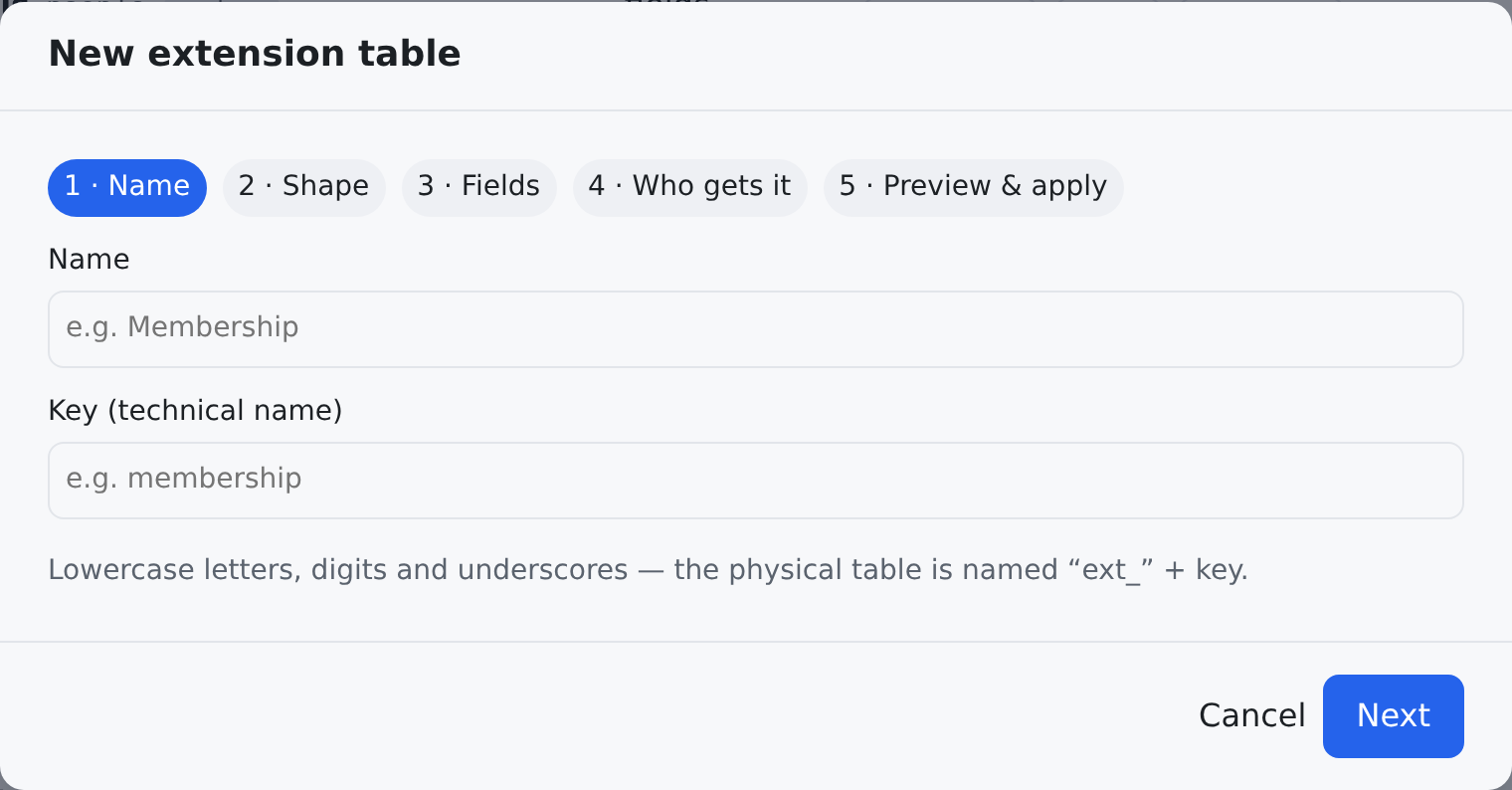
You need the permission to create extension tables. The designer is a guided, no-code flow:
- Open Extension tables and click + New extension.
- Name — the Name people will read, and a Key (technical name).
- Shape — the two questions above.
- Fields — for each field a Field label and a type: Text, Long text, Whole number, Decimal number, Money, Yes / No, Date, Date & time, Email, Phone, URL, Choice list (with its choices, comma-separated), Structured (JSON), Reference (id), Reference (picker) (with what it Points at…) or List (managed choices) (with Which list?). Tick Required or Sensitive where they apply.
- Who gets it — All contacts, contacts with chosen roles, or contacts of chosen types (for a relationship: the link types it shows on). Leave everything unticked to decide later; nothing shows until the extension is attached somewhere.
- Preview & apply — check the preview, optionally tick Also place a widget for it on the contact page now, and click Apply — create the table. You are asked for your password every time — creating tables is a guarded action.
Existing contact custom fields can become an extension table too, values and all: tick them on the Custom Fields page and press Convert to an extension table… — see Converting fields into an extension table.
When your space has a limit on custom tables, the page says above the list how many are used, and how many fields a table may hold.
Changing an extension later
Each row has + Add field, Edit and Drop…, for the people allowed to do each.
- Add field never changes existing data.
- Edit changes labels and display — In form, In list, Editable. A field's type and its sensitive flag are locked once created: remove the field and add a new one instead.
- Remove takes a field off; its data is kept until the table is purged.
- Require… makes an existing field required — enforced at once, or after a backfill while an alert counts what is still missing. See Required Data.
- Drop… removes the whole table from every page and role, but keeps its data. Dropped tables are listed under Deleted tables (data retained) with Restore (the table and all its data come back) and Purge… (both are deleted for good).
Sensitive fields
A field can be marked sensitive when it is defined. Sensitive values show as •••• unless you hold the reveal permission for that field, and they are left out of exports for anyone without it.
Who can see and edit extension panels
Permissions can be set per extension, and even per field. Where nothing specific is set, editing an extension follows the main contact edit permission — access is never open by default.
Where to find it
| Screen | Where it lives | What it is for |
|---|---|---|
Role Designer — /admin/roles | Settings → Workspace & access → Role Designer | create and edit the roles described above |
Extension Tables — /admin/extensions | Settings → Data model → Extension Tables | create and edit the extension panels and child tables |
Who can do what on these two screens:
| What | Permission |
|---|---|
| Open the Role designer | crm.roles.read |
| Add or edit a role, and choose its extensions | crm.roles.manage |
| Open Extension tables | crm.extensions.read |
| Create a table (+ New extension) | crm.extensions.create_table |
| Add a field to a table | crm.extensions.add_column |
| Change labels and display (Edit) | crm.extensions.edit |
| Drop, restore or purge a table | crm.extensions.drop |
| Change where a table shows (the chips on its row) | crm.extensions.manage |
Creating a table, adding a field, Edit, and dropping, restoring or purging a table ask for your password every time; saving a role, or where a table shows, asks for it only when you have not re-entered it recently.
Two neighbouring pages often come up in the same job: single extra fields that are not an extension table live in Custom & Computed Fields, and an extension field you have made required is tracked on Required Data until every old record has a value.
Related pages
- Linking Records — relationships, link rules, and hierarchies.
- Templates — package roles and extensions to reuse in another space.
- Who Can See What — the permission system in plain words.