Settings
Almost every tunable in the system — page sizes, export caps, import behavior, notification recipients, feature toggles — lives in one consistent settings cascade. Understanding the cascade once means every settings screen works the same way.
The cascade: global → space → user
A setting can hold a value at three layers, and the most specific layer wins:
| Layer | Who sets it | Applies to |
|---|---|---|
| Global | Whoever holds the global-scope permission — platform super admins by default | Everyone, everywhere, unless overridden below. |
| Space | Space administrators (with the settings manage permission) | Everyone in that space, unless a user overrides it. |
| User ("Just me") | You | Only you, in that space. |
When you read a setting, the system checks your personal value first, then your space's value, then the global default. Removing your personal value simply lets the space (or global) value show through again — nothing is ever lost.
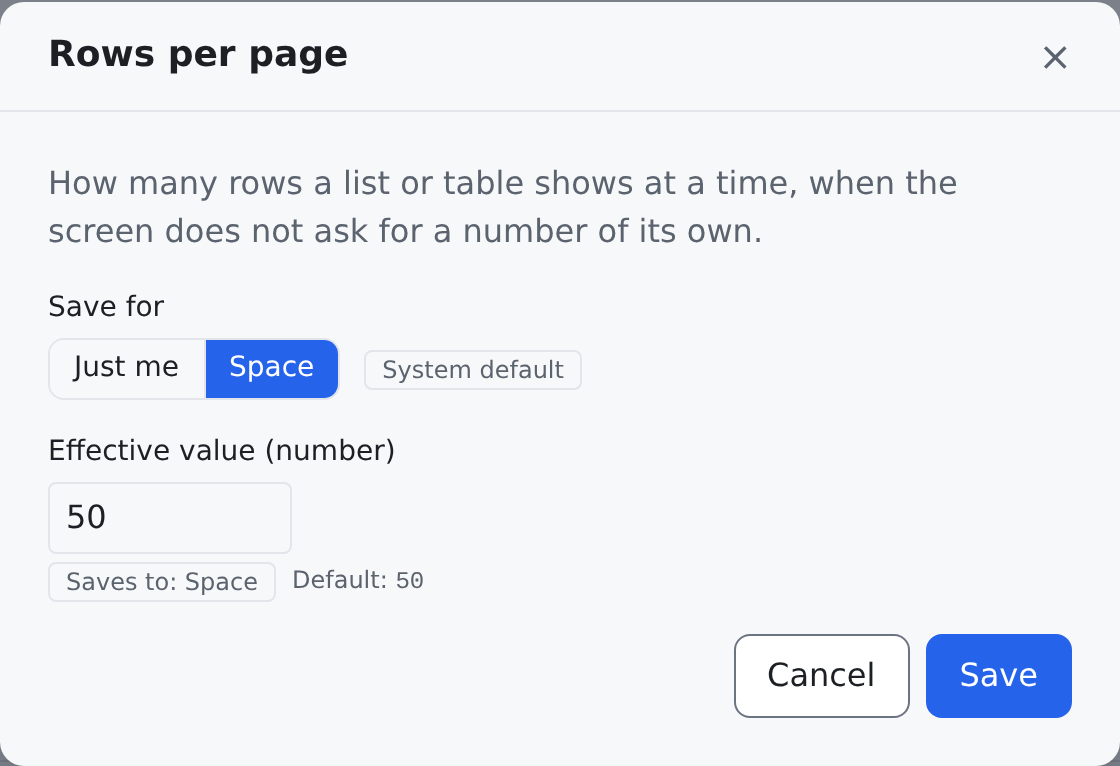
(Save for: Just me, Space, Global) its badge reads, for example, "Inheriting from
Space" or "Personal override", and Reset clears just the layer you picked. On the System
settings page the same answer is the Comes from column: Personal override, Space,
Global or System default.
Where you meet the cascade
The same three-layer picker appears wherever something is configurable per person and per team:
- Saved views on lists — save a view just for yourself or for the whole space (see Working with Lists).
- Dashboard layouts — a personal dashboard arrangement over the space default, with a layout per permission group in between (the badge then reads "Inheriting from group …"; see Your Dashboard).
- Form layouts and field visibility — administrators shape the space defaults; personal adjustments sit on top.
- Operational tunables — administrators can adjust behavior like export row caps or import batch sizes for a space without a software change.
"Space" appears with the space permission, and "Global" only for platform super admins. What you
cannot change, you cannot break.
The settings hub
Administrators reach every admin page from the Settings hub in the user menu — nothing hides behind a URL you have to know. The hub starts with My workspace (your own pages, such as notification preferences), then groups the admin pages into sections — Workspace & access, Data model, Work & scheduling, Communication & integrations, Files, Interface & navigation, Automation and System — and a search box narrows the cards across all of them. You only see the cards you have permission to open.
smaller of the setting and the plan's value — which is why a plan upgrade can raise a cap without
anyone touching a settings screen, and why a space administrator can tighten such a limit but
never loosen it above the plan. See Billing & Plans.
The System settings page
System settings lists every setting, grouped into tabs — General, Users & access, Files, Scheduling, Work, Communication, Integrations, Automation, Operations and Client portal — and inside each tab into sections you can collapse. Search every setting… searches all tabs at once and says how many match.
Each row shows the setting's key and what it does, its Effective value, and where that value Comes from. Change a value in place and it saves to the layer shown, or use Edit a layer… to pick the layer yourself. A row you may not change says Read-only for you.
What the badges on a row mean:
- From template — the value came from a template; overriding it detaches it from the template. Locked means the template still governs it, and Lock / Unlock toggle that.
- Client-visible — the value is also sent to the browser.
- Secret — the value is never shown: the row says •••• (set) or —.
Two kinds of setting behave differently:
- Lists that add up. For some lists the space layer adds to the global one rather than replacing it: the row says what is Set for everyone (you cannot remove these) and what is In force for this space.
- Settings with a system-wide ceiling. A few numbers — such as how many wrong guesses of a password-reset code are allowed — may be set per space only up to a ceiling that is its own global setting. A value above it is refused: Must be a whole number from 1 to … — … is the system-wide ceiling …, and only the system level can raise it.
An administrator of spaces below this one can use Viewing to pick one of them and edit its space layer from here; the global and personal layers are then read-only. Settings that nothing reads any more are listed under Retired, with their values kept.
Where to find it
| Screen | Where it lives | What it is for |
|---|---|---|
System settings — /admin/settings-cascade | Settings → System → System settings | every setting, with the layer it comes from |
| What | Permission |
|---|---|
| Open System settings | crm.settings.read |
| Save a value for the space | crm.settings.manage |
| Save a value for everyone (Global) | crm.settings.manage and system.scope.global_write |
| Pick a space below this one under Viewing | system.subtree.settings_view (and system.subtree.settings_manage to change its values) |
A personal value (Just me) needs only that you are signed in, for the settings a person may set for themselves.
Two narrower settings pages read the same cascade and the same badges, for the people who only need those knobs: File settings and the scheduling setup under Scheduling. A value that arrived from a template is badged From template, and overriding it detaches it from the template — see Templates.