Getting Started
Welcome! This page walks you through your first sign-in: logging in, choosing a work space, and finding your way around the main screen. It takes about five minutes.
Signing in
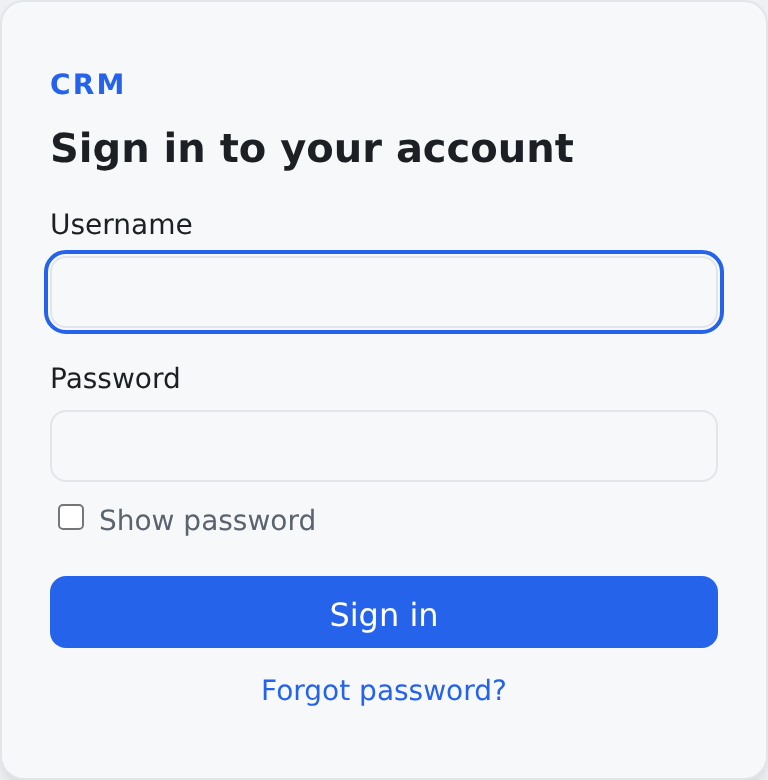
- Open the address your administrator gave you. You will land on the sign-in page.
- Enter your Username (usually your email address) and your Password. Show password lets you check what you typed.
- Click Sign in.
If you have forgotten your password, Forgot password? under the form starts a reset.
Choosing a space
A space is a separate work area with its own contacts, settings, and dashboards. Many people belong to just one space; some belong to several (for example, two branches of the same organization).
- If you belong to one space, you are taken straight to your dashboard.
- If you belong to several spaces, you will see a Choose a space page listing them. Click the space you want to work in. Your home space is badged Home, and your default space Default.
- If you have set a default space, it is selected for you automatically and the chooser is skipped.
You can switch spaces at any time with the space switcher near the bottom of the menu on the left. It shows the name of the space you are in; click it to open the list of your spaces. Switching shows that space's records only — spaces never mix. Use Set as default in the switcher to make your current space the one you land in after sign-in. If you belong to only one space, the menu just shows its name.
Finding your way around
Once signed in, you land on your dashboard: a page of widgets, small tiles that each show one thing — a number, a list, a chart or a table. Edit dashboard on that page lets you arrange it for yourself, and Reset to default puts it back; see Your Dashboard.
All the navigation lives in one column on the left. The screen has a few fixed areas:
| Area | Where | What it is for |
|---|---|---|
| Global search | Top of the left column | Search everything at once. Press Ctrl+K (or Cmd+K on a Mac) to jump to it. |
| Notification bell | Top of the left column | Unread notifications; click to open your inbox. |
| Menu | Left column | Dashboard, your lists and saved views, and — if you may use them — the Admin pages. Click an entry to open it. Docs at the end opens this help centre. |
| Space switcher | Bottom of the left column | Shows the space you are in; click to switch or set a default. |
| User menu | Bottom of the left column, under your name | Settings, Notification preferences, Groups & rights, and Log out. |
| Phone panel | Right | The phone, on every page. It can be folded to a narrow strip and still rings. |
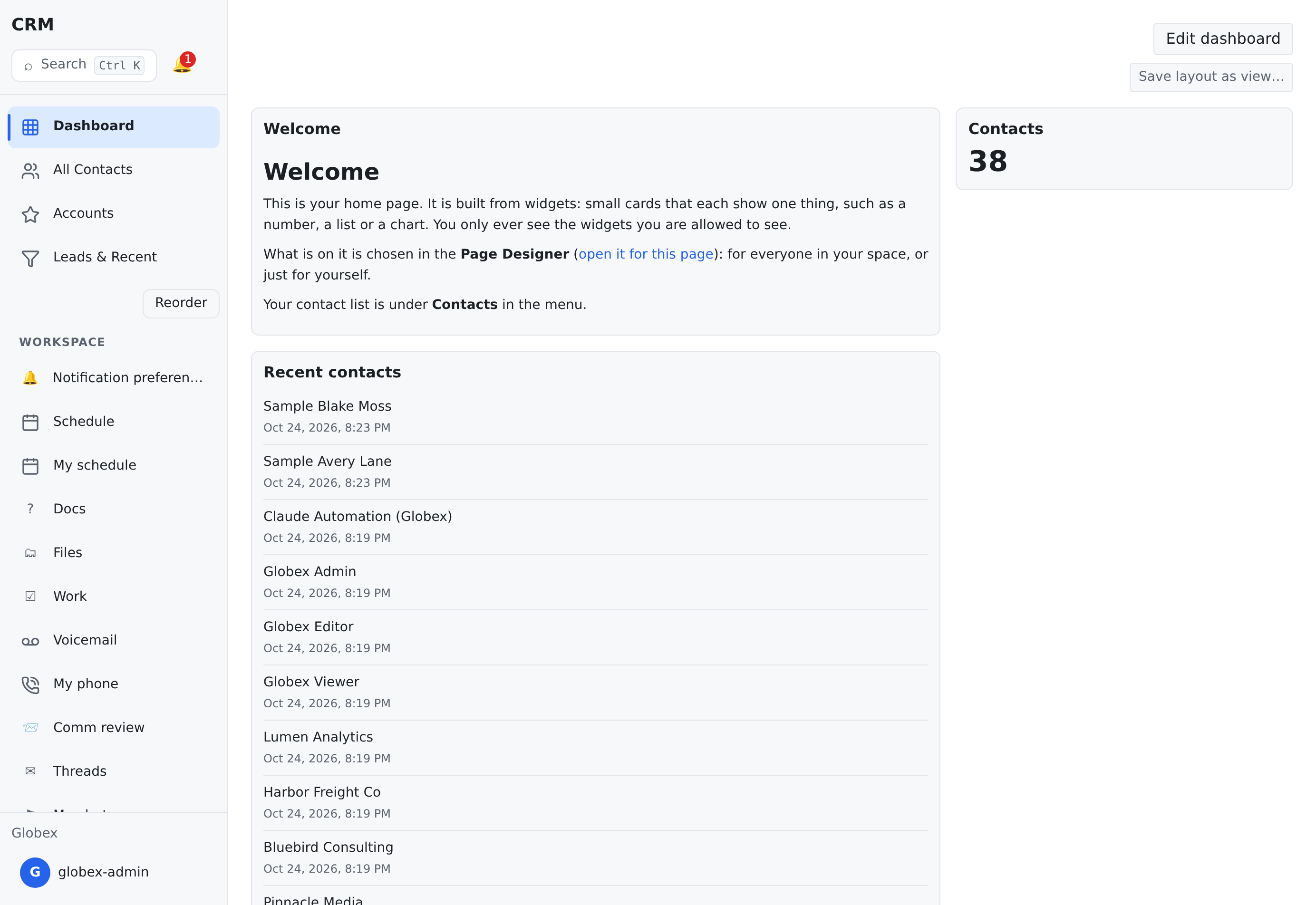
On a narrower window the left column shrinks to a strip of icons. On a phone it folds away completely: tap the menu button (Toggle menu) to open and close it.
Your password and security
- You can change your password from Your Account.
- Some sensitive actions (like deleting records or changing important settings) ask you to re-enter your password once before continuing. The prompt has a show/hide toggle so you can check what you typed.
- If you are inactive for a while, your session expires and you are returned to the sign-in page. Nothing is lost that you had already saved.
Where to go next
- Your Dashboard — what the widgets on your home screen mean, and how to arrange them.
- Working with Lists — sorting, columns, paging, and exporting.
- Filtering & Searching — find exactly the records you need.
- Adding & Editing Records — create records and save changes safely.
Where the help lives
| Screen | Where it lives | What it is for |
|---|---|---|
Docs — /docs | the end of the menu on the left, and a card under My workspace on the Settings page | this help centre |
Everything you are reading is one page of the help centre, and the index lists every page in it. Two things are worth knowing about:
- What's New lists what each release changed;
- once a newer release exists, a page shows a Version list: pick an older release to read the page as it was, and Compare with current → shows the two side by side.