Filtering & Searching
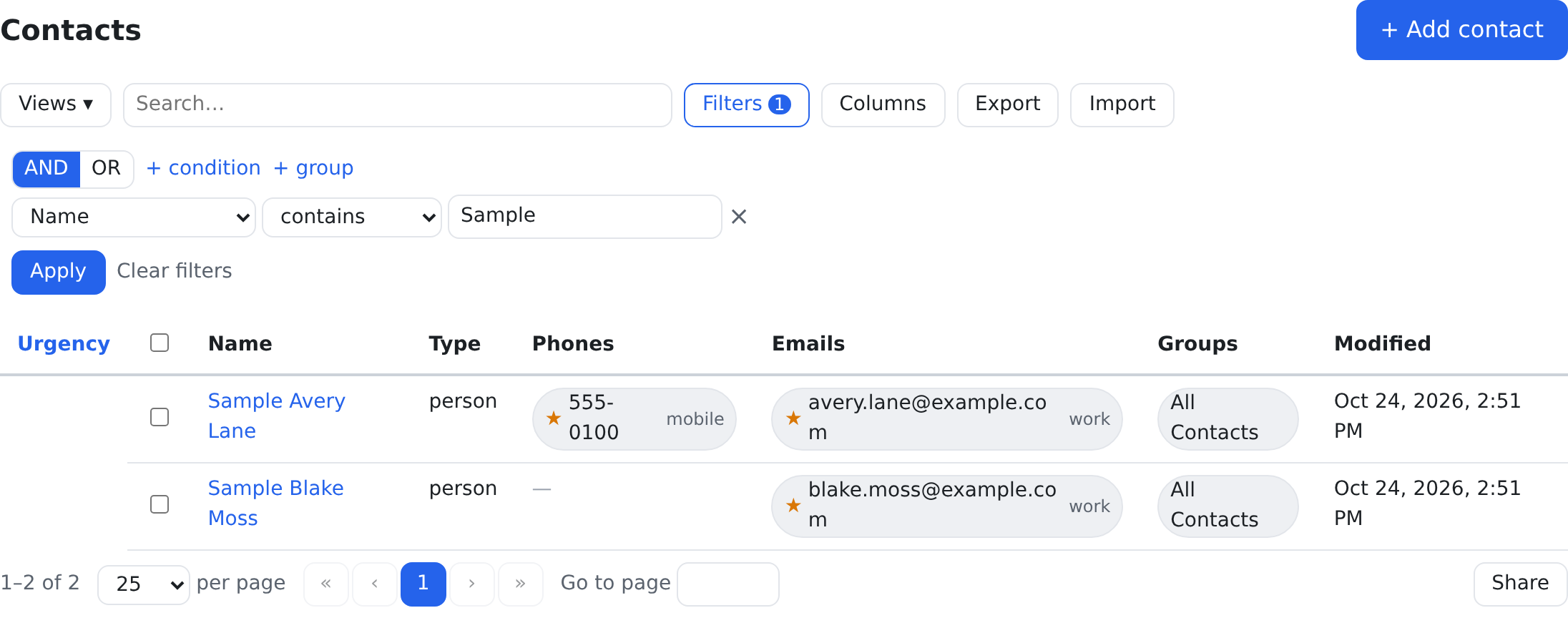
There are two ways to find records in a list: type into quick search, or build exact conditions in the filter builder. This page explains both, every operator the builder offers, and seven worked examples you can copy. The pictures were taken on the Globex sample space, over a sample view of its contacts.
| Tool | Best for | How |
|---|---|---|
| Quick search | "Find Ava" — part of a name, email or phone | Type in the Search… box above the list |
| Filter builder | Exact questions — "people in the Lead or Active group" | Click Filters, add conditions, click Apply |
| Saved views | Questions you ask every week | Save the filter under a name, reload it any time — see Working with Lists |
| Sidebar views | Standard subsets everyone uses | Click the entry; its built-in filter is part of it |
Quick search and filters work together: when both are set, a record must match both.
Quick search
Type into the Search… box. After a short pause the list updates. On a list of contacts, quick search looks for your text (upper or lower case, anywhere in the value) in the name, the first and last name, every email and every phone. On a list of anything else it looks in that view's text columns.
The filter builder
Click Filters above the list. The panel opens under the toolbar. A filter is made of conditions, and conditions sit inside groups.
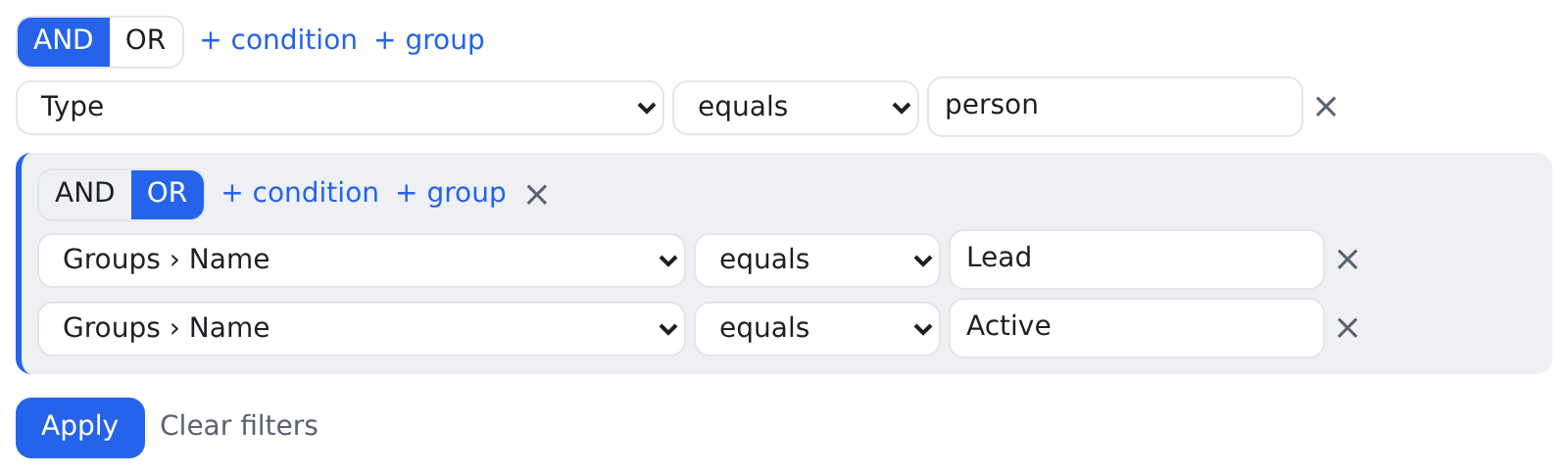
The top of every group has the same controls:
- AND / OR — the group's switch. AND: every condition in the group must match. OR: any one is enough.
- + condition — adds a condition row to this group.
- + group — adds a group inside this one. A nested group is indented with a coloured edge, starts on the opposite switch (an OR group inside an AND group), and has its own × to remove it.
Each condition row has three parts and a × to remove it:
- Column… — which field to test. The list holds every column of the list you can filter, the sub-fields of multi-entry fields (written with a
›), and a few fields that only exist for filtering (see below). - Operator… — how to test it. The list changes with the field's type (the table below).
- The value — what to compare with. It changes with the operator: one box, two boxes for between, none for is empty / is not empty / is true / is false, a dropdown for a field with a list of choices, a picker by name for a person, user or group.
Click Apply to run the filter. A row you left half-finished is dropped, and the list says so: "1 incomplete condition(s) were dropped." Clear filters removes your conditions — never the list's own built-in filter. After Apply the Filters button shows how many conditions are active.

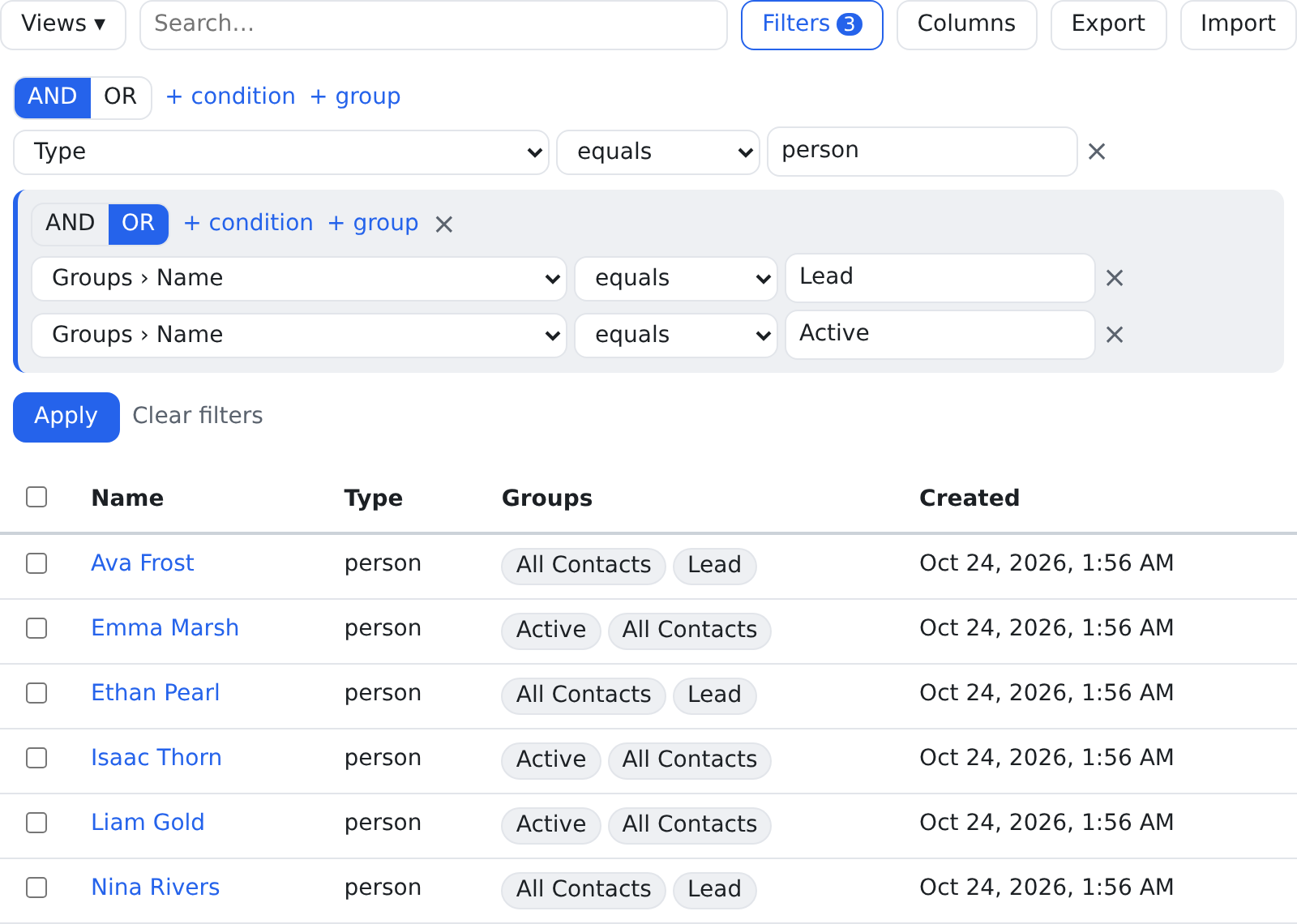
Worked example 1 — people in the Lead or Active group
The question: "people (not organisations) who are in the Lead group or the Active group".
- Click Filters. Leave the top group on AND.
- Click + condition. Column: Type. Operator: equals. Value:
person(the contact type's name exactly as the list shows it — equals is exact). - Click + group. The new group starts on OR — leave it.
- Inside the new group click + condition twice: Groups › Name equals
Lead, and Groups › Name equalsActive. - Click Apply.
Operators by field type
The operators are the same in every filter builder of the CRM: a list's Filters panel, a view's built-in filter (Views), a widget's Filter section and an alert rule. The builder offers each type exactly these, in this order (the first is the one most often wanted):
| Field type | Operators | The value |
|---|---|---|
| Text | contains, starts with, ends with, equals, not equals, is empty, is not empty | A text box. contains, starts with and ends with ignore upper and lower case; equals and not equals match exactly |
| Name (a record's own name) | contains, starts with, ends with, equals, not equals, is empty, is not empty | A text box, as for text |
| Number | equals, not equals, >, ≥, <, ≤, between, is empty, is not empty | A number; between takes two |
| Date, date and time | equals, not equals, >, ≥, <, ≤, between, is empty, is not empty | A date — or a number of days from today (below) |
| Yes / no | is true, is false, is empty, is not empty | None |
| Choice (one of a list) | equals, not equals, is one of, is none of, is empty, is not empty | A dropdown of the field's choices; is one of / is none of pick several |
| Choices (a list of several) | has, has any of, has none of, is empty, is not empty | The field's choices. There is no equals: a list holding several values never "equals" one |
| Person, user or group | equals, not equals, is one of, is none of, is empty, is not empty | A picker by name |
| Role | equals, not equals, is one of, is none of | A dropdown of the space's roles |
has means the list holds that value; has any of means it holds at least one of the values you pick; has none of means it holds none of them (a record with an empty list holds none).
AND, OR and groups
A group's switch decides how its rows combine, and a nested group counts as one row of its parent. That is how you say "this AND (that OR the other)": the parenthesis is a nested group. Groups can nest as deep as you need.
Dates: a fixed day, or relative to today
On a date field every value box has a Relative to today tick box. Leave it unticked and you pick a calendar day. Tick it and the box becomes a number of days — the words beside it change to days from today (negative = past): 0 is today, -30 is thirty days ago, 7 is a week from now.
A relative date is saved as "today minus 30 days", never as the day it happened to be when you saved it — so a saved view or a widget with "the last 30 days" is still the last 30 days next month. "Today" is the day in your space's time zone (the space's scheduling time zone setting; UTC when none is set). On a date-and-time field, equals a day matches the whole of that day.
Worked example 2 — contacts added in the last 30 days
- Click Filters, then + condition. Column: Created. Operator: between.
- Tick Relative to today under both boxes. Type
-30in the first and0in the second. - Click Apply.

Fields with a list of choices
A field whose values come from a list (a choice field, a role) shows a dropdown of its choices instead of a text box: type to narrow it, click to pick. With is one of or is none of the dropdown becomes a list where you pick several (hold Ctrl, or ⌘ on a Mac).
- A saved value that is no longer one of the choices is kept, and shown as Unknown value (…) so you can see it and change it.
- If the field's choices cannot be read, the builder keeps a text box and says so: "This field’s choices could not be read — type the value."
People, users and groups: pick by name
A field that points at a person, a user or a group gives you a picker by name — you never type an id. Type part of a name and pick the record. With is one of / is none of every pick becomes a small chip with its own ×.
- A saved record that cannot be found any more stays in the filter, shown as Unknown (…) with its id.
- If you may not browse that kind of record, the builder says so — "You may not browse group records here — type the id." — and gives you an id box.
The lists of contacts also offer Role (a dropdown of the space's roles) and Group (by id) (a picker of the space's groups by name). These two exist only for filtering: they are never a column of the list.
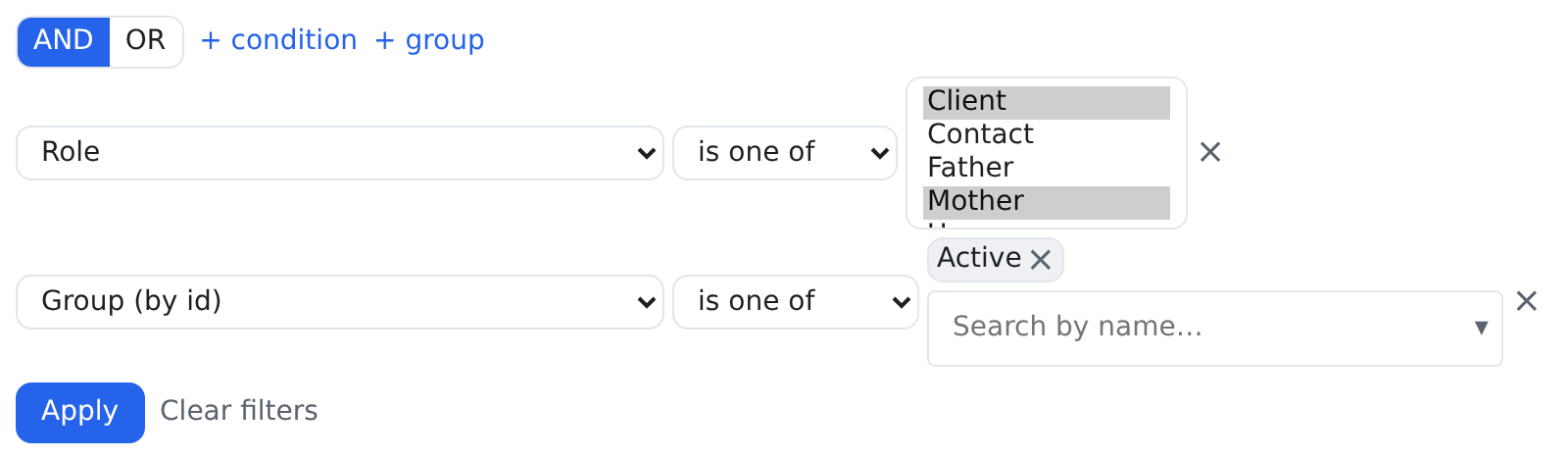
Worked example 3 — clients and mothers in the Active group
- + condition. Column: Role. Operator: is one of. Pick Client and Mother.
- + condition. Column: Group (by id). Operator: is one of. In the picker type
Actand pick Active — it becomes a chip. - Apply.
Phones, emails and other multi-entry fields
A contact can have several phones, emails, addresses and groups. In the Column… list their parts appear as sub-fields, written with a › — Phones › Phone, Phones › Label, Emails › Email, Addresses › City, Groups › Name. They are offered when the list has that column (the All Contacts list has Emails and Phones). A record matches when any one of its entries matches.
For the excluding operators it is the other way round: not equals and is none of on a multi-entry field match a record only when no entry matches. Group (by id) is none of Archived leaves out everyone in the Archived group, even though they are in other groups too (every contact is also in All Contacts). The same holds for Groups › Name not equals …, for the sub-fields of phones, emails and addresses, for Role (Role not equals Client leaves out every client, whatever other roles they hold) and for the sub-fields of a link column (Employee of › Name not equals Globex leaves out every employee of Globex, even one who is also an employee of another business). A record with no entries at all has none that match, so it stays in: Phones › Phone not equals 555-0100 keeps the contacts with no phone.
The has a row where lanes (below) are the exception: their words already say which row, so Phones › has a row where › Label not equals Office means "has some phone whose label is not Office". To leave out records that have a matching row there, use has no row where.
Worked example 4 — everyone outside the Archived group
The question: "every contact who is not in the Archived group".
- Click Filters, then + condition. Column: Group (by id). Operator: is none of.
- In the picker type
Archand pick Archived — it becomes a chip. - Click Apply. Every contact in Archived is left out, whatever other groups they are in.
Worked example 5 — every contact with a 555 number
- Column: Phones › Phone. Operator: contains. Value:
555.
Worked example 6 — everyone on an example.com address
- Column: Emails › Email. Operator: ends with. Value:
example.com.
"Has a row where" and "has no row where"
Some data lives in rows under a record — a contact's emails, phones, addresses, notes and activity, and any extension table with many rows per record. The Column… list offers each such table twice, with its own columns as sub-fields (each taking the operators of its type — Phones › has a row where › Primary takes is true / is false):
- Phones › has a row where › Label — the contact has at least one phone row whose label matches.
- Notes › has no row where › Note — the contact has no note row that matches.
These work even when the list does not show that table at all (a list without a Notes column can still find contacts with no note about a renewal). You see a table here only if you may see it, and only its columns you may see.
Worked example 7 — an office phone, and no note about a renewal
- + condition. Column: Phones › has a row where › Label. Operator: equals. Value:
Office. - + condition. Column: Notes › has no row where › Note. Operator: contains. Value:
renewal. - Apply.

Filters on a link's own data
A link column (a contact's links to other records, such as "Employee of") is filtered on the linked record's name: Employee of › Name contains Globex. When the link type carries its own fields — an extension attached to the link type, such as a status or a start date — those fields are sub-fields of the link column too: Employee of › Status equals Active. Each one takes the operators of its own type, its choices, its picker or its relative dates, exactly like a field of the record itself.
More recipes
| You want | Column | Operator | Value |
|---|---|---|---|
| Added this week | Created | ≥ | -7, Relative to today ticked |
| No phone at all | Phones › has no row where › Phone | is not empty | — |
| Organisations only | Type | equals | business |
| In the Archived group | Group (by id) | equals | pick Archived |
| Clients | Role | equals | Client |
For the curious: what a filter really is
Under the hood the builder makes a small structured object — the same thing saved views and widgets store. You never write it by hand, but seeing it explains the grouping. Worked example 1 is:
{
  "logic": "AND",
  "conditions": [
    { "column": "contact_type_name", "op": "eq", "value": "person" },
    { "logic": "OR", "conditions": [
      { "column": "groups.name", "op": "eq", "value": "Lead" },
      { "column": "groups.name", "op": "eq", "value": "Active" }
    ] }
  ]
}
Sub-fields use a dot — phones.phone, emails.email, groups.name — and a relative date is stored as a word for "today", never a frozen day:
{
  "logic": "AND",
  "conditions": [
    { "column": "phones.phone", "op": "contains", "value": "555" },
    { "column": "date_created", "op": "between", "value": ["$today-30", "$today"] }
  ]
}
Who may filter what
Filtering never shows you more than you may already see. The keys, as the CRM checks them:
- The list itself — you filter only a list you may read: a view needs its source's read key (for contacts,
crm.contacts.read). - "Has a row where" — a table appears only if you hold its view key (Notes:
crm.notes.read), and each of its columns only if you hold that column's view key. - Sensitive fields (such as a date of birth) are never offered for filtering, whoever you are.
- Pickers by name — browsing people needs
crm.contacts.read, groupscrm.groups.read, userssystem.users.view. Without the key you get the words and an id box. - Saving — saving a filter as your own view needs nothing more; saving it as a view for the whole space needs
crm.views.save_space; changing a view's built-in filter in Views needscrm.virtual_tables.write; a widget's filter is set in the widget builder, which needscrm.widgets.manage(see Widgets).
Rules worth knowing
- Built-in filters stay. A sidebar view has a built-in filter that is part of what it is. Your conditions stack on top, and Clear filters clears only yours.
- Search and filter combine. A record must match both when both are set.
- Filters are private. The list's share link carries only the page, the page size and the sort — never your filter or your search.
- Unknown columns are dropped, and you are told. If a saved filter names a column the list no longer has, that condition is dropped with a note.
- A widget never vanishes over a filter. If a widget's filter can no longer run, the widget says so in its frame, and saving a widget with a broken filter is refused with the reason.