Who Can See What
Every button you see, every list you can open, and every action you can take is controlled by permissions. This page explains the model in plain language — what a permission is, how permission groups work, why a space can cap what anyone can do inside it, and how to find out exactly why someone can or cannot do something.
The building blocks
- Permission — one very specific capability, like "read contacts", "delete contacts", or "export this table". Permissions are deliberately fine-grained so access can be tailored precisely.
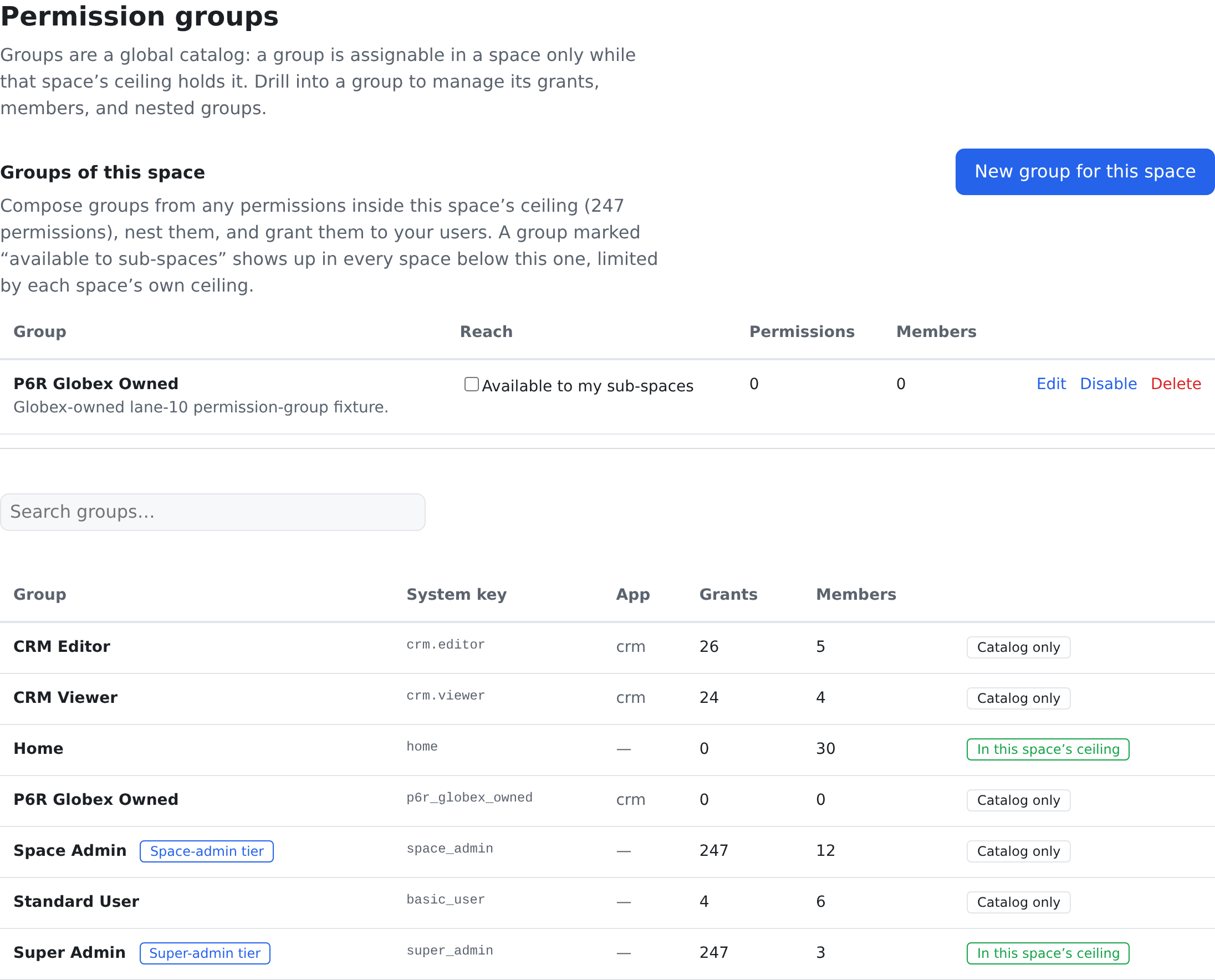
- Permission group — a named bundle of permissions, and possibly of other groups. Groups are the only way permissions are ever granted — never one key at a time to one person. Think of a group as a role: "Sales", "Read-only auditor", "Space admin".
- Space ceiling — each space (your team's workspace) is itself assigned groups, and together they form the maximum anyone can do in that space. If the ceiling does not include "delete contacts", then nobody who belongs to that space can delete contacts — not even a super admin. The one exception is a person linked in from a parent space, explained under People linked in from a parent space below.
which records you see (categories, pipelines); permission groups control which actions you
may take. The two are completely separate systems.
Roles that build on each other
Groups can contain groups, so roles extend naturally: a "Viewer" group might hold all the read permissions; "Editor" contains the Viewer group plus write permissions; "Manager" contains Editor plus approval rights. Grant a person the one role that fits, and it brings everything beneath it. A group can also carry deny entries — "everything in Editor, except deleting" is one small deny group away.
Two special flags exist for administrators: a space admin group automatically accumulates the permissions available in its own space, and a super admin group (held in the root space) reaches across every space. Neither flag bypasses the rules below.
How your effective permissions are calculated
For any user, in any space, the system resolves four sets and combines them — the same way for everyone, with no special cases:
- Your allows — every permission reached through the groups you hold.
- Your denies — every permission any of your groups explicitly denies.
- The space's allows — everything the space's assigned groups permit (the ceiling).
- The space's denies — anything the space explicitly denies, carved out of the ceiling.
The formula, in one line:
effective = (your allows − your denies) ∩ (space allows − space denies)In words: take what your groups grant, remove anything you are denied, then keep only what the space itself allows (minus anything the space denies). You end up with the overlap of the two — what both you and the space agree you may do.
Three rules fall out of this, in strict order:
| Rule | Meaning |
|---|---|
| Deny always wins | If any group you hold — or the space — denies a permission, you do not have it. Nothing overrides a deny, not even super admin. |
| The ceiling binds everyone but a linked-in visitor | If the space's ceiling lacks a permission, no one who belongs to the space has it there. A super admin "has everything" only in spaces whose ceiling is everything. The one exception is a person linked in from a parent space (next section): their home rights ride above the ceiling, unless they tick Bind to this space's ceiling in the top bar or the space forces that view. |
| Otherwise, allowed is allowed | A permission granted by your groups, not denied anywhere, and inside the ceiling, works. |
Worked example. Dana holds "CRM Editor" (which allows contact delete) plus a "No Purge" group that denies purging. In a space whose ceiling includes delete, Dana can delete contacts but never purge (her deny wins). In a second space whose ceiling has only read and write, Dana can only read and write — her editor grants are clipped by that space's ceiling.
People linked in from a parent space
A person can work in more than one space with one login. When an administrator links somebody from a parent space into a space below it (Link user… on the Spaces screen — see Users & Spaces), that person keeps their home rights there: what their groups grant in their home space applies in the space below too, even where it reaches above that space's ceiling. Authority flows downward, so a parent-space administrator can look after a child space without the child having to grant it first.
Three things still hold:
- A deny here still wins. A deny on a group they hold in this space, or on the space itself, removes the permission even when their home rights would bring it.
- Only a parent counts. Somebody linked in from a space that is not above this one — a sibling — is a local link: only what this space grants applies, and their home rights do not.
- They can choose the members' view. The bar at the top of the screen says who they are acting as (Acting as … in … · linked to …), and for a person from a parent space it carries a checkbox, Bind to this space's ceiling. Ticked, they see exactly what a member of the space sees.
The space picker says which of these you would be before you switch: home space, linked — your home rights apply (with how many of them sit above that space's ceiling), linked — bound to the ceiling by default, linked — members-only view (this space forces bind-to-ceiling), or local link — only this space's grants.
Two settings on the System settings page, under Users & access, shape this for a space. auth.bind_ceiling_default decides whether the checkbox starts ticked after a switch. auth.bind_ceiling_force makes every visitor from a parent space see the members-only view and locks the checkbox — except for people who hold Override a forced ceiling bind, which super admins hold by default.
To see this for yourself, open Groups & rights from the user menu: it shows who you are acting as, what your groups grant here, what your home account carries over, and why a control may be locked. For somebody else, the Groups dialog on the Users screen shows the same split — From the home space's name (carried over, above this ceiling) and Granted here.
The Permission Tester: find out why
Administrators do not have to reason through this by hand. The Permission Tester takes a Space, a User and, optionally, one or more permissions, and runs the production check:
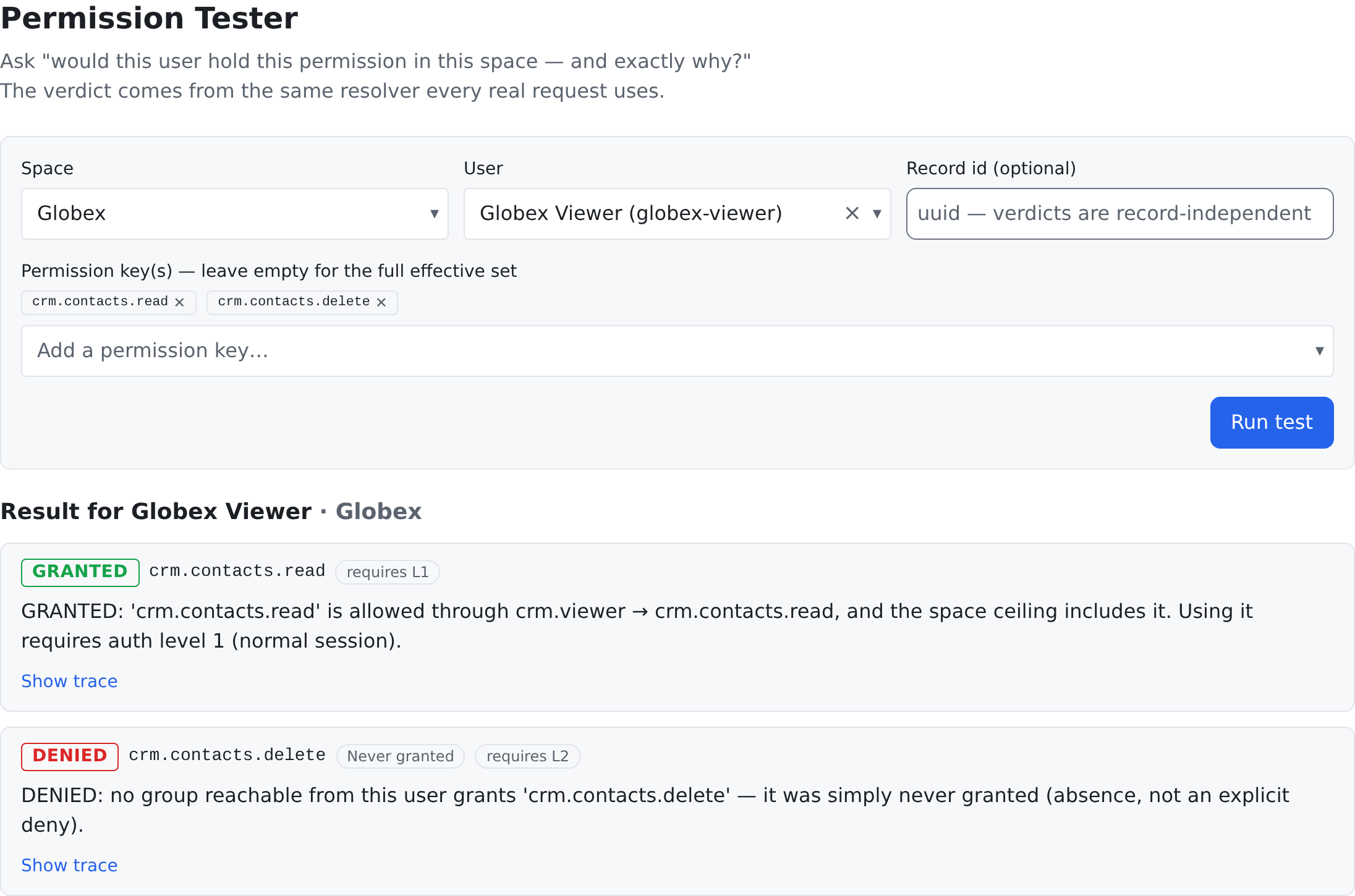
Each permission you named gets a card that says GRANTED or DENIED, how strong a sign-in it needs (requires L1, L2 or L3), and one sentence saying why:
- GRANTED — names the group chain it flowed through (for example Sales → Editor). For a person linked in from a space above, a From their home space chip marks a right that comes from their home space, and the sentence names that space, because those rights ride above this space's ceiling.
- DENIED, marked A deny wins — some group in the tree denies it, and the sentence names the deny path.
- DENIED, marked Above this space's ceiling — the user's groups allow it, but this space's ceiling does not include it. For a linked-in person this also means their home space does not grant it, or that they are bound to the ceiling.
- DENIED, marked Never granted — no group the user holds reaches the permission at all.
Show trace opens the detail: Where the key was found (the user's allows and denies, the ceiling's allows and denies) and the Group paths that reach it. Leave the permissions empty and the tester lists the user's whole set of Effective permissions in that space instead, each with its Auth level.
its answer is always the real answer — it is a window into the engine, not a simulation. For a
person linked in from a parent space, their Groups dialog on the Users screen also shows which
permissions they carry over.
group tree, or a space ceiling that never included the permission. The tester tells you which in
one click. For how permissions interact with extension fields and record types, see
Roles & Extension Fields.
Where to find it
| Screen | Where it lives | What it is for |
|---|---|---|
Permission groups — /admin/groups | Settings → Workspace & access → Permission groups | compose groups, nest them, grant them |
Permission Tester — /admin/permission-test | Settings → Workspace & access → Permission Tester | the "would this user hold this permission, and why" verdict above |
Elevation Rules — /admin/elevation | Settings → Workspace & access → Elevation Rules | which actions ask for the password again |
Who can do what on these three screens:
| What | Permission |
|---|---|
| Open Permission groups | system.permission_groups.read |
| Create or edit the groups of this space (New group for this space) | system.permission_groups.compose |
| Change what a group grants | system.permission_groups.items |
| Add or remove a group's members | system.permission_groups.members |
| Nest one group inside another | system.permission_groups.nest |
| Create a catalogue group (New group), or rename, enable, disable or delete one | system.permission_groups.lifecycle |
| Open and run the Permission Tester | crm.admin.permission_test.view |
| Open Elevation rules | crm.settings.read — the same permission that opens System settings |
| Change elevation rules for the space | crm.settings.manage; saving them for everyone (Global) also needs system.scope.global_write |
Every permission that changes a group is a level-2 action: you are asked for your password first.
Composing groups
Groups are a global catalogue, and a group is assignable in a space only while that space's ceiling holds it. Inside the ceiling you can compose a group from any permissions it admits, nest groups inside one another, and grant them to your users. The page tells you how many permissions this space's ceiling admits, so you always know what you are composing from.
In the group form each permission is — (not in the group), Add, or Restrict. Restrict removes a permission that a nested group would otherwise bring — a restriction never adds anything; it is the deny described above, and a group carrying them is listed as Restricts and a count.
A group marked Available to my sub-spaces shows up in every space below this one — still limited by each of those spaces' own ceilings. In a space below, such a group reads Inherited from the space that made it, and is edited there. A permission declared for a door that has not been built yet is labelled not active yet rather than quietly offered. A group that an app declares cannot be edited here at all — its permissions are put back every time the system starts — so make a variant group instead.
Opening a group shows two more choices that decide what its members see:
- Rows these permissions show. Some read permissions can show either Every row in the space or Only their own rows — the rows the person is part of. The group has to say which it means for each of them; until it does, the row reads Not said yet, its members see only their own rows, and the conformance check reports it.
- Guest shares this group can see — which guest shares its members may list. See Guest Access.
The ceiling itself is set from a space's parent, and never by the space itself — see Users & Spaces.
Elevation rules
Elevation is the second password prompt you meet before a sensitive write. The rules page decides which actions ask for it, and it states the boundary in one line: reads never prompt; only writes can. So no rule here can turn looking at something into a password prompt. Each action is listed with its Default: prompts or Default: no prompt, and you set Always prompt or Never prompt for the space, or for everyone with Global; Clear this layer’s overrides goes back to the defaults.
A few platform-wide screens are the exception to "reads never prompt": opening Inter-app data grants, Maintenance or Conformance asks for your password, because the permission that opens each of them is itself a level-2 permission. That is set on the permission, not on this page.