Working with Lists
Every list of records in the app works the same way: Contacts, every list you open from the sidebar, and every list a designer has built as a view. They share one table with one set of tools, so once you know one list you know them all.
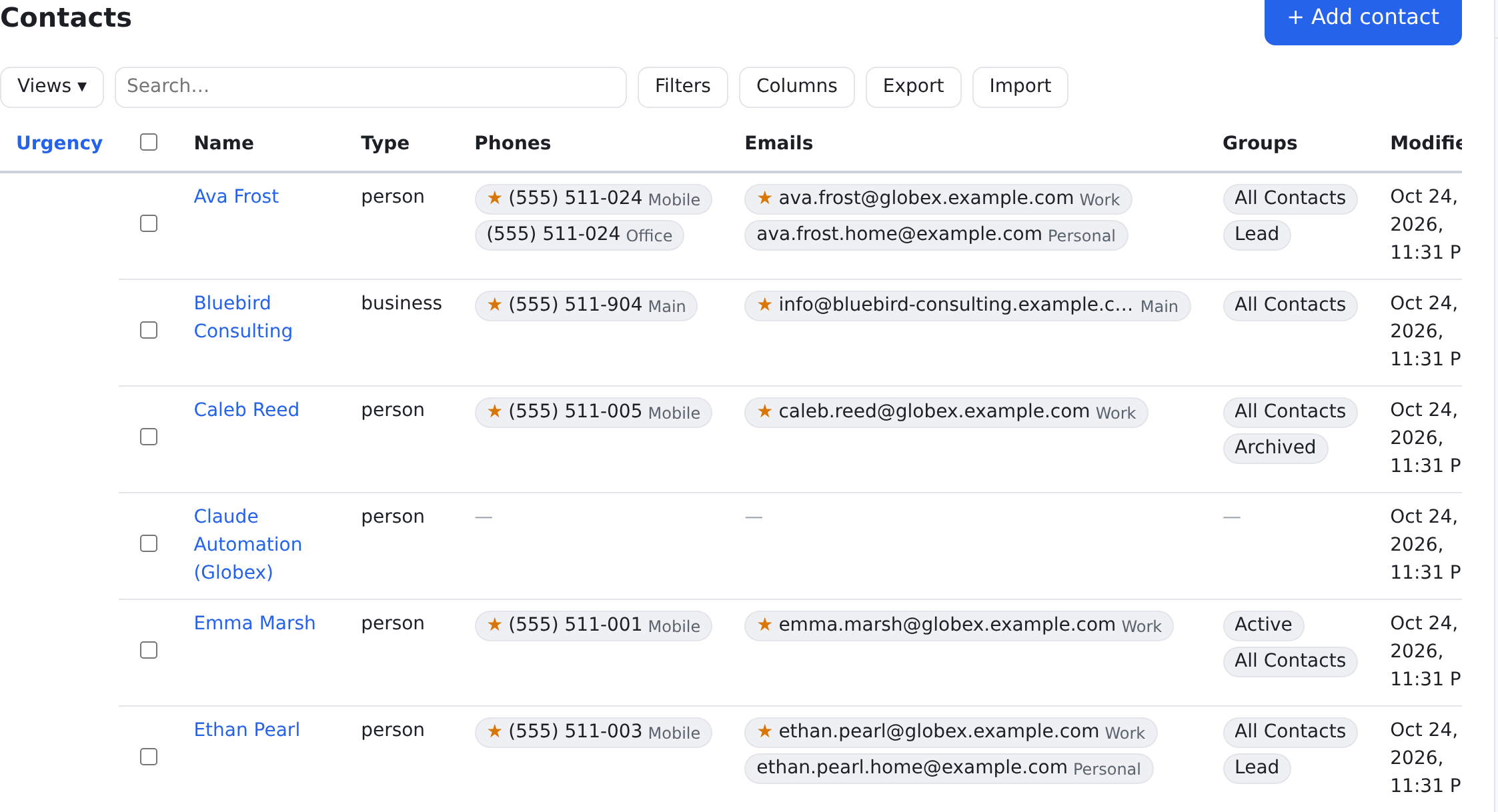
The toolbar at a glance
| Control | What it does |
|---|---|
| Views ▾ | Opens your saved views: load one, save the list as it is now, or pick a default. Once a view is loaded, the button shows its name. |
| Search… | Quick search. Type and the list narrows after a short pause. On a contact list it looks in the name, first name, last name, e-mail addresses and phone numbers. |
| Filters | Opens the filter builder. A number on the button counts your conditions. See Filtering & Searching. |
| Columns | Show, hide and reorder columns. |
| Export | Download the list as a file. It shows only if you may export this list. |
| Import | Opens the import wizard with this list's table already chosen. It shows only if you may import. See Importing & Exporting. |
| + Add contact | On a contact list: opens the Add contact window on top of the list. |
| Share (under the list) | Copies a full link to this list, with its page, page size and sort. |
On a contact list, people who may see alerts also get an Urgency column at the start of each row. Its header sorts the rows on the page, most urgent first. See Alerts.
Lists from the sidebar
A list you open from the sidebar is a view: a table someone designed, with its own columns, sort and filter (see Designing Table Views). The list's title is the name the sidebar gives it.
A view's own filter is what makes it that list, so you cannot see it or remove it. Filters you add yourself narrow the view further, and Clear filters in the filter builder clears only yours.
Sorting
Click a column header to sort by it: once for ascending (▲), again for descending (▼), and a third time to stop sorting by it. Hold Shift while you click to add a second column to the sort and keep the first. A column that cannot be sorted ignores the click.
Choosing columns
- Click Columns.
- Tick a column to show it, or untick it to hide it. One column always stays: the last visible column cannot be hidden.
- To change the order, click Reorder, drag the columns into place (or move them with the keyboard), then click Done.
- Reset to default brings back the list's own columns and widths.
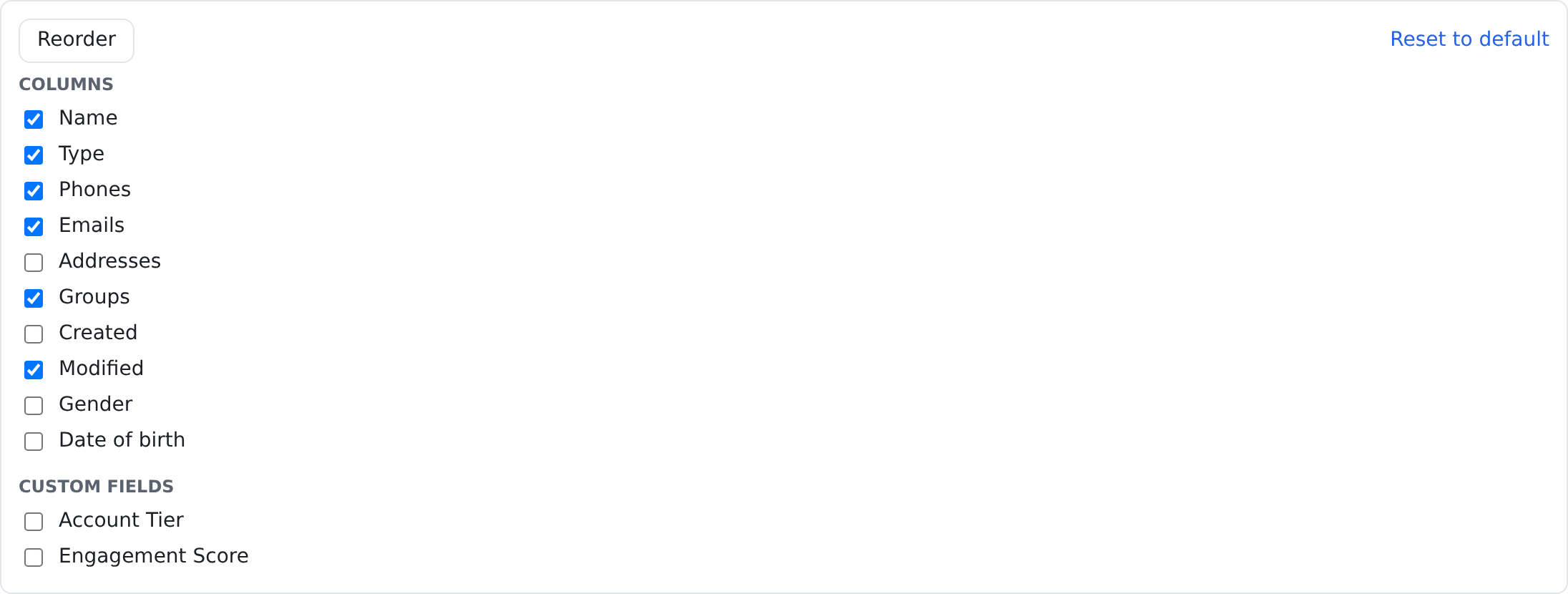
The picker has two parts: Columns, the list's own, and Custom fields, the extra fields your space has added. A column marked (export only) cannot be ticked here: it never shows in the table, but you can include it in an export.
To change a column's width, drag the right edge of its header. Your columns, their order and their widths are saved to your account, so the list looks the same the next time you open it, on any computer.
Paging
The bar under the list shows which records you are looking at, such as "1–50 of 120". Next to it you can choose how many rows a page shows (10, 25, 50 or 100), move between pages, or type a number into Go to page. Unless your space says otherwise, a list shows 50 rows per page.
When you change the page size, the list keeps the first record you were looking at on screen, so you are not sent back to page 1.
Share copies a full link to this list, with the page you are on, the page size and the sort, so a colleague can paste it into a browser and open the list at the same place. The app says Link copied to clipboard. Your filters and your search are never copied into the link.
Saved views
A saved view keeps a list's filters, sort and columns under a name, so you can come back to them with one click. A saved view does not keep your search or the page you were on.
- Set up the list the way you want it.
- Click Views ▾, type a name into View name…, and click Save current view.
- If you may share views with your space, choose Only me or Whole space before you save.
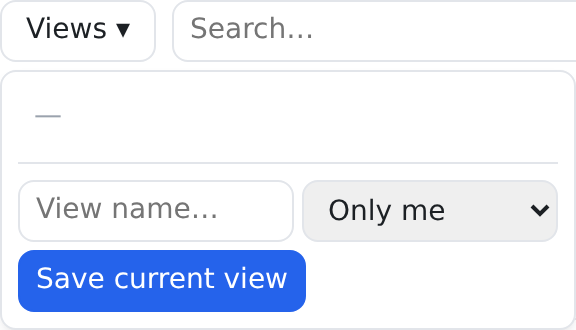
In the list of views:
- Click a name to load that view.
- ★ makes a view the default, so the list opens with it. Your own default wins over the space's default.
- × removes a view, after you confirm.
- Your own views always show ★ and ×. A view shared with the space shows them only if you may save views for the whole space.
- If a change to a view is refused, the reason shows in the Views panel, for example That view could not be changed.
- A view shared with the space is marked space, and the default is marked default.
When you change the filters, sort or columns after loading a view, an asterisk appears after its name. Click Update view to save the changes into that view, or save them as a new view under a new name.
Selecting rows and changing them all at once
Tick the box at the start of a row to select it. The box in the header selects every row on the page. When every row on the page is ticked and more records match, a link offers to Select all … records matching the filter.
As soon as something is selected, the bulk edit bar appears above the list:
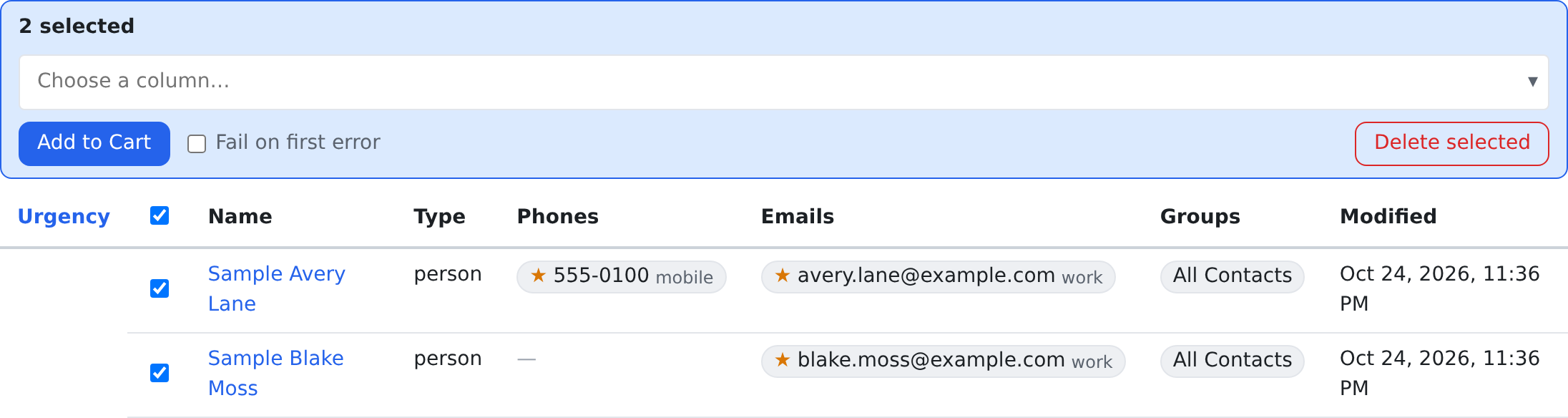
- Pick the column to change in the box that reads Choose a column…. Only columns you may edit in place are offered.
- Pick what to do. A single value is Set to a new value. For a column with several values per record you can Add value to all, Remove value from all, or Change A→B.
- Type or pick the value, then click Add to Cart.
Delete selected shows only if you may delete records. It also goes into the cart: nothing is deleted until you save.
A bulk change made after Select all applies to every record the filter matches, not only the page you can see. One such change may touch at most 1,000 records unless your space allows more. Above that, the save is refused with a message that says how many records matched, so narrow the filter and try again. Changing the filter clears a Select all selection.
Fail on first error decides what happens when one record in this bulk change cannot be saved. Unticked, each record is saved on its own, so one that fails does not stop the others. Ticked, the first failure stops the change and none of it is saved. When some records were saved and some were not, the message counts both ("1 saved · 1 failed"), and what failed stays in the cart with its reason. A change made after Select all stays as one entry that says how many records were not saved and why, such as "2 of 40 records were not saved: …". The box starts ticked or unticked as your settings say; you or your space can change that.
Nothing is saved until you save the cart. Adding & Editing Records explains how the cart works.
Editing in the list
Some cells can be changed right in the list. A cell you may change shows a pointer when you hover over it. Click it, type or pick the new value, and press Enter (or click away). Esc puts the old value back. On a contact list these are the custom fields; the name opens the contact's page instead.
A changed cell shows its new value with a coloured marker, and the change waits in the edit cart. The edit cart explains how to save it.
Exporting
- Click Export (it shows only if you may export).
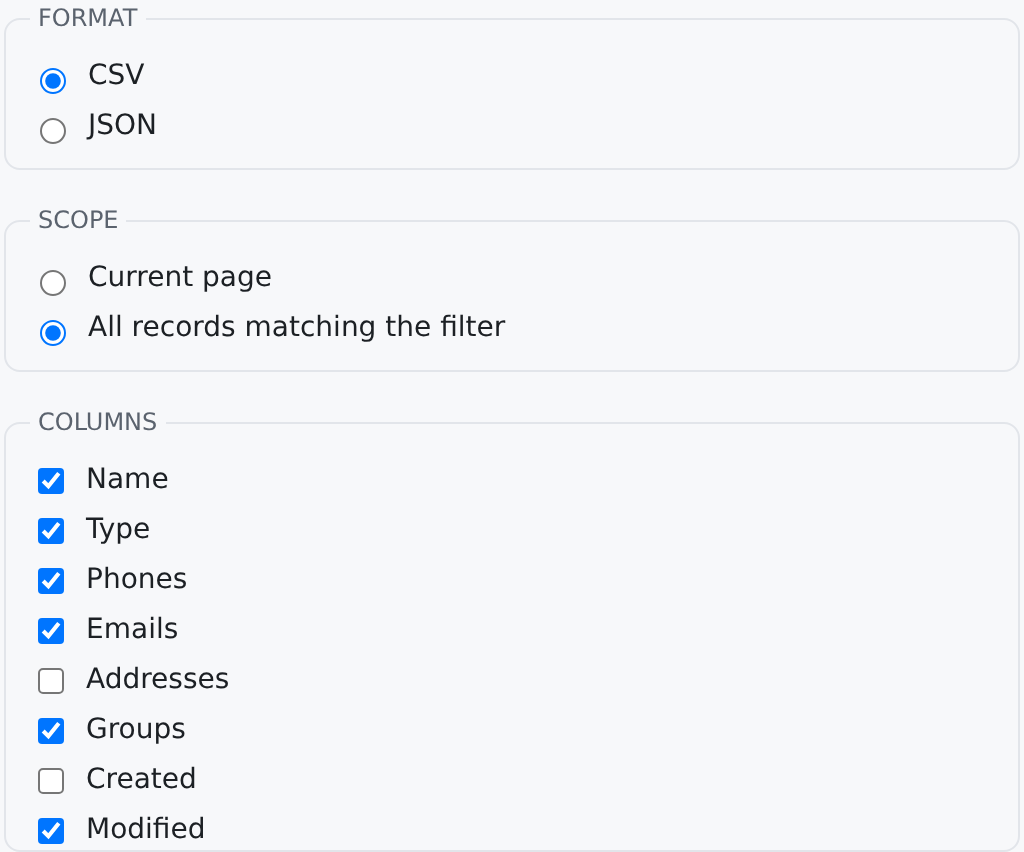
- Choose the Format (CSV or JSON) and the Scope: Current page, or All records matching the filter.
- Under Columns, untick what you do not want. The columns you can see are ticked to begin with, and columns marked (export only) can be added.
- Click Export. A bar shows while the file is made, and then it downloads.
When someone else changes the list
The list keeps itself up to date while you look at it, without moving rows under your hands:
- A row someone else changed gets an Updated — refresh button at its end. Click it to reload that row. Your own changes never mark a row.
- A row someone else deleted is marked deleted. It stays on screen until the list reloads.
- When records are added, or the list changed in another way, a line above the table says "1 new record available" (or "This list changed elsewhere") with a Refresh button. The list reloads only when you click it.
If your connection drops and comes back, the list reloads itself once, so you do not miss what changed in between.
Who can do what
On a contact list these permissions decide which tools you see:
| To do this | You need |
|---|---|
| See the list | crm.contacts.read |
| Add a contact, edit cells, use the bulk edit bar | crm.contacts.write |
| Delete selected records | crm.contacts.delete |
| Export | crm.contacts.export |
| Import | crm.contacts.import |
| Save a view for the whole space | crm.views.save_space |
Anyone who can see a list can save views for themselves. See Who Can See What.
Related pages
- Filtering & Searching: the filter builder in depth, with worked examples.
- Adding & Editing Records: the edit cart, record pages and conflicts.
- Designing Table Views: the designed lists the sidebar opens.
- Importing & Exporting: bringing data in from files.