Billing & Plans
Your space runs on a plan that defines what is included — users, storage, workflow runs, and other metered resources — and what happens when you reach a limit. This page explains how to read your usage, what the plan types mean, and where invoices live.
The Billing page has up to six tabs, each shown only to those with its permission: Usage, Plans, Subscriptions, Invoices, Account and Commission. If you resell to spaces below yours, a space picker at the top switches between This space and the spaces you administer.
Plan types
| Plan type | How it works | Example |
|---|---|---|
| Fixed (fixed) | Hard limits, no overage charges — when a quota is used up, the action is blocked until the next period or an upgrade. | "Pro: 50 users, 100 GB, no overage" |
| Hybrid (hybrid) | A quota is included; going over is allowed and billed at a per-unit overage rate. | "Team: 10 GB included, then $0.10 per GB" |
| Pay as you go (payg) | Nothing included; every metered unit is billed. | "API plan: per-request pricing" |
fee — its fixed caps simply apply. Paid plans can also start with Trial days, during which no
base fee accrues.
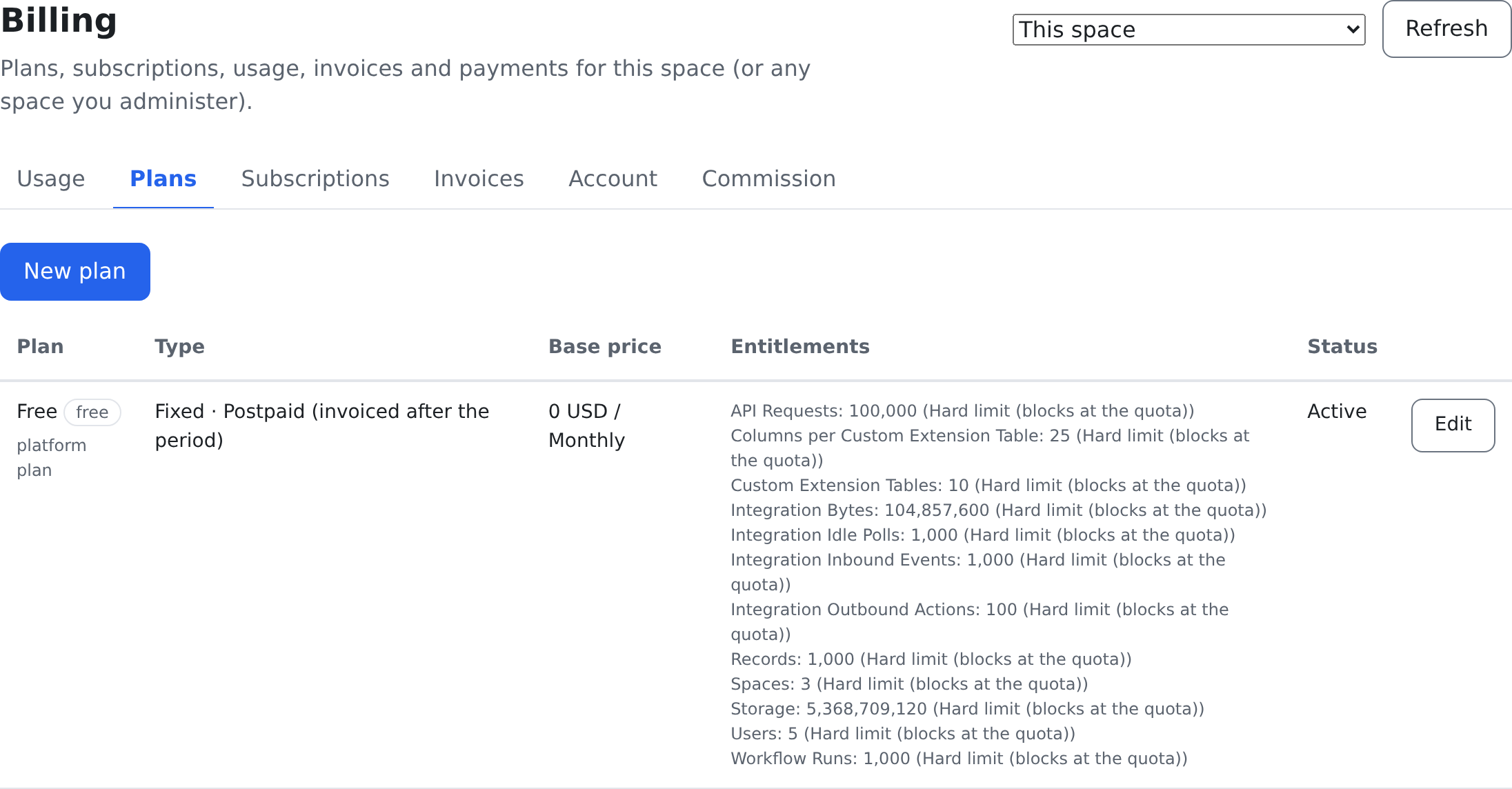
The Plans tab lists the plans visible in your scope — each a platform plan or a reseller plan — with its Type, Base price, Entitlements and Status. New plan and Edit open the plan form: its name, type, billing mode, base price, Period (monthly, annual or a custom interval), status, and its Entitlements — for each meter, the included quota, the overage rate and whether the limit is hard or soft.
Usage
The Usage tab shows each metered resource for the Current period: the Meter, how much is Used, how much is Included, its Enforcement (hard or soft) and the Usage as a percentage. A meter your plan does not limit reads No limit under Included. The period shows as the days it covers, in your space's time zone, such as "Oct 1, 2026 – Oct 31, 2026"; the Subscriptions and Invoices tabs show their periods the same way.
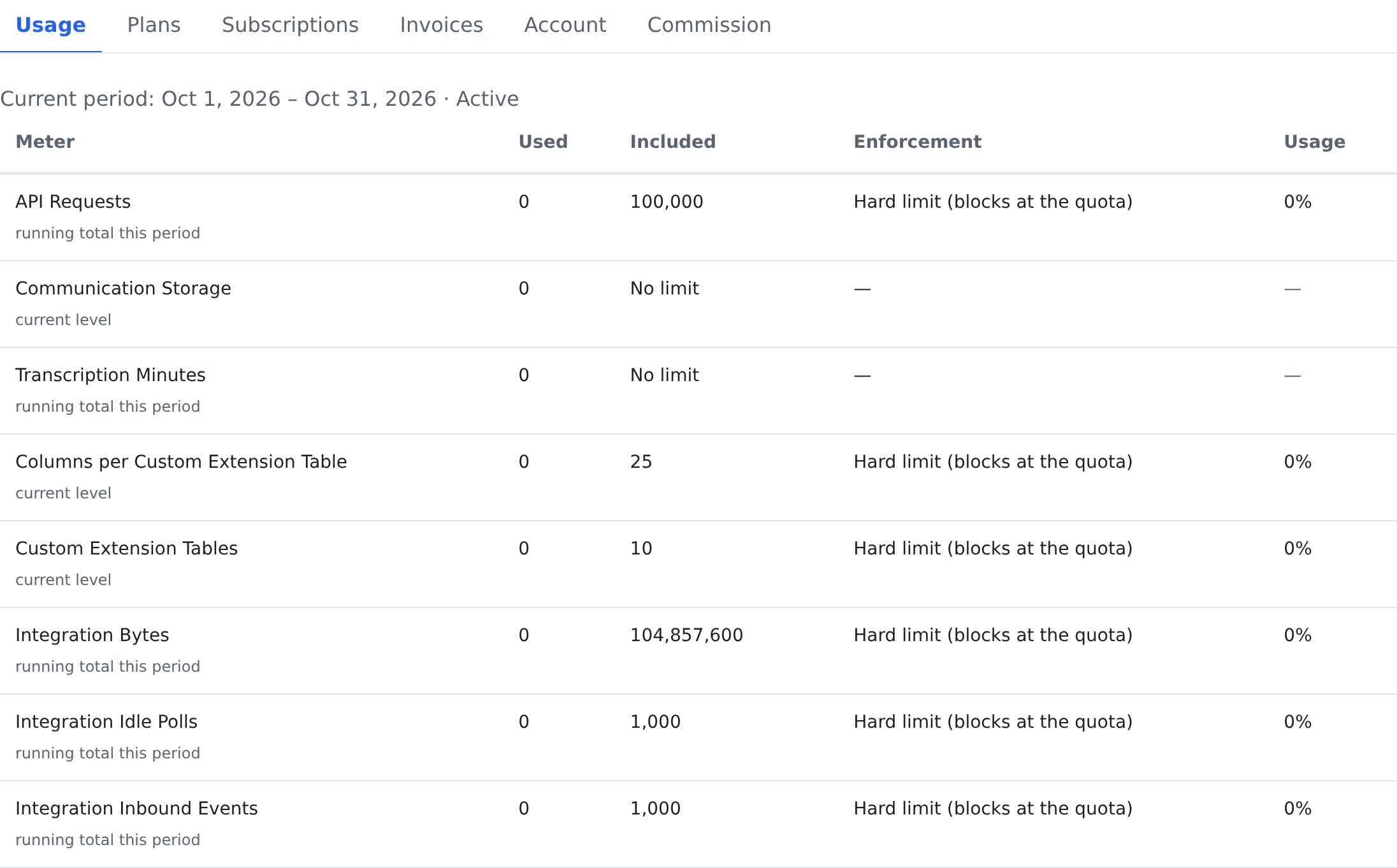
Typical meters include the number of records, file storage, workflow runs (including their time and memory weighting), workflow test runs, and API requests. Usage counts within a billing period — monthly by default — and the window rolls forward automatically at each period close.
What happens at a limit
- On a hard limit, the action that would exceed it is blocked with a clear message naming the limit you hit and, where possible, how far over you are. Existing data is never touched — you just cannot add more until the period rolls, an administrator raises the plan, or you free up usage.
- On a soft limit, the action proceeds and the overage is metered for the invoice.
exhausted. Administrators can also see limits reflected in the settings screens, since plan
entitlements feed the same settings your space runs on. See Settings.
Subscriptions
The Subscriptions tab shows the space's subscriptions with their plan, period and the space that pays. Assign a subscription adds one; Pause, Resume and Cancel change it.
Prepaid and postpaid accounts
Depending on how your account is set up:
- Prepay — usage and fees draw down a credit balance you top up in advance. When credits run out, prepaid resources are blocked until a top-up.
- Postpay — usage accrues during the period and is invoiced in arrears at period close.
The Account tab shows the billing account's Balance and Credits. A space with no billing account yet says so, and Create account makes one.
Invoices and payments
The Invoices tab lists every invoice for your billing account with its Period, Kind, Total and when it is Due. View opens its line items: base fees, overage, and adjustments.
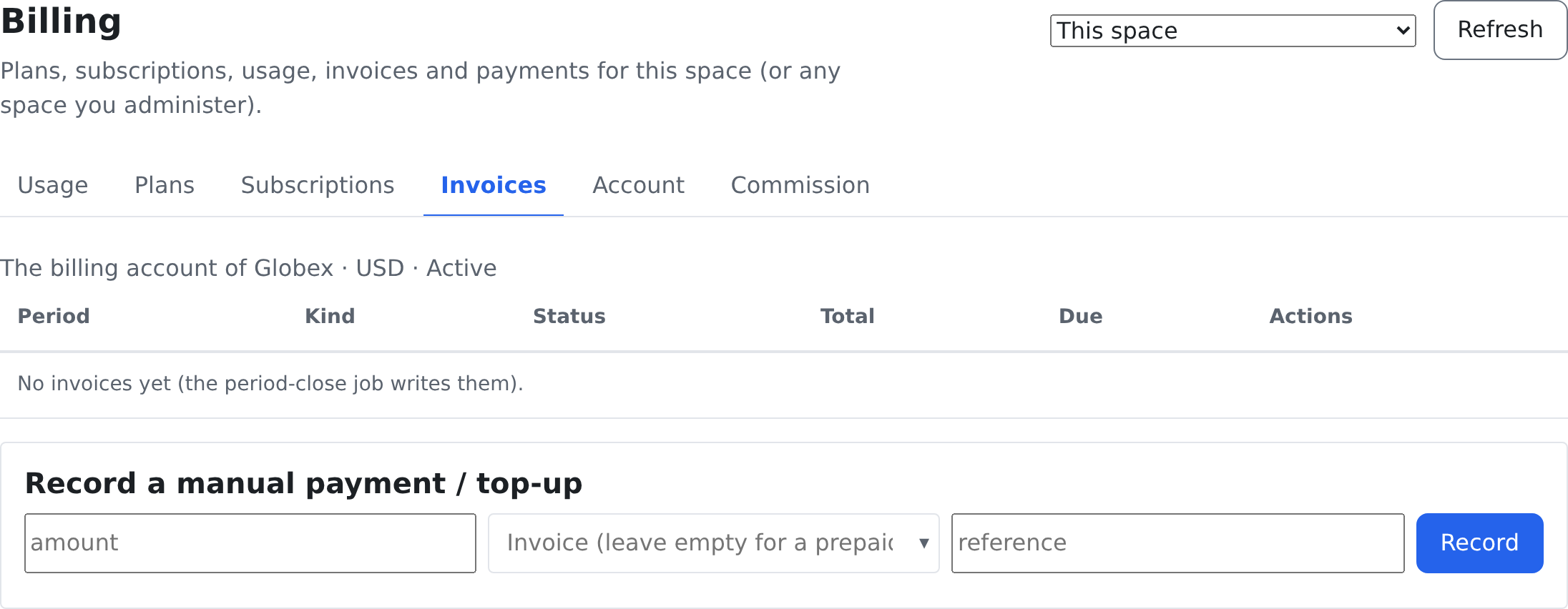
Invoices are generated automatically at each period close; until then the tab says No invoices yet. Someone allowed to manage invoices can Issue or Void one, Get pay link to send the payer an online payment link through a connected payment provider, and Record a manual payment / top-up (for example after a bank transfer). A payment clears the account balance; a top-up with no invoice adds prepay credits.
administrators need specific billing permissions to view usage, manage plans, or record
payments. See Who Can See What.
Where to find it
| Screen | Where it lives | What it is for |
|---|---|---|
Billing — /admin/billing | Settings → System → Billing | plans, subscriptions, usage, invoices, payments and commission |
Who can do this
| To do this | You need |
|---|---|
| Open the page and see usage | billing.usage.view |
| Make and change plans | billing.plans.manage |
| Assign, pause, resume and cancel subscriptions | billing.subscriptions.manage |
| See invoices | billing.invoices.view |
| Issue and void invoices, get pay links, record payments | billing.invoices.manage |
| Edit the billing account, credits and balance | billing.account.manage |
| See commission | billing.commission.view |
| Cash commission out to credits | billing.commission.cashout |
| Grant and revoke reseller rights | billing.reseller.manage |
Every key that changes something asks for your password. You can open the page for this space, or — as a reseller — for any space you administer.
Reselling: when your account sells to the spaces below it
A space can be granted the right to resell the platform to the spaces beneath it. That grant is made from an administering ancestor space — on the space's own row under Users & Spaces → Grant reseller rights… — and never by the space itself.
What a reseller grant says
| Setting | What it means |
|---|---|
| Billing mode | billed by parent — your account pays the sub-space's invoices and you earn commission — or self-pay, where the sub-space pays its own invoices and no commission accrues |
| Commission / discount % | the share you earn, or the discount you receive |
| Markup rights | whether you may set price overrides for your own sub-spaces |
| May grant reseller rights onward | whether you may resell the right to resell |
| Sub-resell depth budget | how many levels deep that may go |
| Note | kept for the audit trail only |
Revoking a grant is honest about what survives it: accrued commission is kept, and grants you made further down fail their next depth check. Revoking does not reach in and delete money already earned.
The plan catalogue a space sees
Every space sees a catalogue, and it is composed rather than configured: the public platform plans, plus plans owned by its ancestors, minus anything hidden along the chain, at the folded effective price.
Price overrides fold along the chain too:
- a flat override replaces the inherited price — the nearest one along the chain wins;
- a percent override composes on top of what it inherited;
- prices never fold below zero.
The saved row is re-folded by the server, so the panel refreshes with the real effective price rather than your arithmetic.
touches a live subscription: a space already subscribed to a plan you hide keeps its subscription
and keeps being billed. Hiding changes what can be picked from now on.
A space's own catalogue overrides and its reseller grant are set from an administering ancestor, so on its own page they are read-only.
Commission
Commission accrues when a sub-space you resell is invoiced, and it has three states:
| State | What it means |
|---|---|
| Pending (invoice unpaid) | earned, but the source invoice has not been paid |
| Cashable | the source invoice is paid |
| Cashed out | moved into this account's prepay credits |
Cash out to credits moves the whole cashable balance into credits. If your cashable commission spans more than one currency the server refuses the cashout rather than converting anything — there is no exchange rate anywhere in this.
A space with nothing yet says so: no commission for this space yet — commission accrues when a sub-space you resell is invoiced.
Seats
A space's drawer, on its Seats tab, shows Plan seats included against Users in this space, as a gauge. When the space's plan limits its users, adding a user beyond the seats included is refused on a hard limit, and let in and billed as overage on a soft one. A plan that does not limit users never refuses one.