Integrations
Connect the CRM to the other software you use — accounting, payments, help desk, email, SMS, and phone systems — so records flow both ways without copy-paste. Each connection is set up once, monitored continuously, and can be paused or removed at any time.
The page has up to three tabs: Connections, Providers and, if you may resolve sync conflicts, Review queue.
Connections
The Connections tab lists this space's connections with their Connection name, Provider, Status, Health and External account. Filter by Status and press Refresh to re-read the list. Details on a row shows the connection's settings and its Health panel.
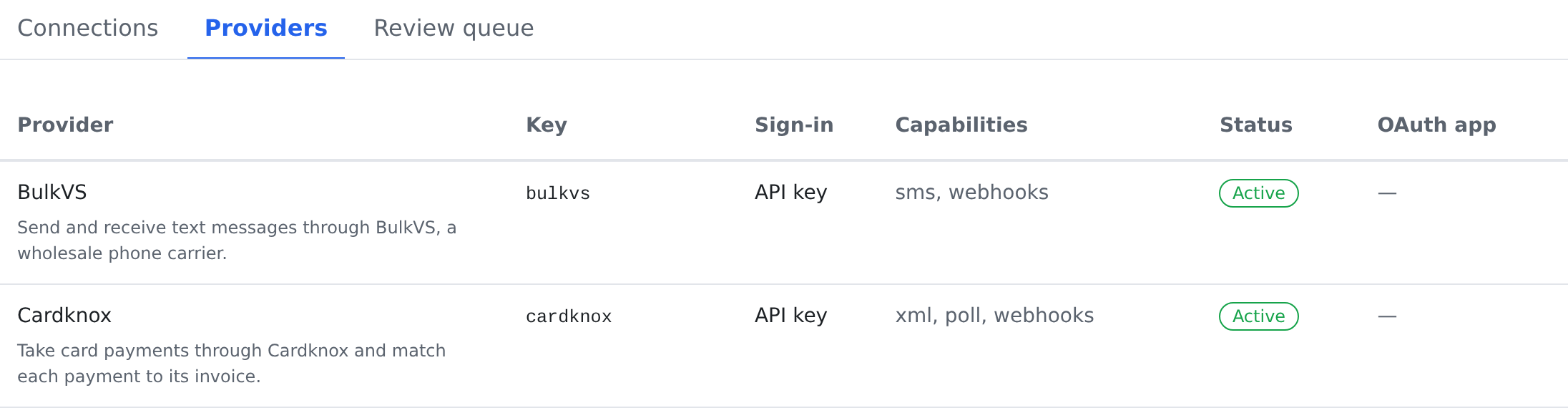
Connecting a provider
- Click Connect a provider.
- Pick the Provider, and give the connection a Name (optional) — useful when you connect more than one account of the same provider. Region-aware providers also ask for a Region.
- Sign in, in the way the provider uses:
- OAuth sign-in — you are sent to the provider's own sign-in page to approve access, then brought back here. Your password for that system is never seen or stored by the CRM. - API key — paste the key from the provider's dashboard and choose How the key is sent. The key is encrypted the moment it is saved and can never be read back, only replaced. It is checked against the provider before the connection is created; a key the provider rejects creates nothing. - Inbound only — the provider only sends data in, so there is nothing to sign in to.
- Press Connect. The provider's install run sets the connection up, and the connection appears in the list when it finishes. If anything is wrong, you get a clear message instead of a connection that pretends to work.
An OAuth provider needs an app registration before anyone can connect. The platform supplies one; on the Providers tab, OAuth setup lets a space use its own app instead.
so changes made in the other system arrive here automatically. The URL contains a secret, so it is
never shown on the page; Rotate webhook URL issues a new one and shows it once — copy it
and give it to the provider, because the old URL stops working at once.
New webhook source registers a tool that only posts events in (an automation service, a shop, an ordering app). It gets one inbound address, and you can capture test events to see what it sends before you build a workflow around it.
Connection states
| State | Meaning | What to do |
|---|---|---|
| Active | Working. | Nothing — it just works. |
| Needs re-authorization | The provider's access could not be renewed (some providers expire it periodically). | Connect again; for a key-based provider, Replace key. |
| Disabled | Paused; nothing flows, but nothing is lost. | Enable when ready — no need to reconnect. |
| Error | Setup or checks are failing. | Read the message in the connection's Details, fix the cause, and run a health check. |
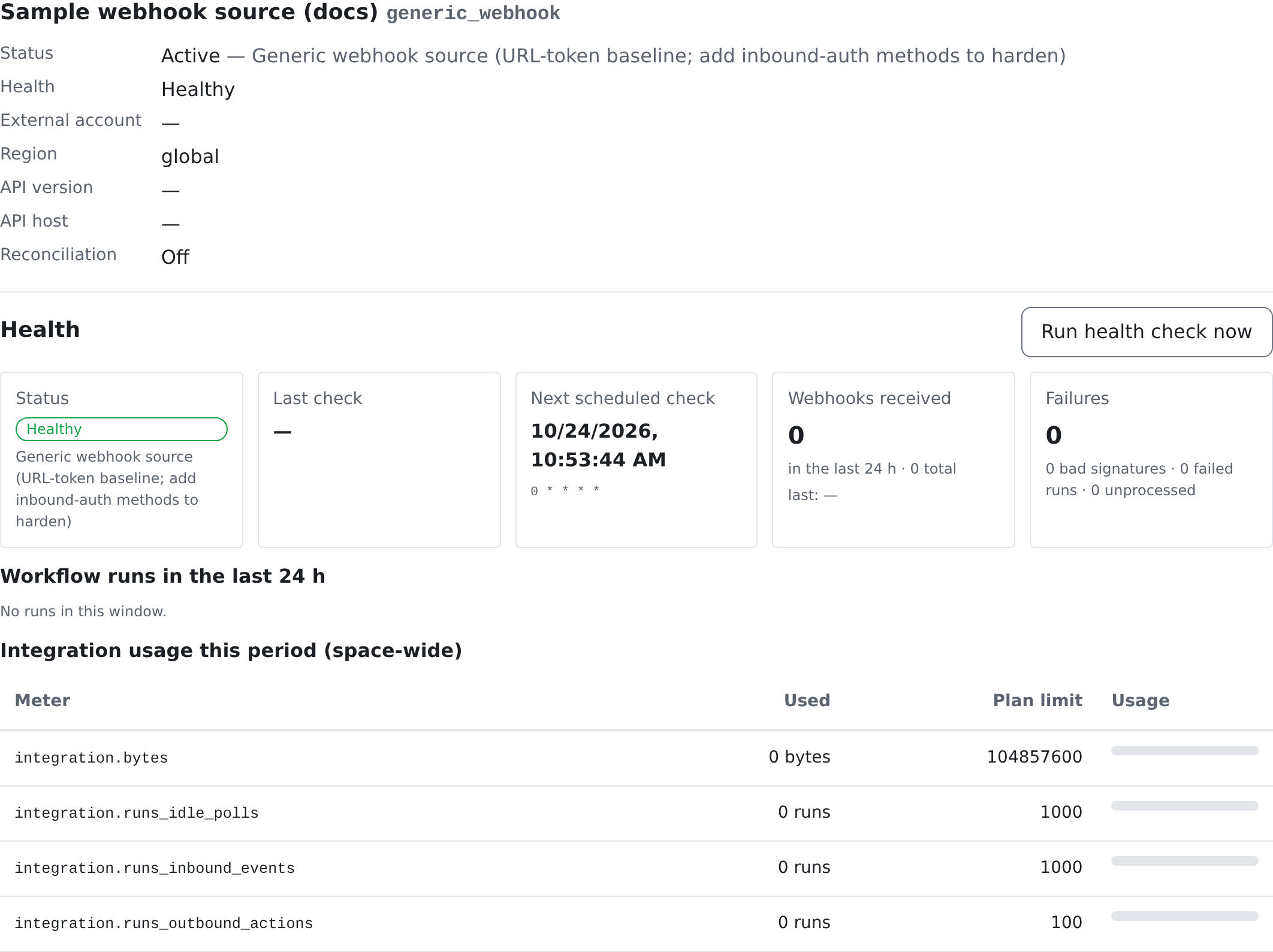
Health shows separately as Healthy, Degraded, Unhealthy or Not checked yet. In Details, Run health check now checks on demand; the panel also shows the Last check, the Next scheduled check, the Webhooks received, recent Failures, the workflow runs, and the space's integration usage against its plan. If a connection becomes unhealthy or needs re-authorization, the responsible users are notified automatically — see Notifications.
Run action starts one of the provider's actions on the connection by hand.
Both directions, without loops
Syncing two systems both ways risks a change bouncing back and forth forever. The CRM guards against this automatically: every incoming change is checked against what was just sent out, and echoes are dropped before they touch your data. When something cannot be settled automatically — the same record changed in both systems at once, a suspicious loop through several systems — it lands in the Review queue for a human decision rather than being guessed at.
Click an item to see both versions field by field, then choose Accept the provider's version, Keep the CRM version, or Merge field by field.
Pausing or removing a connection
- Disable pauses the connection. Actions stop and incoming updates are acknowledged but ignored until you Enable it again.
- Delete… removes a connection in two separate steps, each its own permission:
1. Move to Deleted hides it, stops its webhook URL and blocks every action on it. The credentials stay encrypted, so Restore brings it back exactly as it was, from the Deleted connections list. 2. Delete permanently destroys the stored credentials and the webhook URL for good. You choose whether to Keep data (record links and review history stay) or Delete everything. This cannot be undone.
Whatever you choose, the received-webhook log, usage and billing history, workflow runs and audit entries are kept.
Where to find it
| Screen | Where it lives | What it is for |
|---|---|---|
Integrations — /admin/integrations | Settings → Communication & integrations → Integrations | this space's connections, the providers, and the review queue |
Who can do this
| To do this | You need |
|---|---|
| Open the page, see connections and run their actions | integrations.connections.use |
| Connect, enable, disable, replace keys, add webhook sources | integrations.connections.manage |
| Rotate a webhook URL | integrations.connections.rotate_token |
| Set up a provider's OAuth app for the platform | integrations.providers.manage |
| Resolve review-queue items | integrations.review_queue.act |
| Move a connection to Deleted, or restore it | integrations.connections.soft_delete |
| Delete a connection permanently | integrations.connections.hard_delete |
Most users can use synced data without ever seeing these screens. See Who Can See What.
A connected mail or messaging account is what fills the conversation threads, and who may read its messages is a separate, explicit grant — see Conversations & Mailbox Access.