Your Dashboard
Your dashboard is the home screen you land on after signing in (the Dashboard row at the top of the menu). It is built from widgets — small self-contained tiles that each show one thing: a number, a list, a chart, or a table.
Your contact list has its own page: Contacts in the menu.
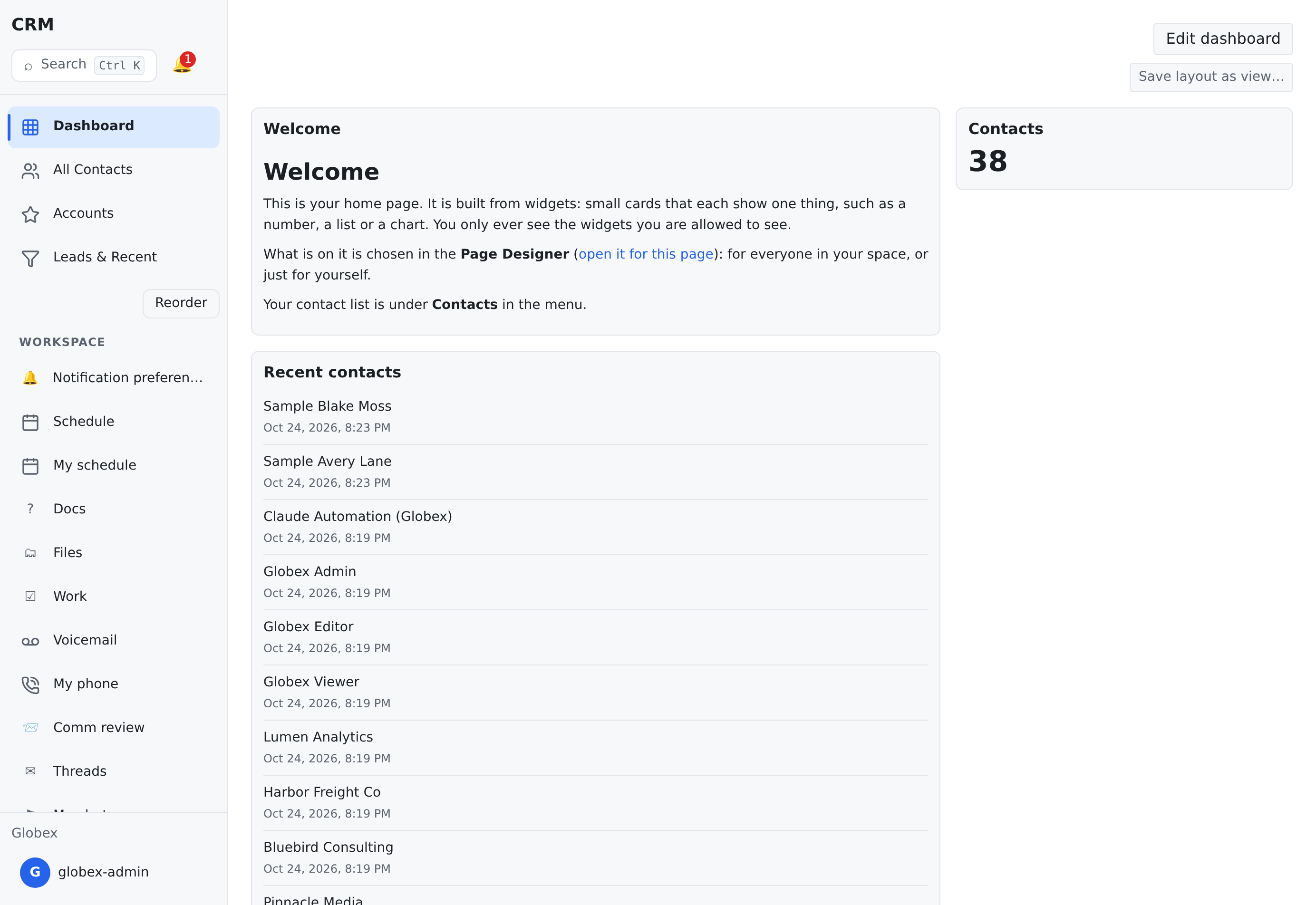
What a new install shows
Every install starts with two widgets, and no made-up data:
- a Welcome card that says what the page is and links to the Page Designer, and
- a Contacts number: how many contacts your space has. It only appears if you are allowed to read contacts.
Everything else is added by your space in the Page Designer.
What you will see
Each widget is one kind. The kinds dashboards are made of each have a section, with pictures and every option, on Dashboard widgets:
| Widget | What it shows |
|---|---|
| Metric | A single number, at a glance |
| Chart | A bar or line chart |
| List | A short list of records; click one to open it |
| Table | A table of rows with the columns you pick |
| Text / Markdown | A note, like the Welcome card |
| Goal | How far a goal has come against its target |
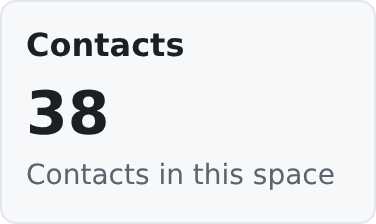
How a widget is built, and the Custom widget that stacks several in one card: Widgets: the full guide.
Every widget shows data from your current space only. Switch spaces with the space switcher at the bottom of the left-hand column, and the dashboard follows.
Click a record in a list widget to jump straight to that record's page.
Why your dashboard may differ from a colleague's
Two reasons:
- Permissions. A widget only appears if you are allowed to see its data. There are no locked or grayed-out tiles — a widget you cannot see is simply not there. So an administrator's dashboard genuinely has more on it than a viewer's. The one exception is honest, not silent: a card whose data you may not read, but which was not hidden from you, shows its title and one sentence naming the permission it needs — never a number or a list you were not meant to see.
- Layers. Dashboard layouts come in four layers: a built-in default, your space's version, a version for your group, and your own arrangement (the one Edit dashboard saves). The most specific layer wins: you see your own arrangement if you made one; otherwise the layout of your group, if your group has one; otherwise the space's; otherwise the built-in default. "Your group" means the permission groups you belong to (including the groups they include). If you belong to several groups that each have a layout, you get exactly one of them: the groups' layouts are kept in an order your administrator sets in the Page Designer, and the first one you belong to wins. Nobody picks it by accident, and you are never shown a mixture of two groups' layouts.
If you are not allowed to see any widget on the page, it does not stay blank. It says "Nothing on this page for you yet" and lists the pages from your menu that you can open instead.
Arranging your dashboard
Anyone who is signed in can arrange their own dashboard, right on the home page. Nobody else sees your arrangement.
- Press Edit dashboard at the top of the page.
- Arrange it:
- Add a widget lists only widgets you are allowed to see: widgets from your space's widget library, and any widget you removed earlier (marked put back). If the list is empty, there is nothing more you can add yet. - Move a widget with the ↑ and ↓ buttons. This is also the order the widgets stack in on a phone. - Resize or place it with Column, Row, Width and Height. The page is 12 columns wide, so a widget's column and width go from 1 to 12. If two widgets overlap, a warning names them. - Remove a widget with ✕.
- Press Save to keep your arrangement. Cancel leaves everything as it was.
Administrators arrange the page for others in the Page Designer (Settings hub; the link on the Welcome card opens it on the Dashboard page directly). Its scope picker says who a change is for: Just me changes only your own dashboard; Group changes it for everyone in the group you pick who has no arrangement of their own; Space changes it for everyone in the space. Group and Space both need the permission to manage widgets, crm.widgets.manage.
Reset to default (in edit mode) removes your own arrangement after asking you to confirm. Then you see the default arrangement again, the one you would have if you had never changed anything. It is greyed out when you have not arranged the page yourself.
A "Personal override" badge tells you when your own arrangement is hiding the layer beneath it; Reset to default takes you back to that layer: your group's layout when your group has one, otherwise the space's. In the Page Designer, a line at the top says which layer you would see on the page — your own, your group's (named), the space's or the built-in one.
If a saved view is showing (the view picker above the widgets), edit mode says so. Your changes go into your own dashboard, which is what you see when you pick Standard layout.
Save layout as view… is a separate feature. It saves a named arrangement of the widgets that are already there, and you can switch between saved views. A view can also carry a layout of its own for phones, tablets and desktops, made from Edit view… under Screen size; on a phone, that layout's order, hidden widgets and sections apply, and the view bar says Phone layout while it is in force.
For administrators: the Page Designer
The arrangement everyone in a space starts from is set in the Page Designer (Settings hub, then the Dashboard page; the link on the Welcome card opens it on this page). Opening it needs crm.widgets.read. Choose the scope: Space changes it for everyone in the space, and Group for everyone in one group; both need crm.widgets.manage. Just me changes only your own dashboard, the same arrangement Edit dashboard saves. The home page never changes the space's arrangement, even for an administrator.
Where the numbers come from
Metric and chart widgets read either a saved view (the same data your lists show, just summarized) or a saved, named query on the server. They refresh when you reload the page or return to the dashboard.
Related pages
- Working with Lists — the full-featured record lists behind table widgets.
- Roles & Extension Fields — why record pages also assemble themselves from widgets.