Contacts
A contact is the record for one person or organization, and the hub for everything you know about them. This page tours a contact from top to bottom, then covers sharing contacts with other spaces.
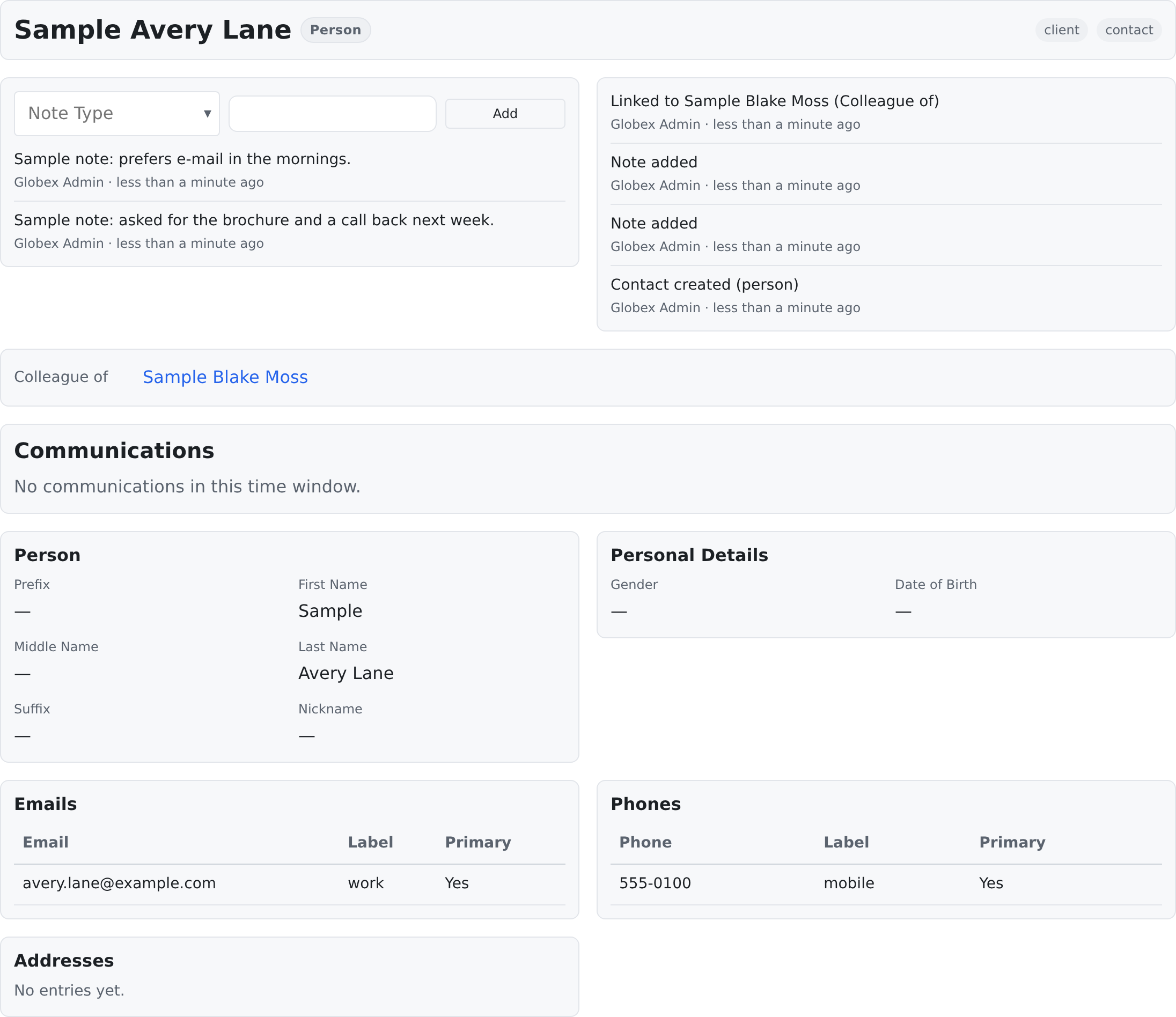
What a contact holds
| Part | What it is |
|---|---|
| Name and type | Who or what this is — see contact types below |
| Phones, emails, addresses | Several of each, with one marked primary per kind |
| Groups | The data groups the contact belongs to (pipelines and categories) |
| Notes | Dated notes with a type and free text |
| Activity | A read-only timeline of everything that happened on this record |
| Relationships | Links to other contacts — family, employers, agencies, referrals — see Linking Records |
| Attachments | The files attached to the contact or filed in its folder — see Files |
| Role cards | Cards on the contact's page that show only for contacts holding a certain role — see Roles & Extension Fields |
| Custom fields | Extra fields your space defined for all contacts |
The contact page
A contact's page is made of cards (widgets), placed by your administrator in the Page Designer. A typical contact page shows, from the top: the record header (the name, the contact-type badge and the contact's roles as chips), Notes and Activity, the Relationships card, the Person, Personal Details, Emails, Phones and Addresses cards, and the contact's Communications. Under the cards sit the Attachments panel and the contact's tasks and events.
A card that requires a role shows only on contacts that hold one of its roles; a role never adds a card by itself. Edit page switches the cards into edit mode, and Save stores your changes (see Adding & Editing Records). Each card is described on Record-page widgets.
Contact types
Each contact has a type, such as Person or Business. The vocabulary belongs to your space — a clinic may use Patient, a school Student. The type shows as a badge in the contact's header, can be a column and a filter in lists and views, and a link type can require a certain contact type at either end (see Linking Records).
The Contact types screen keeps one list per space: the global defaults show there too, and a space type with the same name replaces the global one, so pickers never show it twice. Removing a type does not break the contacts that use it — "Contacts already using it keep working; it disappears from pickers."
Phones, emails, and addresses
A contact can have any number of phones, emails, and addresses, each with a label (Work, Home...). Exactly one entry of each kind is the primary — the one lists, exports, and quick views prefer. Marking a new entry primary automatically un-marks the old one, so there is never zero and never two.
Groups
Groups are your space's categories and pipelines — for example Lead, Active, Archived. Rules worth knowing:
- Every contact belongs to at least one group. New contacts land in the space's default group if you pick none.
- Removing a contact's last group is refused with a clear message — move it to another group instead.
- Administrators can restrict which groups a user sees, so groups can also draw visibility boundaries inside a space.
Notes
The Notes card is a feed, newest first, with an add box on top: pick the note's type, write your text and press Add — no need to enter edit mode. Each note is stamped with who added it and when. To change or remove a note, press Edit page, change it in the card, and Save. Reading notes and writing them each need their own permission.
Activity
The Activity card is a timeline of everything that happened to this contact, newest first: created, fields edited, status changed, notes added, links added and removed, shares. Each entry shows who did it and when. It is read-only — it is the record's memory.
Sharing a contact with another space
If you work with several spaces, you can share a contact instead of retyping it. The Share button sits above the contact's page; it shows only when you may share contacts and can reach more than one space.
- Open the contact and press Share.
- Share into space — pick the space; the picker offers only spaces you can reach.
- Recipient permissions — tick what the receiving space may do: View, Edit, Suggest changes, Copy, Manage.
- Attachments — None, All attachments, or Selected attachments to tick them one by one.
- Extensions — None, All extensions, or Choose extensions to pick which extension data travels along.
- Optionally tick Create a linked copy, then press Share.
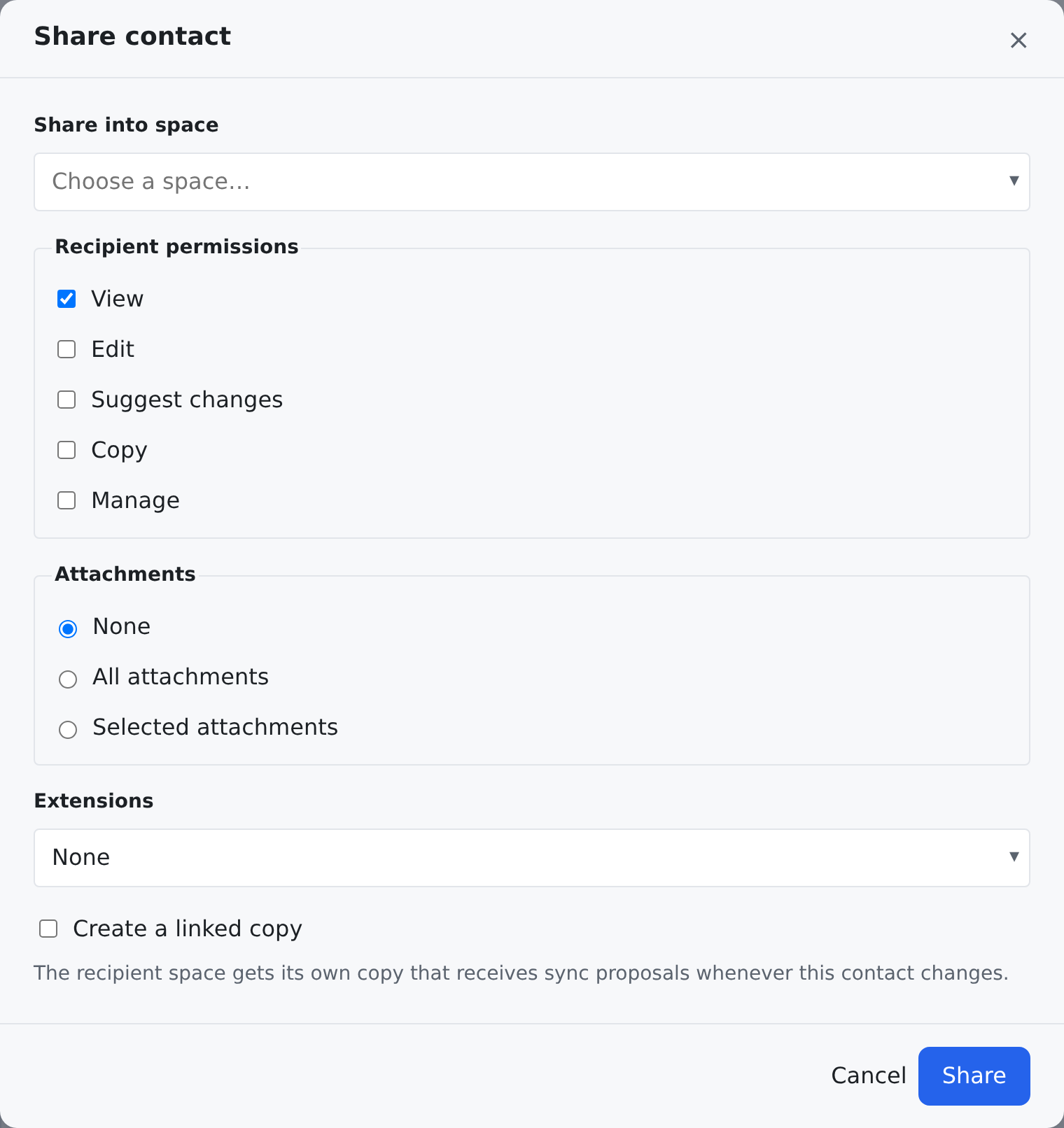
A linked copy stays connected to the original: when the owner later edits the original, the receiving space gets a sync proposal listing the changes, and someone there approves or rejects it. Nothing in the receiving space changes without that approval.
Global contacts
A super-administrator can mark a contact as global with Global contact (visible in every space) in the contact form — useful for shared vendors or a head-office record. It is stored in the Global space, so every space sees it, and it is edited centrally: "Global contacts can only be edited from the Root space by a super-admin."
Possible duplicates
When you create a contact by hand — Quick add, the contact form, or Create and match in Communication review — and a contact like it already exists in this space, you are asked first. The dialog says "A contact like this already exists here" and lists each match with why it matched: same e-mail, same phone (last 7 digits) (the number of digits is this space's setting) or similar name (87%). View opens that contact in a new tab. Create anyway creates the new contact (add a note if you like); Cancel creates nothing.
You are only ever shown contacts you are allowed to see. If the only match is one you cannot see, nothing is asked and nothing hints at it — the contact is created, and the pair is still recorded so that someone who can see both is told.
A recorded pair shows on both contacts as the badge May already exist here, and on the contact page in the Possible duplicates card.
The possible-duplicates page
Possible duplicates (/contacts/duplicates) lists the pairs whose two contacts you may both see, under five tabs: Open, Left for now, Different, Linked and Merged — and a sixth, Merges, if you may undo merges. Each row shows the two contacts (each name opens its record), why they matched, where the pair came from, who decided and when, and the note. The Rule card shows how this space finds possible duplicates and links to the settings where it is changed. Merge on an open pair is there if you may merge contacts (see Merge and undo below); Link joins the two records as the same contact (the pair moves to Linked, where Compare & pull opens them side by side — see Linking Records).
Leave for now, or two different contacts
Leave… (on the page or on the contact's card) asks why, with a note:
- Leave for now — chosen for you. The badge goes away, and the pair moves to Left for now. If a stronger match appears later — the same e-mail or phone where only the name matched before — it comes back.
- These are two different contacts — the badge goes away and the pair moves to Different. It never comes back on its own, even if the same e-mail turns up on both.
The check runs again whenever a contact's name, e-mails or phones change — on the contact form, the list's edit cart, a bulk edit, the contact's own Emails and Phones cards, an import that updates contacts, or a workflow. That is how a pair left for now comes back: give one of the two the other's e-mail and it is back under Open. A change that matches a contact nobody had paired with it yet records a new pair, the same as creating it would.
Changed your mind? Reopen on a Left for now or Different row puts the pair back under Open.
Merge and undo
When two contacts are the same person or business, Merge folds one into the other. Start it from Merge on an open pair on the possible-duplicates page, or Merge… on the contact's Possible duplicates card. It takes up to three steps:
- Which contact stays? Two cards side by side; the older record is chosen for you. The other one is archived — never deleted.
- What moves. Every detail the two contacts hold differently is listed with both values; the one that will be kept is marked, and you can switch any of them. Below it, in plain words, what comes across: "3 phones move, 1 is already on Anna Smith", "12 notes move", and the logins.
- Which login stays? — only when both contacts can sign in. Each login shows its user name, when it last signed in and its groups; the login of the contact that stays is chosen for you. Pick the one the person should keep using: the other login is disabled and can be restored by Undo. When only one contact is a login the plan simply says it keeps its login (it then signs in as the contact that stays); when neither is, it says so.
Merge does it all at once. If it cannot be done the dialog says why — for example that one of the two only belongs to another space and is shared here (only contacts this space owns can be merged), or that one was already merged into another contact (with a link to it).
After a merge, the archived contact still opens, with a banner at the top: "Merged into Anna Smith on 26/10/2026 by Dana Steward" — the name opens the contact that stayed. Archived contacts leave lists and pickers; tick Show merged contacts above the contact list to see them again.
The contact that stayed shows a Merged records card: each contact merged into it, who merged it and when, and what came across ("1 phone came from Anna Smyth on 26/10/2026").
Undo — on the banner, on the Merged records card, on a Merged pair, or on the Merges tab — puts both contacts back as they were. Anything someone changed since the merge is kept as they left it, and Undo tells you what it left alone. With two logins, both sign in again, each as its own contact. A space can limit how long a merge can be undone (contacts.merge.undo_days; 0, the default, means always).
Finding contacts
- Quick search above any list finds names, emails, and phone fragments.
- The filter builder answers precise questions — see Filtering & Searching.
- Global search (
Ctrl+K) searches across the app from anywhere and jumps straight to a record.
Where to find it
| Screen | Where it lives | What it is for |
|---|---|---|
Contact Types — /admin/contact-types | Settings → Data model → Contact Types | the vocabulary of contact types described above |
Possible duplicates — /contacts/duplicates | the sidebar, Possible duplicates | the pairs of contacts that may be the same: leaving, reopening and merging them, and the Merges tab with Undo |
Opening it needs permission to read contacts; adding, changing or removing a type needs the contact-types manage permission.
Who can do this
| To do this | You need |
|---|---|
| Open contacts and the Contact Types screen | crm.contacts.read |
| Change a contact, its phones, emails and addresses | crm.contacts.write |
| Add, change or remove a contact type | crm.contact_types.manage |
| Share a contact into another space | crm.contacts.share |
| Make or edit a global contact | crm.contacts.global_write (super-administrators) |
| See possible duplicates (the page, the card, the alert) | crm.contacts.duplicates.review |
| Leave a possible duplicate, or reopen one | crm.contacts.duplicates.leave |
| Merge two contacts (and choose which login stays) | crm.contacts.merge |
| Undo a merge, and see the Merged records card and the Merges tab | crm.contacts.merge.undo |
| Link two contacts as the same contact, or unlink them | crm.contacts.duplicates.link |
| Pull a field from one linked contact into the other | crm.contacts.duplicates.pull and crm.contacts.write |
All six come together in the Duplicate stewards group.