Scheduling widgets
Nine widgets show the schedule. Four of them draw the events of a view of events you choose: the Calendar, Schedule lanes, the Agenda and the Dispatch tray. The other five read their own data: the Budget strip, the Roster, Needs attention, Open shifts and Schedule requests. The Schedule page is built from the last three. Like every widget, they are built in the widget builder and placed in the Page Designer; how the builder works as a whole is on Widgets: the full guide.
Every option below is named exactly as the builder shows it. Times show in your own time zone, requests read in words (Time off · Pending), and lanes show a column per day. Calendar and lanes widgets are read-only; plan and copy weeks on the Schedule page.
| Widget | Shows | Data from |
|---|---|---|
| Calendar | Events in a month, week, day or agenda calendar | a view of events |
| Schedule lanes | Events in one lane per resource, room or any column you choose, day by day | a view of events |
| Agenda | Events as a list, in time order | a view of events |
| Dispatch tray | Events as cards | a view of events |
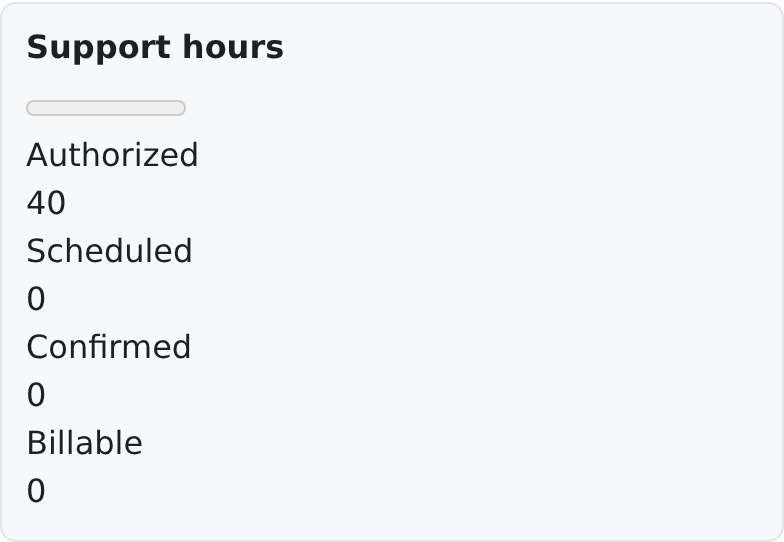
| Budget strip | One budget's authorized, scheduled, confirmed and billable units | the budget (the card reads it itself) |
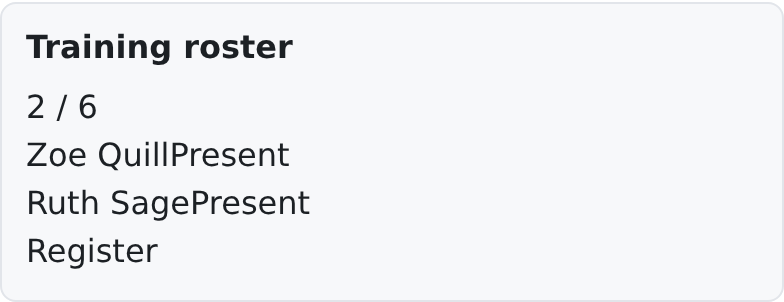
| Roster | The people booked on one event, and its free seats | the event (the card reads it itself) |
| Needs attention | Scheduling items that need someone to act | the attention feed (the card reads it itself) |
| Open shifts | Published shifts nobody is on yet, which you may claim | the open-shift board (the card reads it itself) |
| Schedule requests | Requests: time off, swaps, shift claims, availability changes | the requests (the card reads them itself) |
Before you start: a view of events
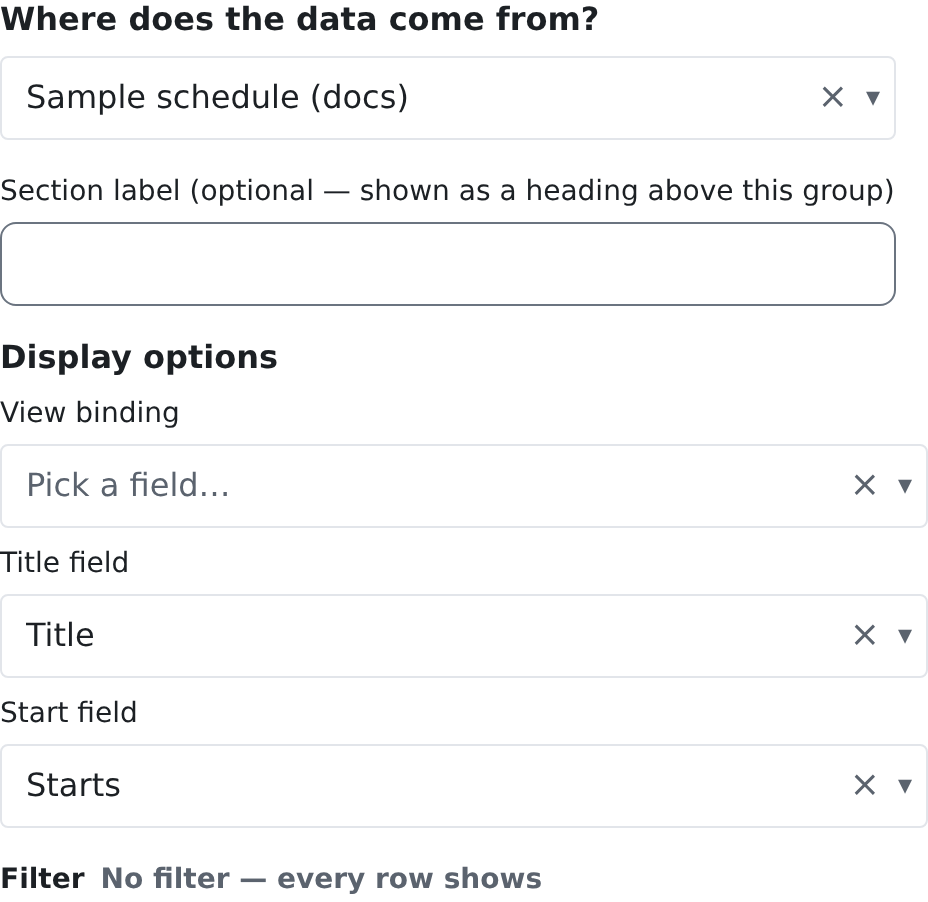
The Calendar, Schedule lanes, Agenda and Dispatch tray draw the rows of a view whose source is the scheduling events. Make one on the Views screen first (see Views): pick the events as its source and keep the columns the card needs, at least the title, the start and the end. In the widget builder, pick that view under the data selection's source. Then, in the options, tell the card which column is which. Pick the budget, event or event type by name; the calendar, lanes, agenda and dispatch tray take their rows from the saved view you choose as the widget's data source.
These four cards show nothing until every option marked required below is set.
Calendar
What it shows
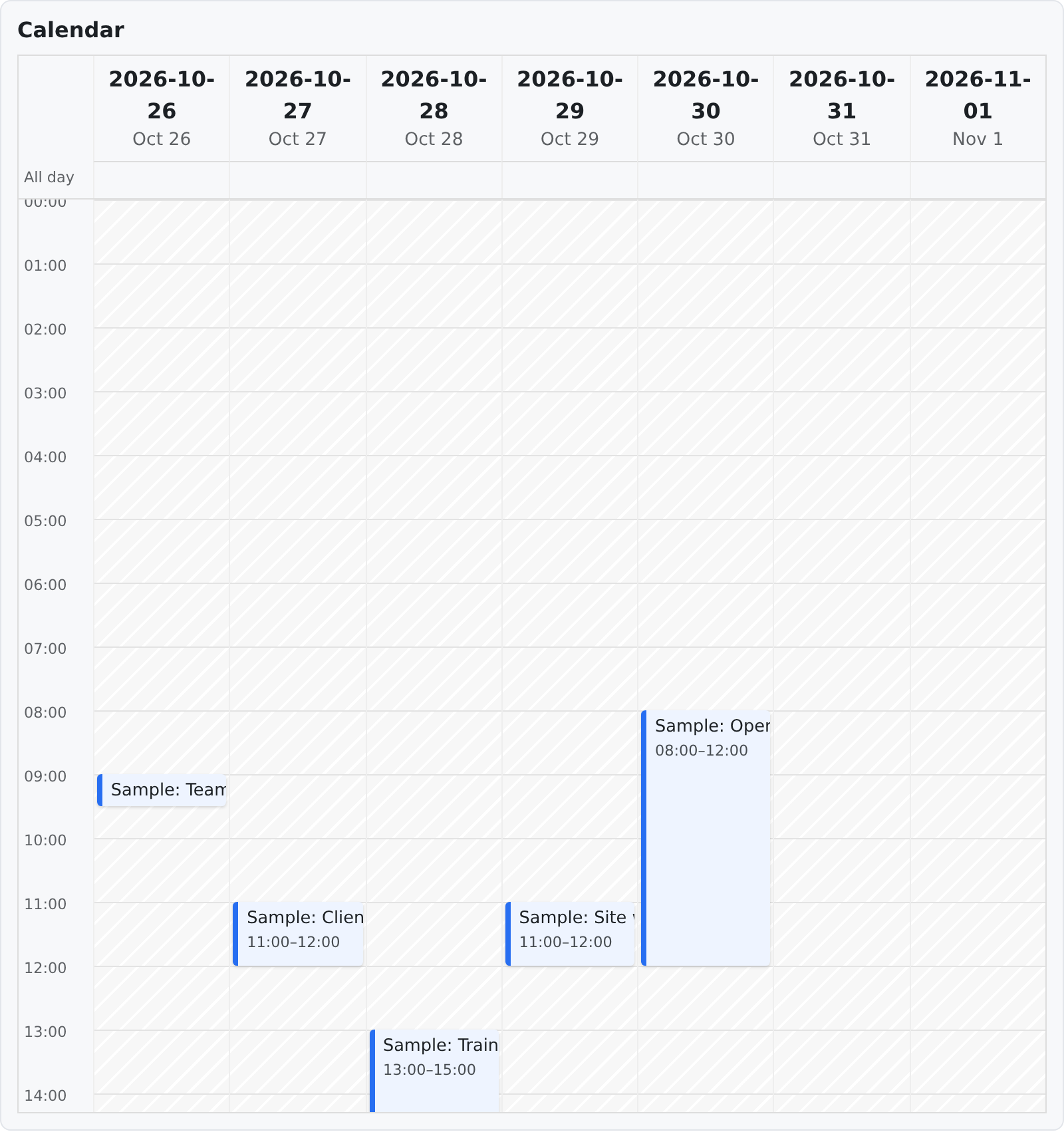
The events of the view in a calendar: a month of day cells, a week or a day of hour columns, or an agenda grouped by day. It can also show the due dates of work items in the same window.
Where to use it
On a dashboard, full width: the team's week, a room's bookings, a person's month.
Data source
A view of scheduling events. The card draws the rows the view gives, in the window you set.
Editor options
| Option | What it does | Default |
|---|---|---|
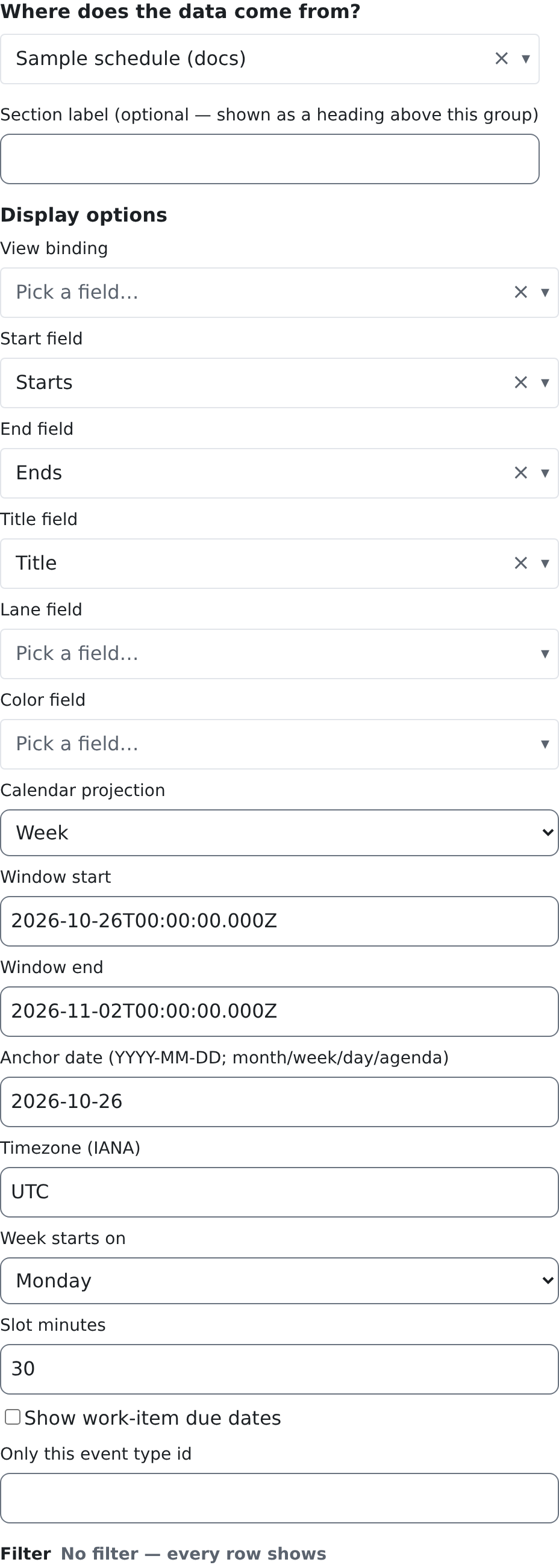
| Start field | Required. The column holding each event's start. | Not set: the card shows nothing |
| End field | Required. The column holding each event's end. | Not set: the card shows nothing |
| Title field | Required. The column shown as each event's title. | Not set: the card shows nothing |
| Lane field | The column that says whose or which lane an event is on. | Not set |
| Color field | The column holding each event's color. | Not set: one color for every event |
| Calendar projection | Month, Week, Day or Agenda. | Week |
| Window start | Required. The first moment the calendar shows, as a date and time (for example 2026-11-02T00:00:00Z). | Not set: the card shows nothing |
| Window end | Required. The last moment it shows. | Not set: the card shows nothing |
| Anchor date (YYYY-MM-DD; month/week/day/agenda) | The day the month, week or day is built around. | Not set: the window's start |
| Timezone (IANA) | The time zone the times are shown in, for example America/New_York. | UTC |
| Week starts on | Sunday, Monday or Saturday. | Sunday |
| Slot minutes | The size of one time slot in a week or day, in minutes. | 15 |
| Show work-item due dates | Also shows work items due (or starting) in the window, read from the work items. | Off |
| Only this event type | Shows only events of one event type, picked by name. The view needs the event type column for this. | Not set: every type |
Filter
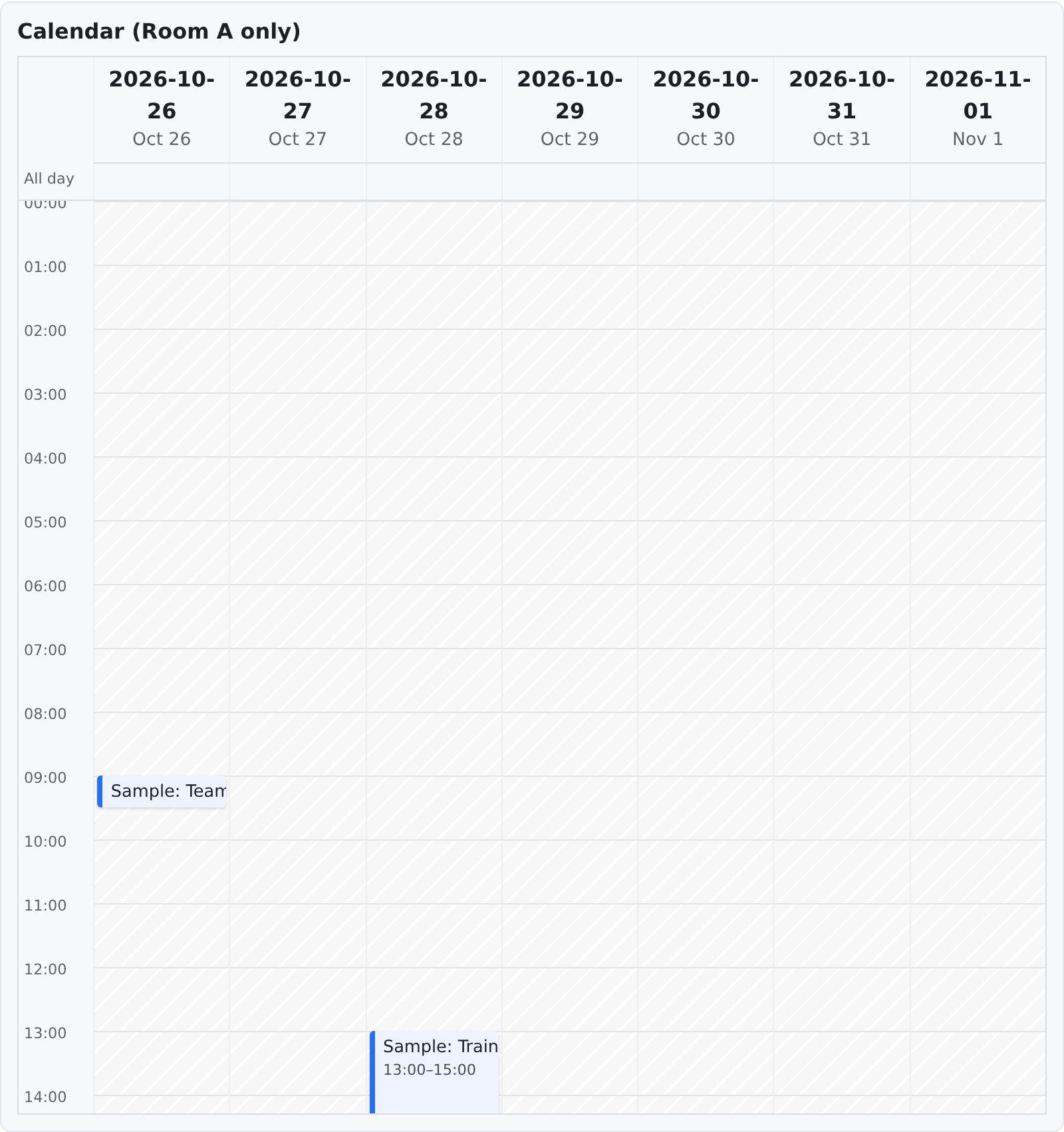
Yes. A view-fed card has a Filter section, and the filter changes what it draws: the second picture is the same Calendar with the filter location_text equals Room A, and it shows only the two Room A events. See Filters.
Who can see it
crm.scheduling.view, the read permission of the scheduling events. Without crm.scheduling.view.all_rows a person sees only the events they take part in.
Good to know
- The window does not move by itself: Window start and Window end are fixed moments. For a calendar that always shows "this week", update them, or use the Schedule screen.
- A week or a day shows every hour from midnight, so give the card enough height; the first picture's card ends at 14:00.
Schedule lanes
What it shows
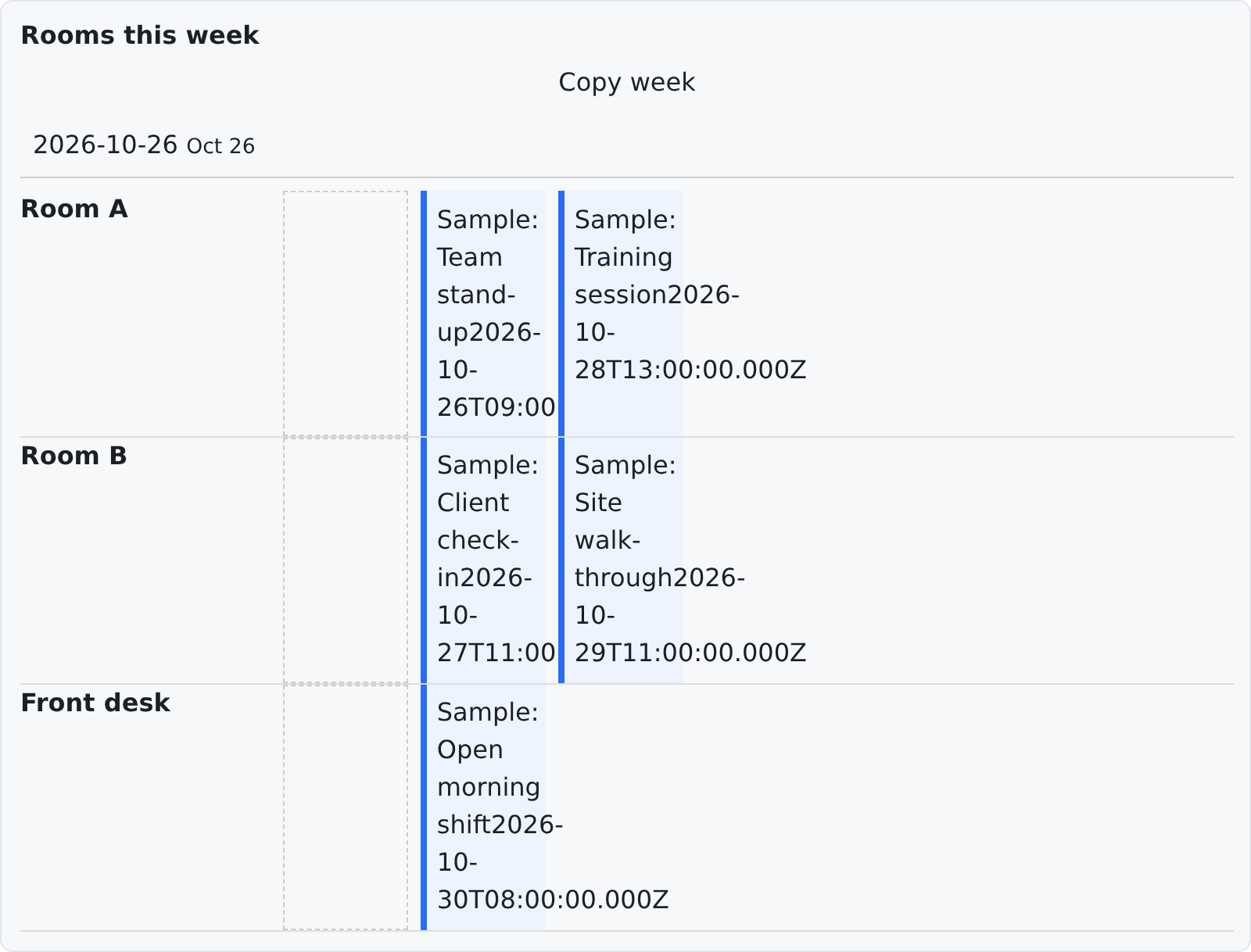
The events of the view in lanes: one row per value of the lane column (a person, a room), and in each lane the events of each day of the window, with their title and their time.
Where to use it
On a dashboard, full width: who is where this week, which room is free.
Data source
A view of scheduling events.
Editor options
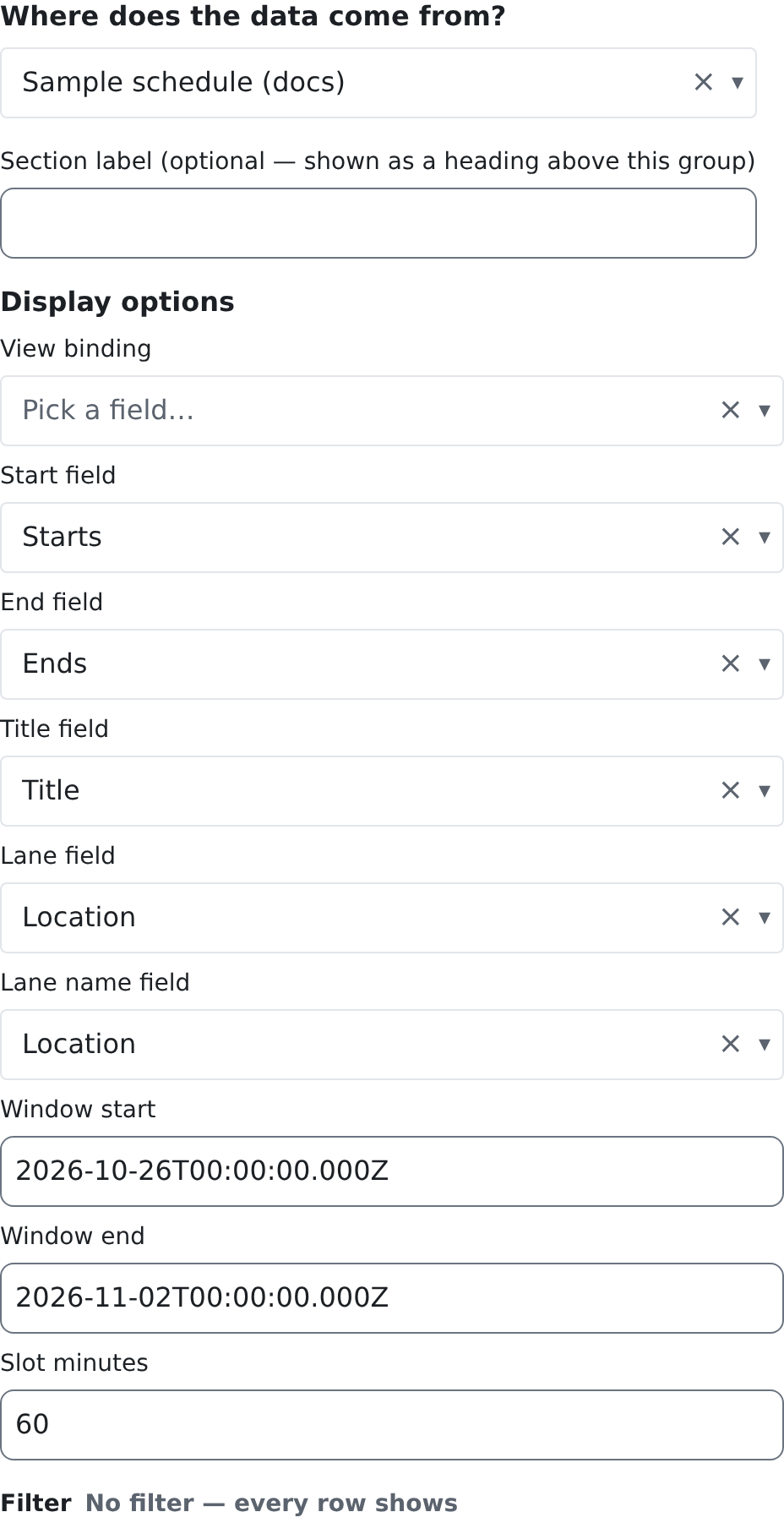
| Option | What it does | Default |
|---|---|---|
| Start field | Required. The column holding each event's start. | Not set: the card shows nothing |
| End field | Required. The column holding each event's end. | Not set: the card shows nothing |
| Title field | Required. The column shown as each event's title. | Not set: the card shows nothing |
| Lane field | Required. The column whose value makes the lanes. | Not set: the card shows nothing |
| Lane name field | The column shown as each lane's name. | Not set: Unassigned |
| Window start | Required. The first moment shown. | Not set: the card shows nothing |
| Window end | Required. The last moment shown. | Not set: the card shows nothing |
| Slot minutes | The size of one time slot, in minutes. | 15 |
Filter
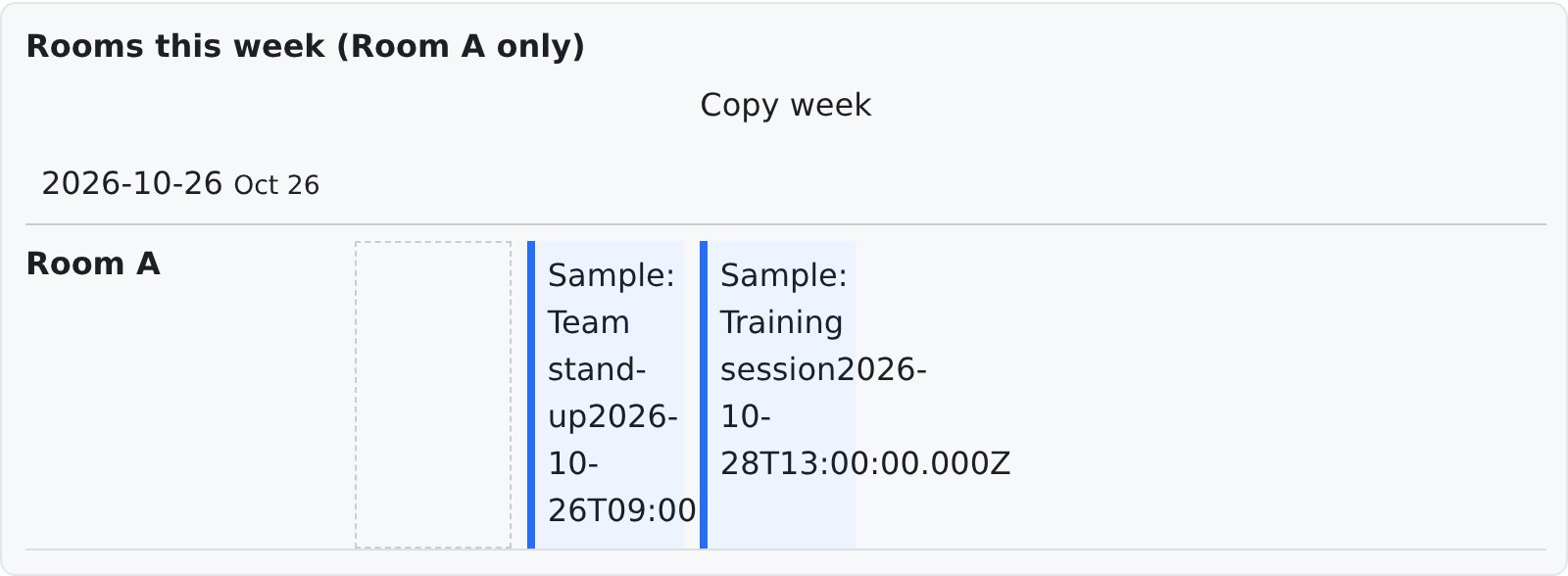
Yes, and it changes what the lanes show: with location_text equals Room A only the Room A lane and its two events are left.
Who can see it
crm.scheduling.view; without crm.scheduling.view.all_rows, only the events you take part in.
Good to know
- The lanes come from the events themselves: a lane with no event in the view does not show.
Agenda
What it shows
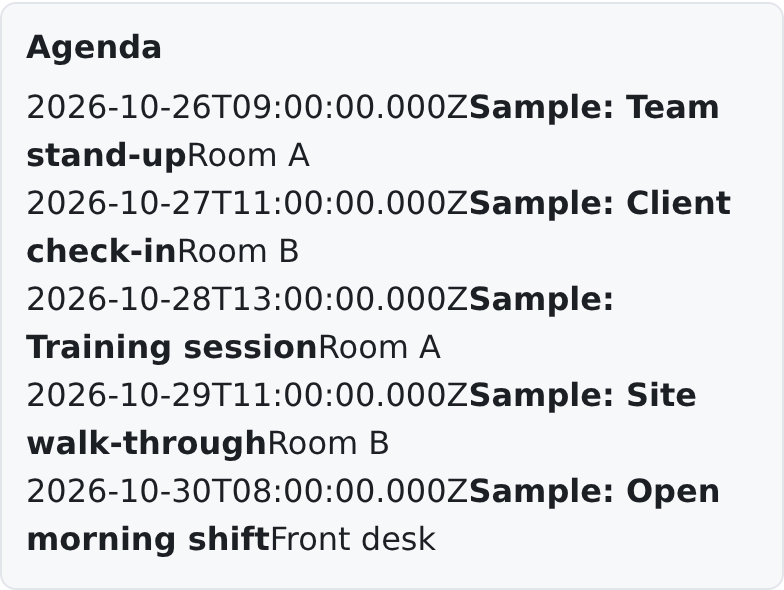
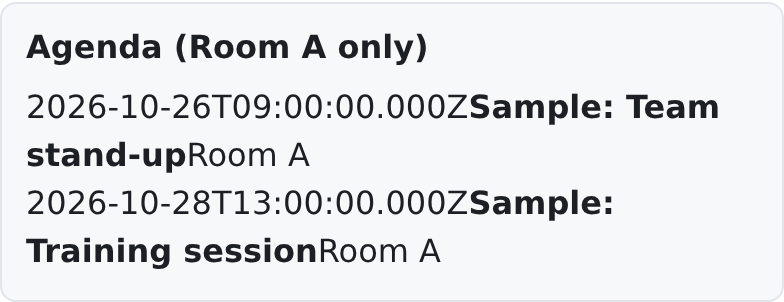
The events of the view as one list in time order: each line is the start, the title and the lane value.
Where to use it
On a dashboard, where a short list says more than a grid: today's appointments, the week ahead.
Data source
A view of scheduling events. An event with no start or no end is left out.
Editor options
| Option | What it does | Default |
|---|---|---|
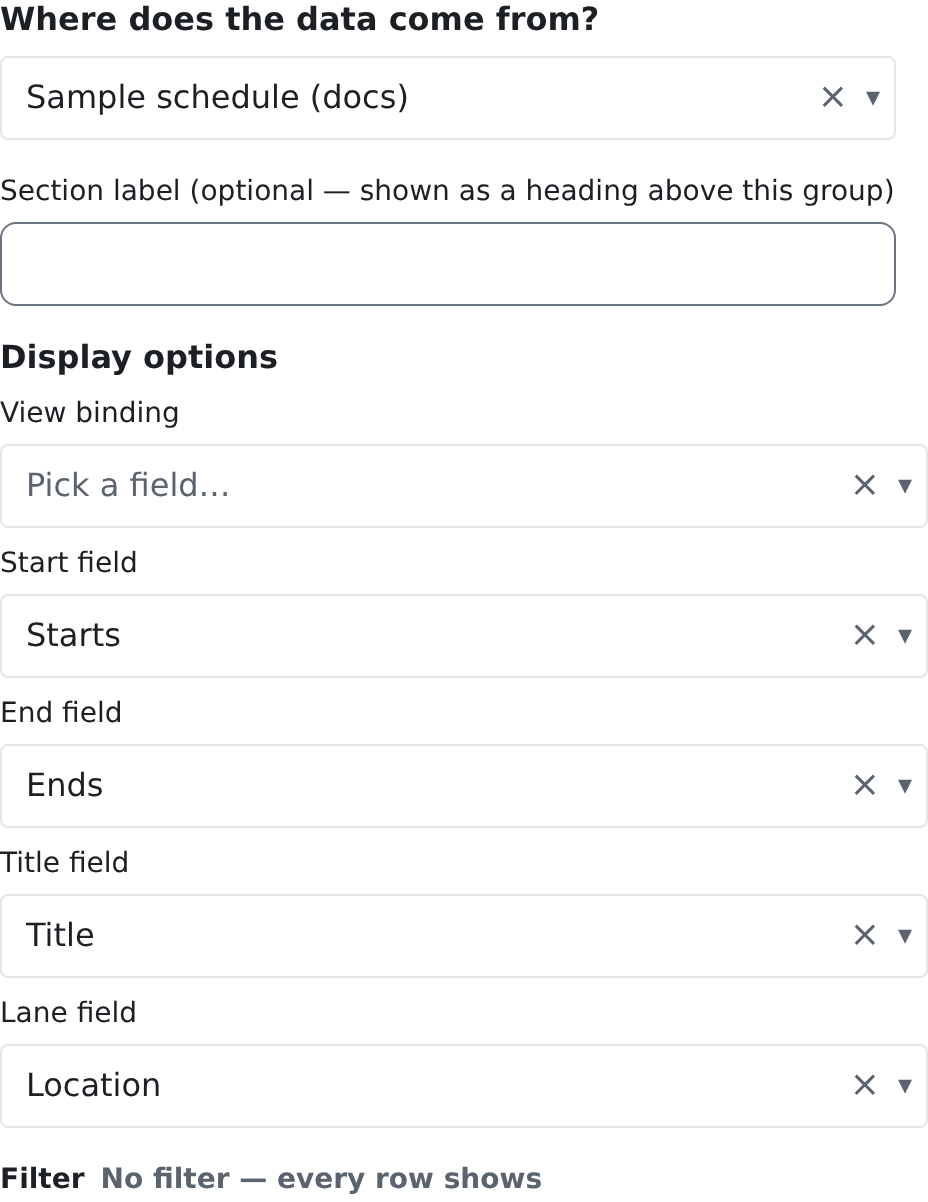
| Start field | Required. The column holding each event's start. | Not set: the card shows nothing |
| End field | Required. The column holding each event's end. | Not set: the card shows nothing |
| Title field | Required. The column shown as each event's title. | Not set: the card shows nothing |
| Lane field | A column shown after the title, for example the room. | Not set |
Filter
Yes, and it changes the list: with location_text equals Room A the Agenda lists the two Room A events.
Who can see it
crm.scheduling.view; without crm.scheduling.view.all_rows, only the events you take part in.
Good to know
- The Agenda has no window: it lists every row the view gives. Put the window in the view's own filter, or in the card's Filter.
Dispatch tray
What it shows
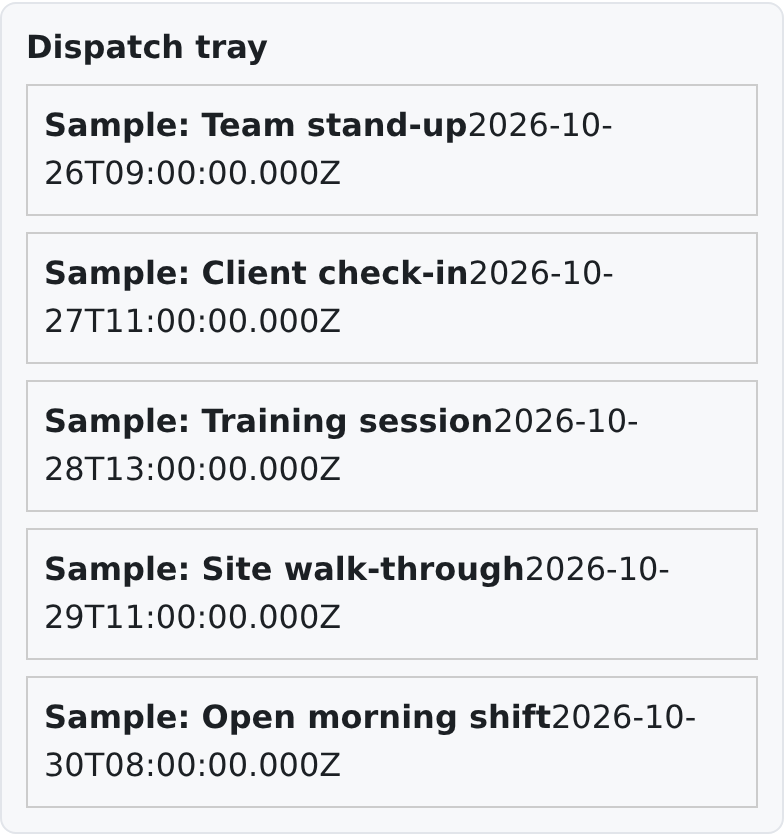
The events of the view as cards with their title and start.
Where to use it
Beside a schedule, for the events that still need someone: a view of events with nobody on them makes a dispatch list.
Data source
A view of scheduling events.
Editor options
| Option | What it does | Default |
|---|---|---|
| Title field | Required. The column shown as each card's title. | Not set: the card shows nothing |
| Start field | Required. The column shown as each card's start. | Not set: the card shows nothing |
Filter
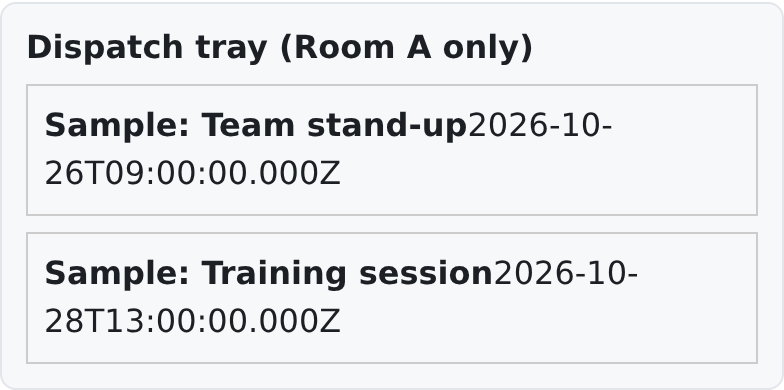
Yes, and it changes the cards: with location_text equals Room A the tray holds the two Room A events.
Who can see it
crm.scheduling.view; without crm.scheduling.view.all_rows, only the events you take part in.
Good to know
- When the view has no rows, the tray says Nothing needs dispatch.
Budget strip
What it shows
One budget, for the period that holds the date you choose: a bar of how much is used, and the Authorized, Scheduled, Confirmed and Billable units.
Where to use it
On a dashboard or a client's page, to see how much of an authorization is booked and used.
Data source
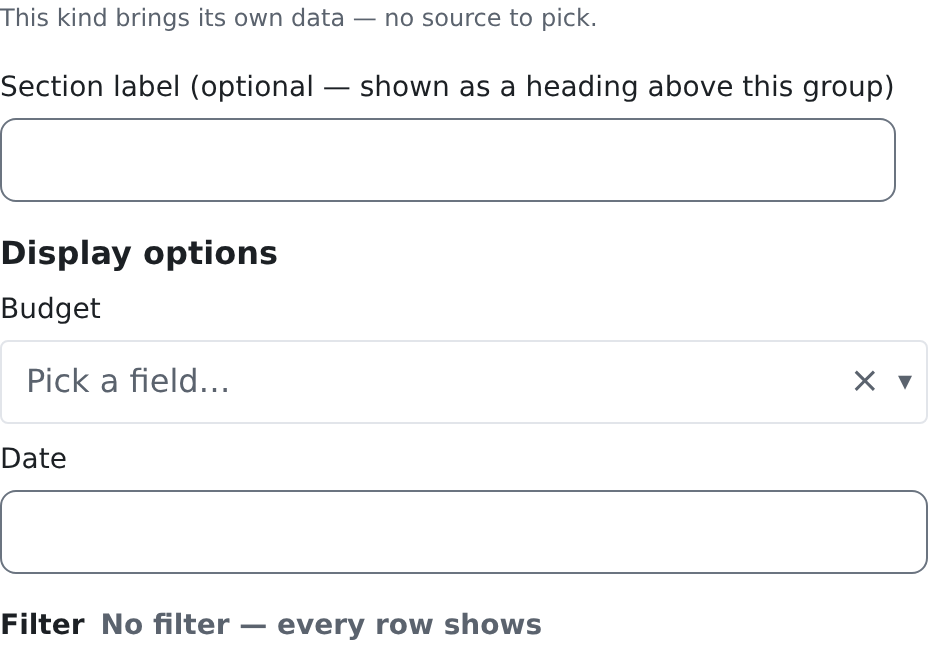
The budget you name. The card reads it itself, through the budget strip door, so there is no source to pick.
Editor options
| Option | What it does | Default |
|---|---|---|
| Budget | Required. The budget to show, picked by name. | Not set: the card shows nothing |
| Date | The day whose budget period is shown (YYYY-MM-DD). | Today |
Filter
None. It shows one budget.
Who can see it
crm.scheduling.setup.view ("View the scheduling setup"): the budget strip door requires it, and the card checks it first. Without it the card says, in words, that it needs that permission, and reads nothing.
Good to know
- Budgets are made on the scheduling setup screens.
Roster
What it shows
The people booked as attendees on one event, with the seats taken out of the capacity (for example 2 / 6), and a Register button that books you on it. With attendance actions on, each person has a Present button after their name.
Where to use it
On a dashboard or beside a group event: a class, a training, a group session.
Data source
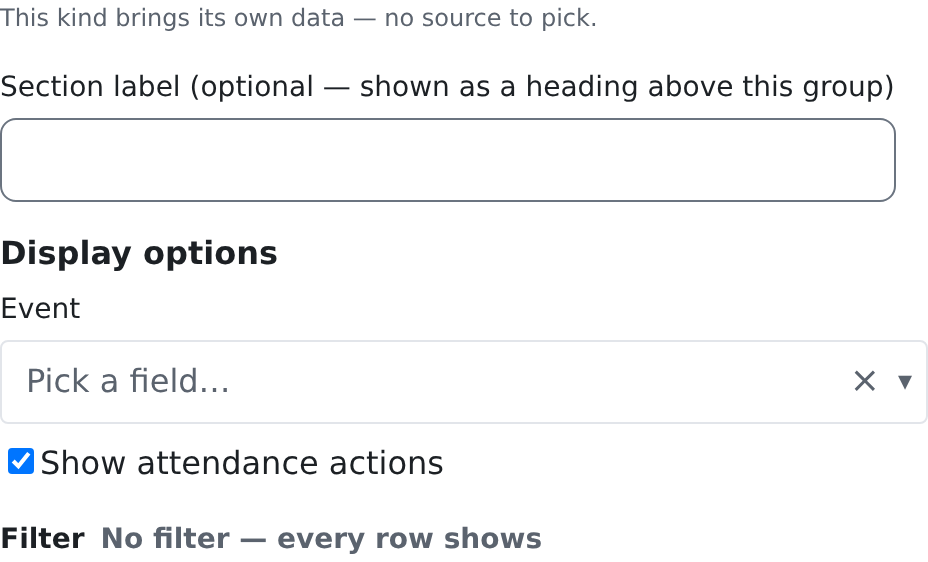
The event you name. The card reads it itself, so there is no source to pick.
Editor options
| Option | What it does | Default |
|---|---|---|
| Event | Required. The event whose roster shows, picked by name. | Not set: the card shows nothing |
| Show attendance actions | Shows a Present button beside each person. | Off |
Filter
None. It shows one event.
Who can see it
crm.scheduling.view shows every attendee. A person who holds only a self-service key (crm.scheduling.request, crm.scheduling.checkin.own or crm.scheduling.view.own) sees the counts and their own seat. Register for yourself needs crm.scheduling.request. Marking someone else present needs crm.scheduling.manage; marking yourself needs crm.scheduling.checkin.own.
Good to know
- When the event is full, Register is refused with the reason, and the person can join the waiting list on the Schedule screen.
Needs attention
What it shows
Needs attention lists unacknowledged changes, waitlist offers, change notices, profile clashes and external calendars whose sync is degraded or broken. An unacknowledged seat has an Acknowledge button.
Where to use it
On the Schedule page and a scheduler's dashboard. The Schedule page carries one, full width.
Data source
The scheduling attention feed. The card reads it itself.
Editor options
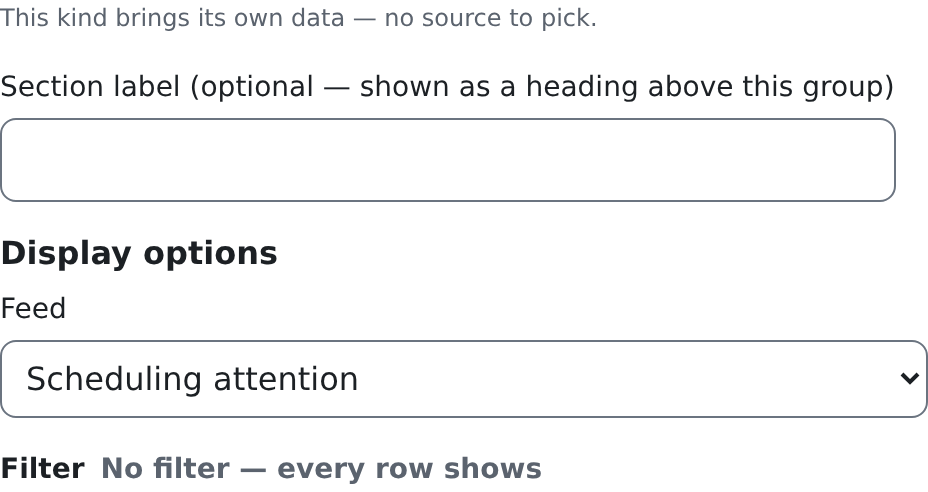
| Option | What it does | Default |
|---|---|---|
| Feed | The feed to show. There is one: Scheduling attention. | Not set: the card shows nothing |
Filter
None.
Who can see it
crm.scheduling.view: the attention door requires it. Without crm.scheduling.view.all_rows a person sees only the items about their own seats and notices, and none of the setup items.
Good to know
- An item leaves the card when it is dealt with: the notice sent, the seat acknowledged.
Open shifts
What it shows
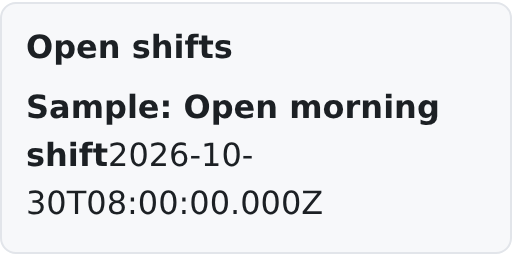
The published shifts that nobody is on yet and that are open for claims, from now on: the shift's title and its start.
Where to use it
On the Schedule page and on the dashboard of the people who pick up shifts.
Data source
The open-shift board. The card reads it itself.
Editor options
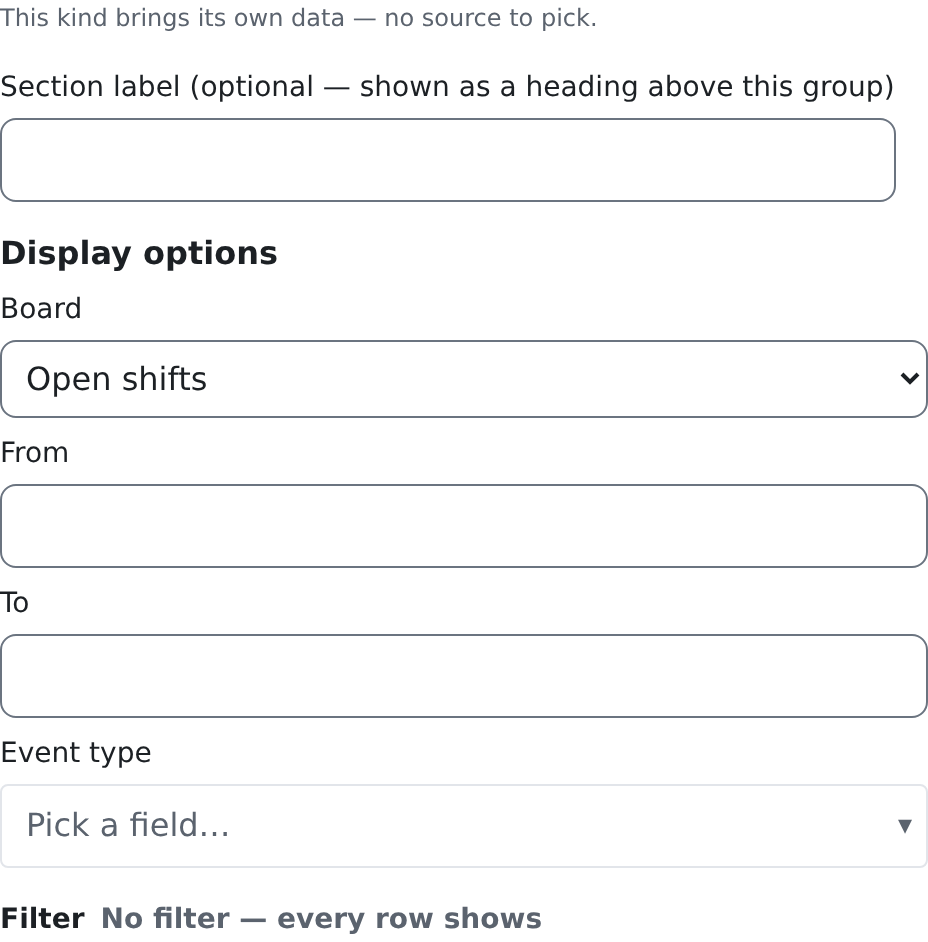
| Option | What it does | Default |
|---|---|---|
| Board | The board to show. There is one: Open shifts. | Not set: the card shows nothing |
| From | Shifts starting from this moment. | Now |
| To | Shifts starting up to this moment. | No end |
| Event type | Only shifts of one event type, picked by name. | Every type |
Filter
None. From, To and Event type are its filter.
Who can see it
crm.scheduling.request or crm.scheduling.view: the open-shift door takes either.
Good to know
- A shift gets on the board when a scheduler opens an event that nobody is on yet for claims.
Schedule requests
What it shows
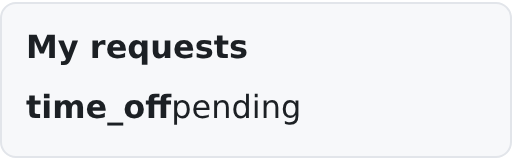
Scheduling requests in the scope you choose, each with its kind and its state.
Where to use it
On the Schedule page and on a person's own dashboard. The Schedule page carries one, scope Mine, titled My requests.
Data source
The scheduling requests. The card reads them itself.
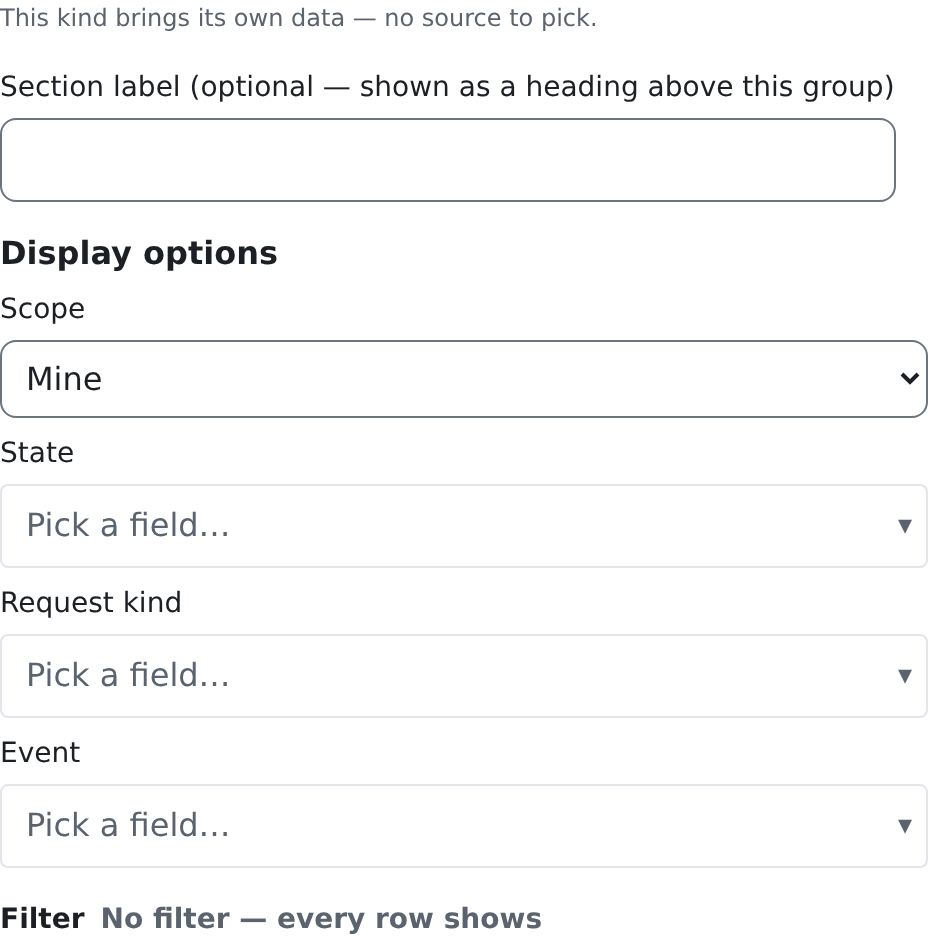
Editor options
| Option | What it does | Default |
|---|---|---|
| Scope | Mine (the requests you made, or that name you), All (every request in the space) or Open swaps (swaps nobody has taken yet). | Not set: the card shows nothing |
| State | Only requests in one state, for example Pending. | Every state |
| Request kind | Only one kind of request, for example Time off. | Every kind |
| Event | Only the requests about one event, picked by name. | Every event |
Filter
None. The scope and the three options are its filter.
Who can see it
crm.scheduling.request or crm.scheduling.approve: the requests door takes either. All needs crm.scheduling.approve.
Good to know
- Requests are made and decided on the Schedule screen; the card lists them.