Work widgets
Six widgets show work items. Three are about the person looking or a whole pipeline, and they suit a dashboard: My work, the Pipeline funnel and the Timeline. The other three show one work item, and they belong on a work item's page: the Work item header, the Checklist and Work-item comments. The My work page and a work item's page are built from these widgets. Like every widget, they are built in the widget builder and placed in the Page Designer; how the builder works as a whole is on Widgets: the full guide.
Every option below is named exactly as the builder shows it.
| Widget | Shows | Data from |
|---|---|---|
| My work | Your own work items in lanes: assigned to you, your group's queue, overdue, due soon | your work items (the card reads them itself) |
| Pipeline funnel | One pipeline as a bar per stage, with live counts and WIP limits | the pipeline's work items (the card reads them itself) |
| Timeline | Work items as bars over time, with their dependencies and the critical path | dated work items (the card reads them itself) |
| Work item header | The work item's title, stage, assignee, watchers and timer | the work item the page shows |
| Checklist | The work item's checklist, to tick, add, reorder and remove lines | the work item the page shows |
| Work-item comments | A box to write a comment, and the discussion, newest first | the work item the page shows |
None of these widgets has a Filter section: each one reads its own rows, and its options decide which.
My work
What it shows
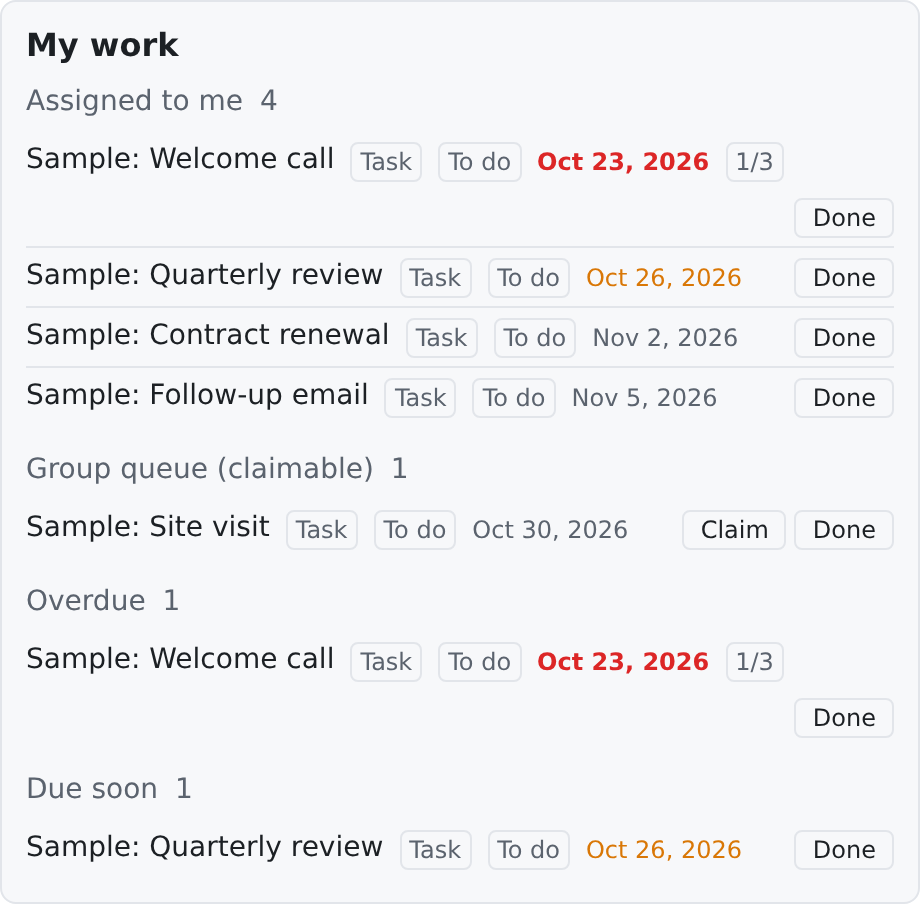
The work items on your own plate, in the lanes you choose, in the order you choose them:
- Assigned to me: open items assigned to you.
- Group queue (claimable): items assigned to a group, which nobody has claimed yet. A Claim button takes one.
- Overdue: your items whose due date has passed.
- Due soon: your items due within the due-soon window.
Each row shows the item's title (a link to its page), its type, its stage, its due date and its checklist count. A Done button moves an item to its pipeline's last stage. If the pipeline refuses (for example, the checklist is not finished), the reason shows under that row.
Where to use it
On a dashboard. The My work page carries one, full width. It is about the person looking, not about the page, so it shows the same thing wherever it is placed.
Data source
Your work items. The card reads them itself, so there is no source to pick. "You" is the contact your login belongs to in this space. A login with no contact in the space sees a note that its assignments cannot be matched to it.
Editor options
| Option | What it does | Default |
|---|---|---|
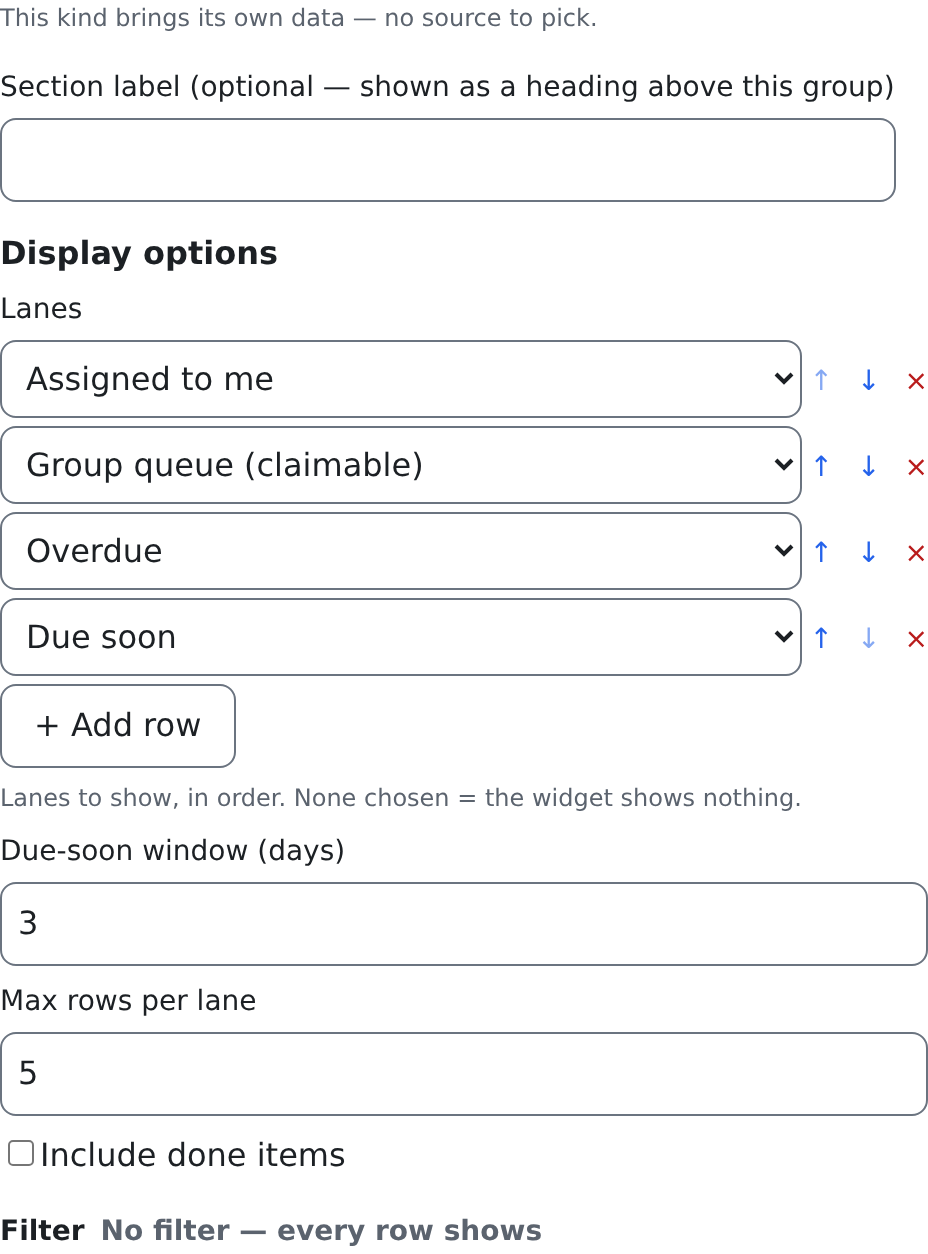
| Lanes | The lanes to show, in order. Each row is one Lane: Assigned to me, Group queue (claimable), Overdue or Due soon. | None: the card shows nothing |
| Due-soon window (days) | Items due within this many days land in Due soon. | Not set (0): 3 days |
| Max rows per lane | At most this many rows in each lane. | Not set (0): all, up to the space's work-item list limit |
| Include done items | Also lists items that sit in a pipeline's last stage in the assigned lanes. | Off: open items only |
Filter
None. The lanes are its filter.
Who can see it
crm.work_items.read: the card reads through the work-item list door, which requires it. Claim needs crm.work_items.claim, and the server checks that you belong to the group. Done needs crm.work_items.move. A button you may not use is not shown.
Good to know
- An item can be in more than one lane: an overdue item assigned to you is in Assigned to me and in Overdue.
- The card reads the items when the page opens.
Pipeline funnel
What it shows
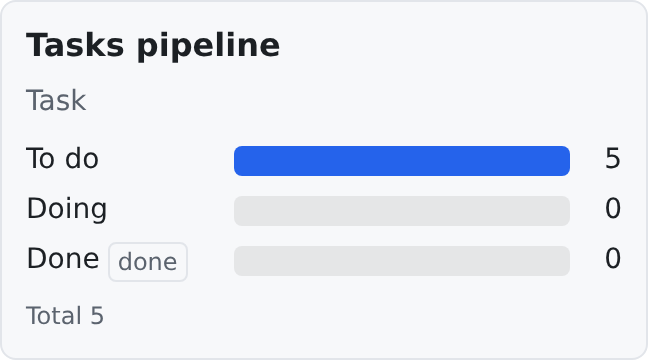
One pipeline as a funnel: a bar for each stage, in the pipeline's own order, with the number of work items in it. A stage's WIP limit (the most items it should hold) shows beside its name, and a stage at or over its limit is marked. The last stage is tagged as done, and the total is at the bottom.
Where to use it
On a dashboard, to see where the work stands. The My work page carries the funnel of the Task pipeline.
Data source
The work items riding the pipeline you name. The card reads them itself, so there is no source to pick.
Editor options
| Option | What it does | Default |
|---|---|---|
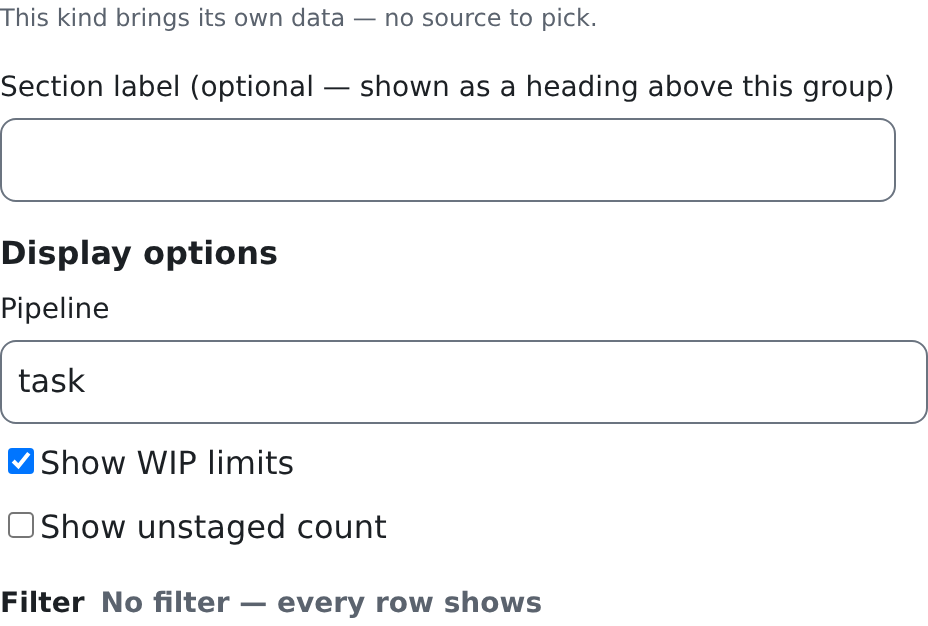
| Pipeline | The pipeline to show: a pipeline's id, or a work-item type's name (for example task), which means that type's default pipeline. | Not set: the card shows nothing |
| Show WIP limits | Shows each stage's WIP limit beside its name, and marks a stage at or over it. | On |
| Show unstaged count | Also counts items on the pipeline that sit in no listed stage (rare: a stage switched off after items entered it). | Off |
Filter
None. The pipeline is its filter.
Who can see it
crm.work_items.read: the three doors the card reads from (the work-item types, the list and one item) require it. The counts include only the items you may see.
Good to know
- The counts come from the work-item list, which stops at the space's list limit. When a pipeline holds more items than that, the card says counts capped at and the number, instead of quietly counting too few.
- A pipeline with no items in it shows an empty state, not an empty funnel.
Timeline
What it shows
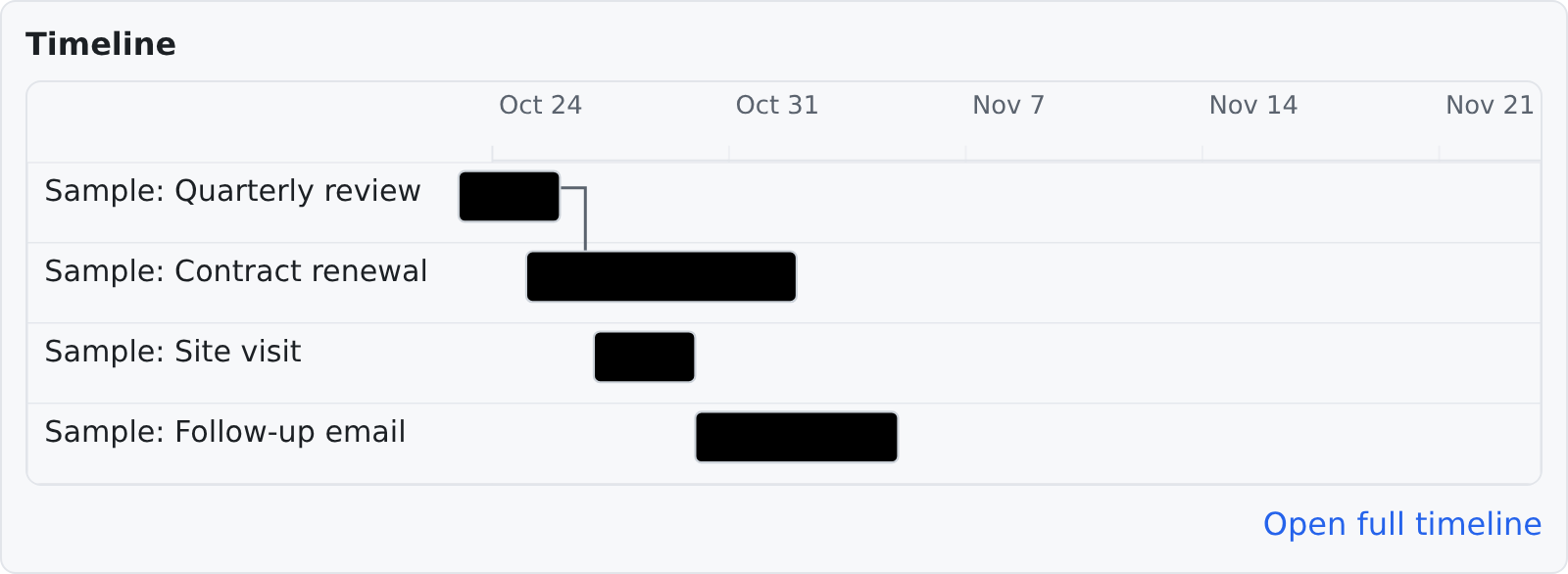
Work items as bars across the days they run, from their start date to their due date, with arrows for the dependencies between them (one item must finish before the next starts). The critical path, the chain of items that decides the end date, can be highlighted. A link opens the full timeline. Items with no dates are counted under the chart.
Where to use it
On a dashboard, full width. The My work page carries one under the funnel.
Data source
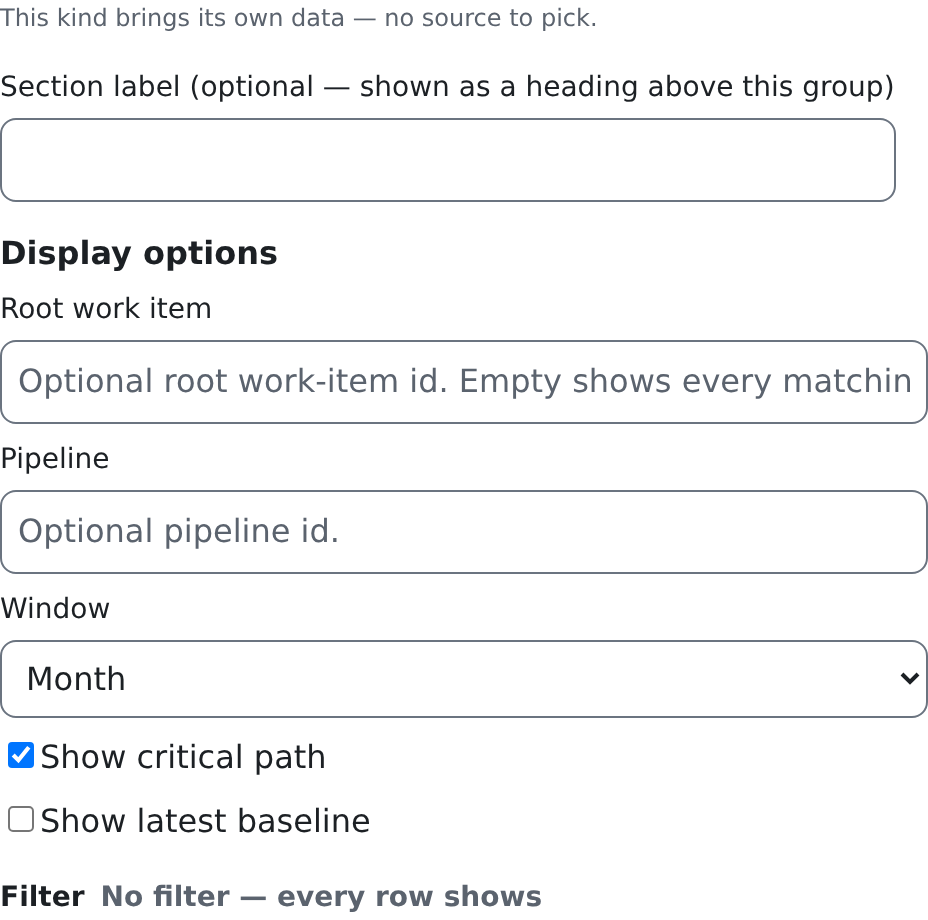
Dated work items: the card reads them itself, for the window you choose, starting today. There is no source to pick.
Editor options
| Option | What it does | Default |
|---|---|---|
| Root work item | Shows only this work item and the items under it, by its id. | Empty: every item that matches |
| Pipeline | Shows only the items on this pipeline, by its id. | Empty: every pipeline |
| Window | How much time the chart shows from today: Week, Month or Quarter. | Month |
| Show critical path | Highlights the critical path. | On |
| Show latest baseline | Shows the latest saved baseline (the plan as it was) as faint bars behind the real ones. It needs a Root work item with a baseline. | Off |
Filter
None. Root work item, Pipeline and Window decide what it shows.
Who can see it
crm.work_items.read: the timeline door and the baselines door both require it. The chart is read-only.
Good to know
- Moving bars and drawing dependencies happen on the full timeline (Open full timeline), not in the card.
- The window always starts today, so an item that ended before today is not on it.
Work item header
What it shows
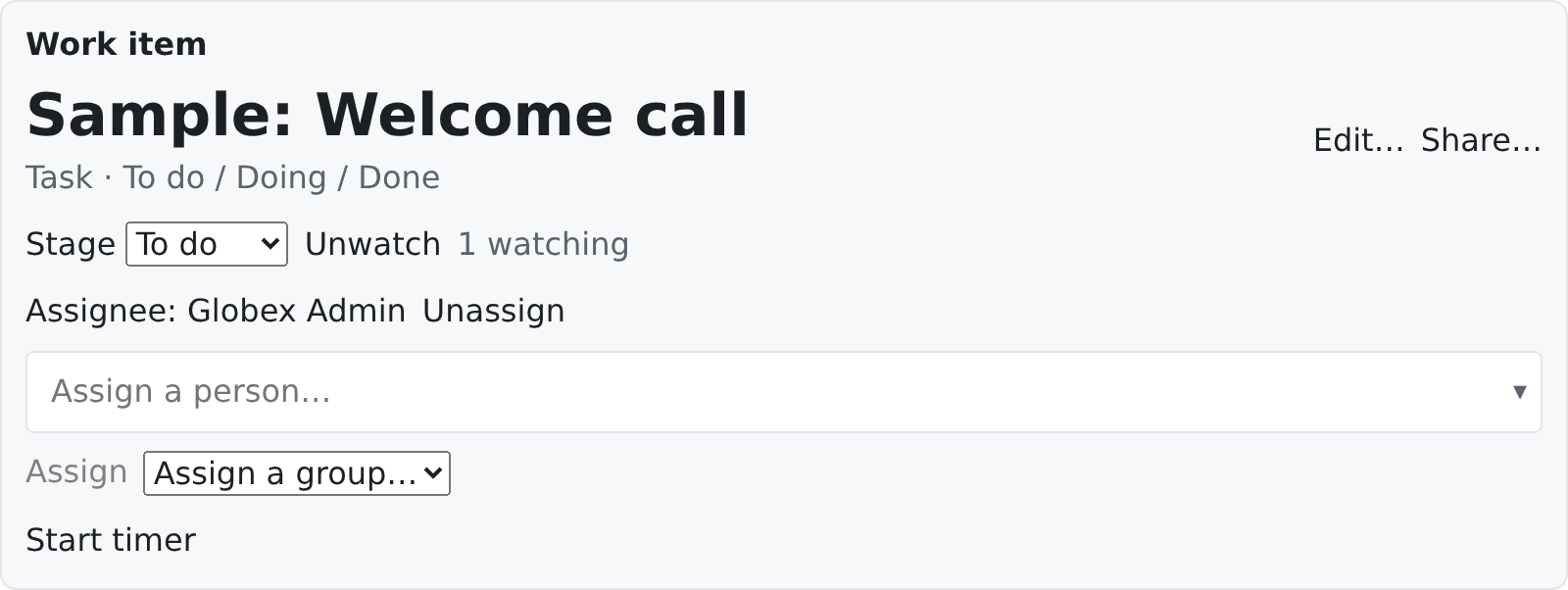
The top of a work item's page: its title, its type and pipeline, its stage (a list to move it to another stage), its priority and flags, Watch and the number watching, the assignee with Claim, Unassign and the pickers to assign a person or a group, and the timer. Edit… and Share… open the item's editor.
Where to use it
At the top of a work item's page, full width. The seeded work-item page carries one.
Data source
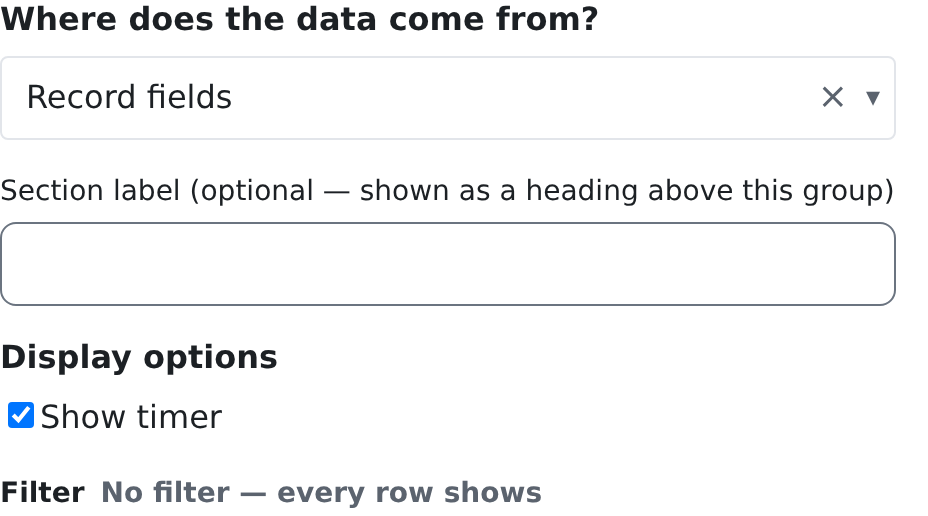
Record fields: the work item the page shows.
Editor options
| Option | What it does | Default |
|---|---|---|
| Show timer | Shows the timer (Start timer, and the running clock with Stop). | On |
Filter
None. The header shows one work item.
Who can see it
crm.work_items.read to see it. Each control needs its own key, and shows only to someone who holds it: the stage list crm.work_items.move, Claim crm.work_items.claim, assigning and unassigning crm.work_items.assign, the group list crm.groups.read, and the timer crm.time.track.
Good to know
- On a page that is not a work item's page there is no work item, and the header shows nothing.
Checklist
What it shows
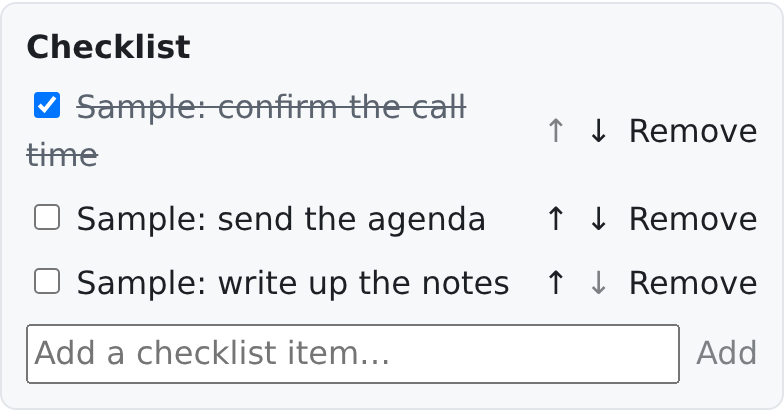
The work item's checklist: tick a line done, move it up or down, remove it, or add a new one at the bottom. A line that is done is struck through.
Where to use it
On a work item's page. The seeded work-item page carries one.
Data source
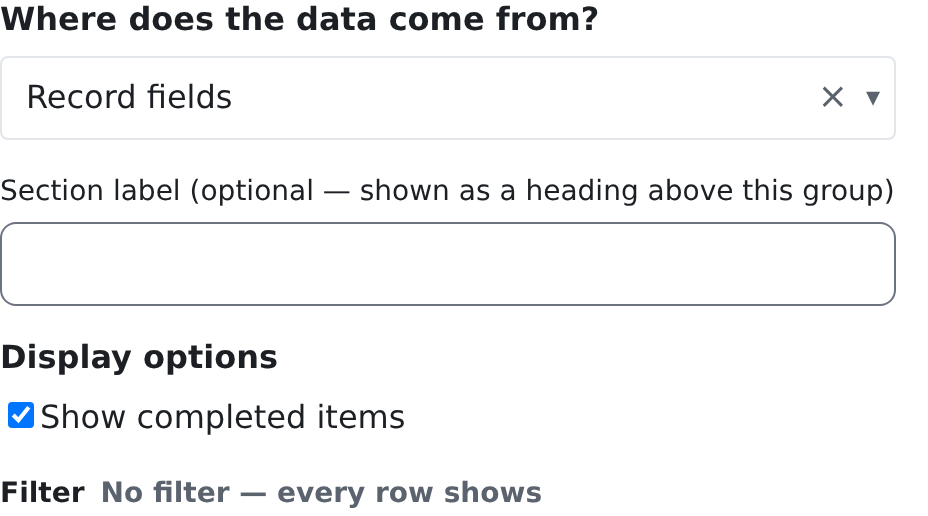
Record fields: the checklist of the work item the page shows.
Editor options
| Option | What it does | Default |
|---|---|---|
| Show completed items | Shows the lines that are done. Off hides them. | On |
Filter
None. The checklist is one work item's lines.
Who can see it
crm.work_items.read to see the lines. Ticking, adding, moving and removing need crm.work_items.write; without it the boxes are greyed out and the buttons are not shown.
Good to know
- A pipeline stage can require a finished checklist. Moving such an item on (for example with Done in My work) is refused until every line is ticked, and the reason is shown.
Work-item comments
What it shows
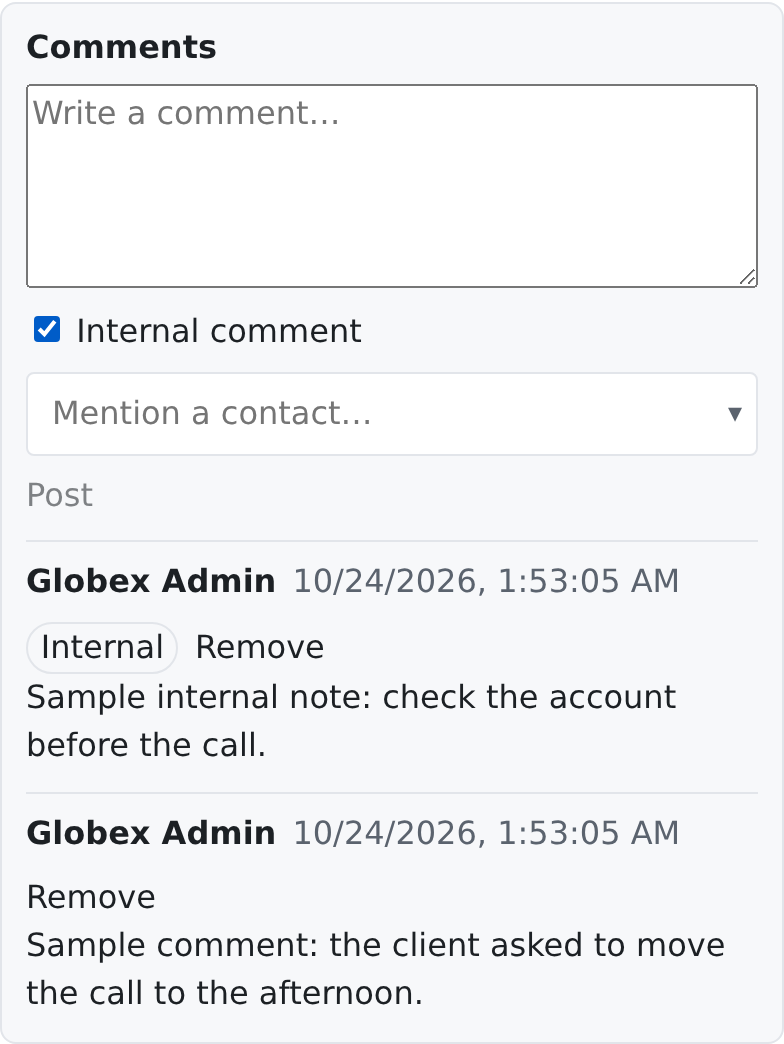
A box to write a comment on the work item, with Internal comment (seen by staff only) and a picker to mention a contact, then the discussion, newest first. Each comment shows its author, when it was written and an Internal tag when it is one.
Where to use it
On a work item's page. The seeded work-item page carries one beside the checklist.
Data source
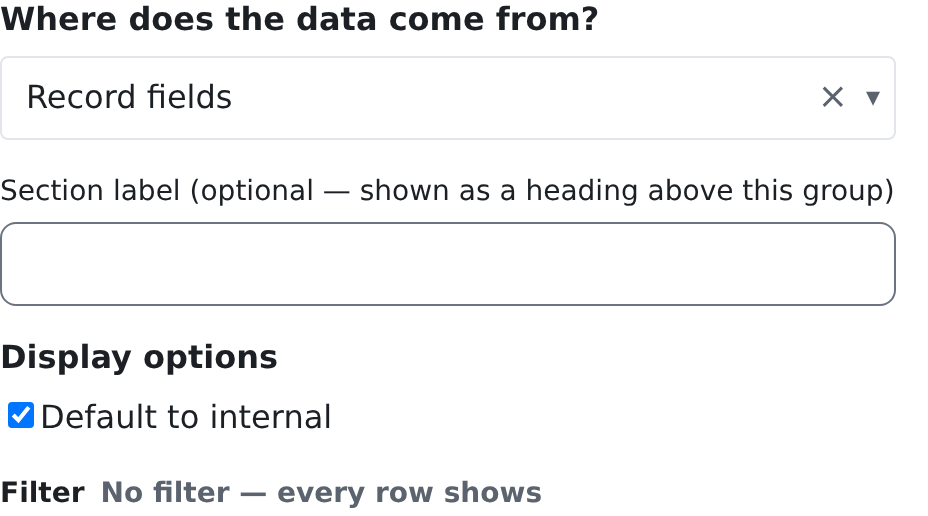
Record fields: the comments of the work item the page shows.
Editor options
| Option | What it does | Default |
|---|---|---|
| Default to internal | Ticks Internal comment when the box opens. | On |
Filter
None. The comments are one work item's.
Who can see it
crm.work_items.read to read the comments. Writing one needs crm.work_items.comments.write; without it the box is not shown. You can remove your own comments; removing someone else's needs crm.work_items.pipelines.manage.
Good to know
- A mentioned contact who has a login is told about the comment, and so is everyone watching the item.
- Older comments loads the next fifty.