Adding & Editing Records
Nothing in this app saves behind your back. On a record's page you switch to edit mode, change what you need and press Save. In a list, your changes wait in an edit cart until you save them. If someone else changed the same record first, the app stops and tells you, and in the edit cart it shows you both versions. This page walks through each of these.
A record's page
Click a row in a list to open that record's page. The page is made of widgets: cards such as the record header, groups of fields, tables of the record's phones and e-mails, notes and relationships. Record-page widgets explains each kind of card.
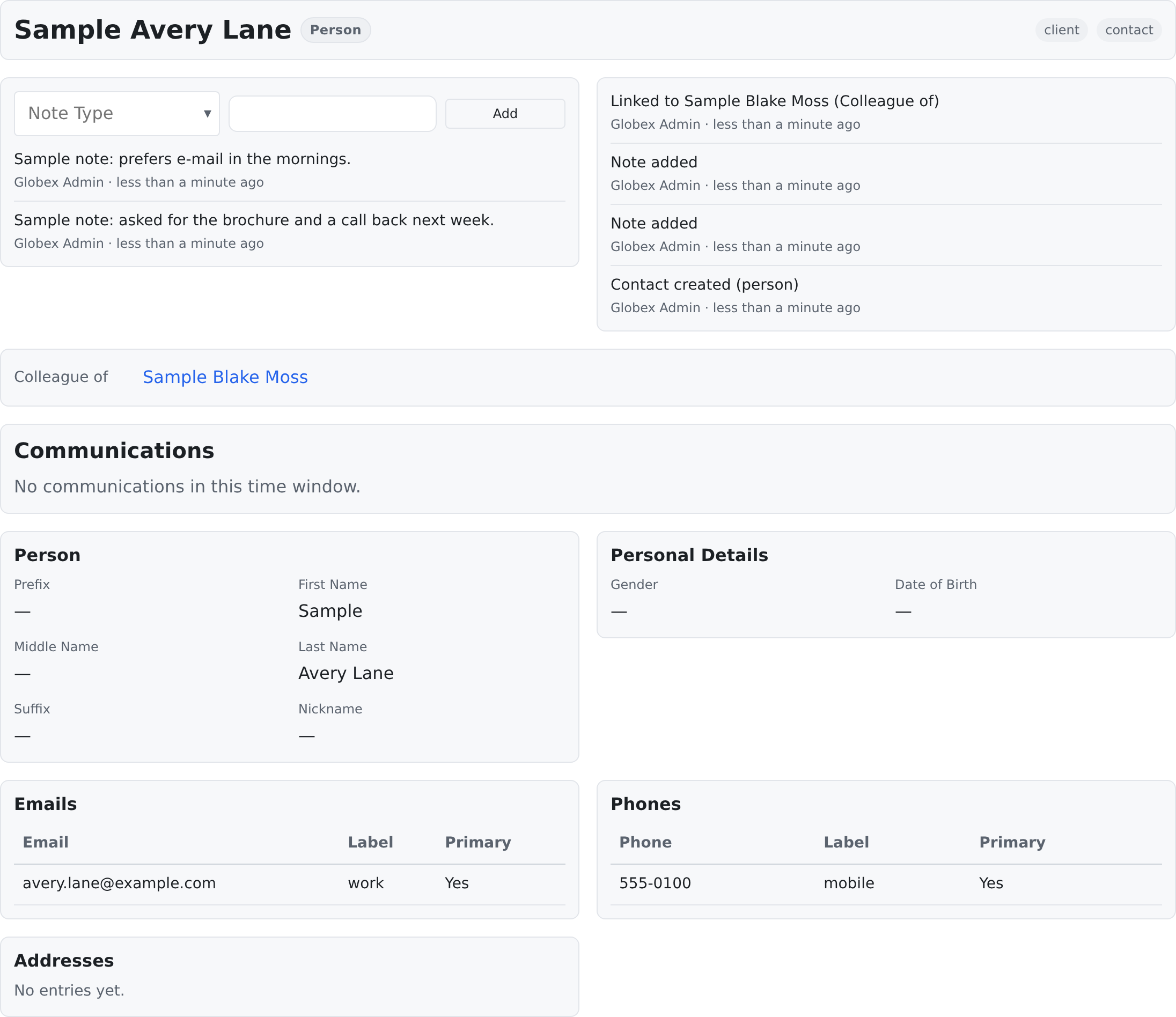
Each card on a record page is placed there in the Page Designer. A card meant for one kind of contact shows only on the pages of contacts who hold a role it names. When a role is added to a contact, its cards appear the next time the page opens. See Cards by role and The Page Designer & Widget Library.
Around the cards, a contact's page can also show:
- Share at the top, if you may share contacts and you work in more than one space. See Contacts.
- Test a workflow on this record, if you may run workflows. See Automations.
- Among the cards: Attachments, Tasks, Schedule and Communications. They are cards the Page Designer places, like the others, so they can be moved, resized or hidden for a role. Each shows only if you may see what it lists. See Attachments, Tasks and Schedule.
Your own layout of the page
Above the cards, Save layout as view… lets you arrange the same cards your own way: move them, resize them or hide some, then give the layout a name. Once a page has views, a picker shows Standard layout and each view's name; pick one to switch. Edit view… changes the view you picked, and Set as default makes it the layout that opens first. A view only rearranges the cards the page already has. It never adds a card, and it never shows you something you may not see. A view can also carry a layout of its own for phones, tablets and desktops: open Edit view…, pick the size under Screen size and press Start one from this view's layout; on a phone, that layout's order, hidden cards and sections apply.
Adding a record
- On a contact list, click + Add contact. The Add contact window opens over the list.
- Fill in Name (it is required), Contact type, Email and Phone. If the type you need is missing, + Add new type adds it right there.
- Click Create contact. The new contact's page opens.
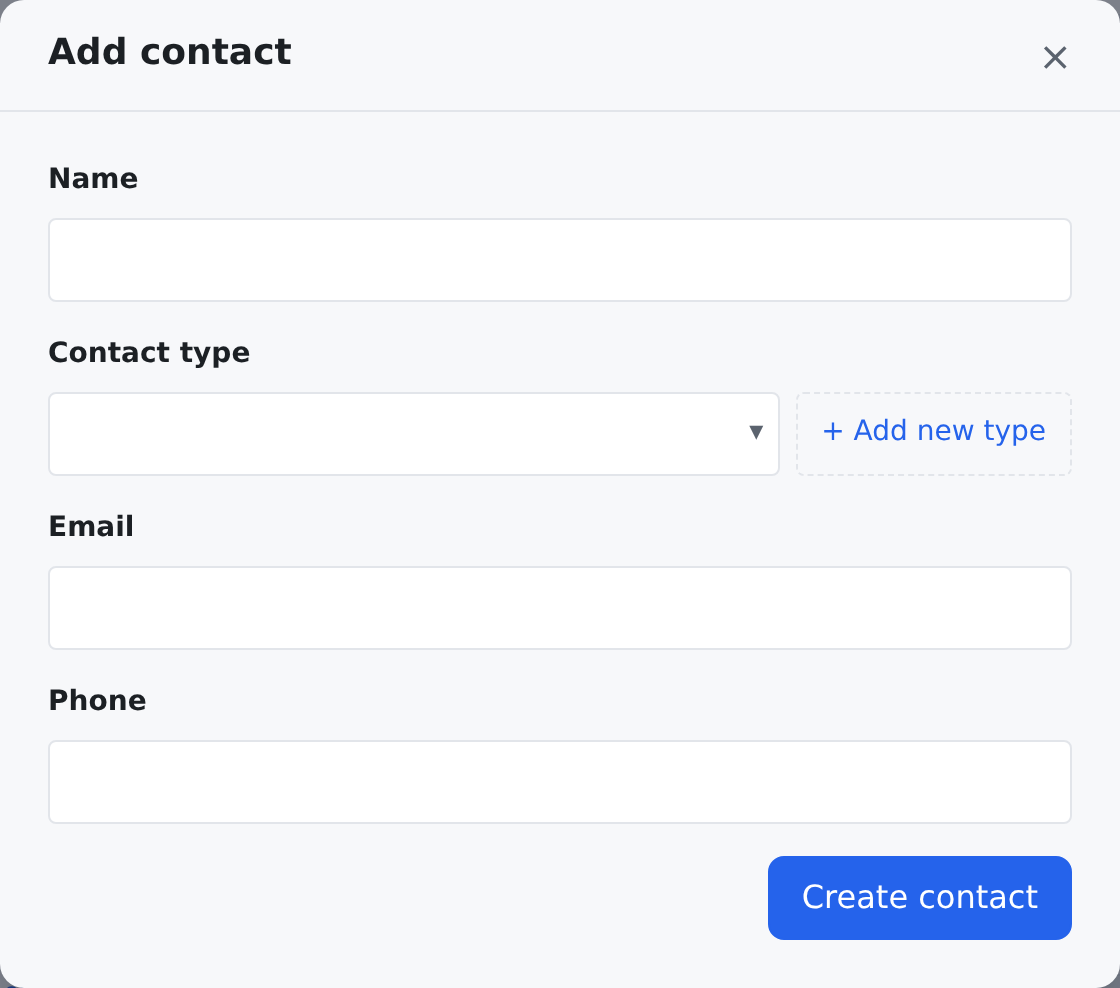
When you add a contact from a list that was opened from the sidebar, the window may also show From this view: values the list's filter implies, such as a role or a group. They are there so the new contact shows up in the list you are looking at. Each can be changed, or removed with its ×, before you create the contact.
A new contact always belongs to at least one group. If you do not choose one, it goes into your space's default group.
Editing on the record's page
- On the record page, click Edit page. The button is at the top, and it shows only when there is at least one card you may change.
- Change what you need, in as many cards as you like. A card you may not change stays as it is.
- A changed card is marked Unsaved, and the bar at the top counts the changed cards ("2 unsaved"). The bar stays at the top of the window while you scroll.
- Click Save.
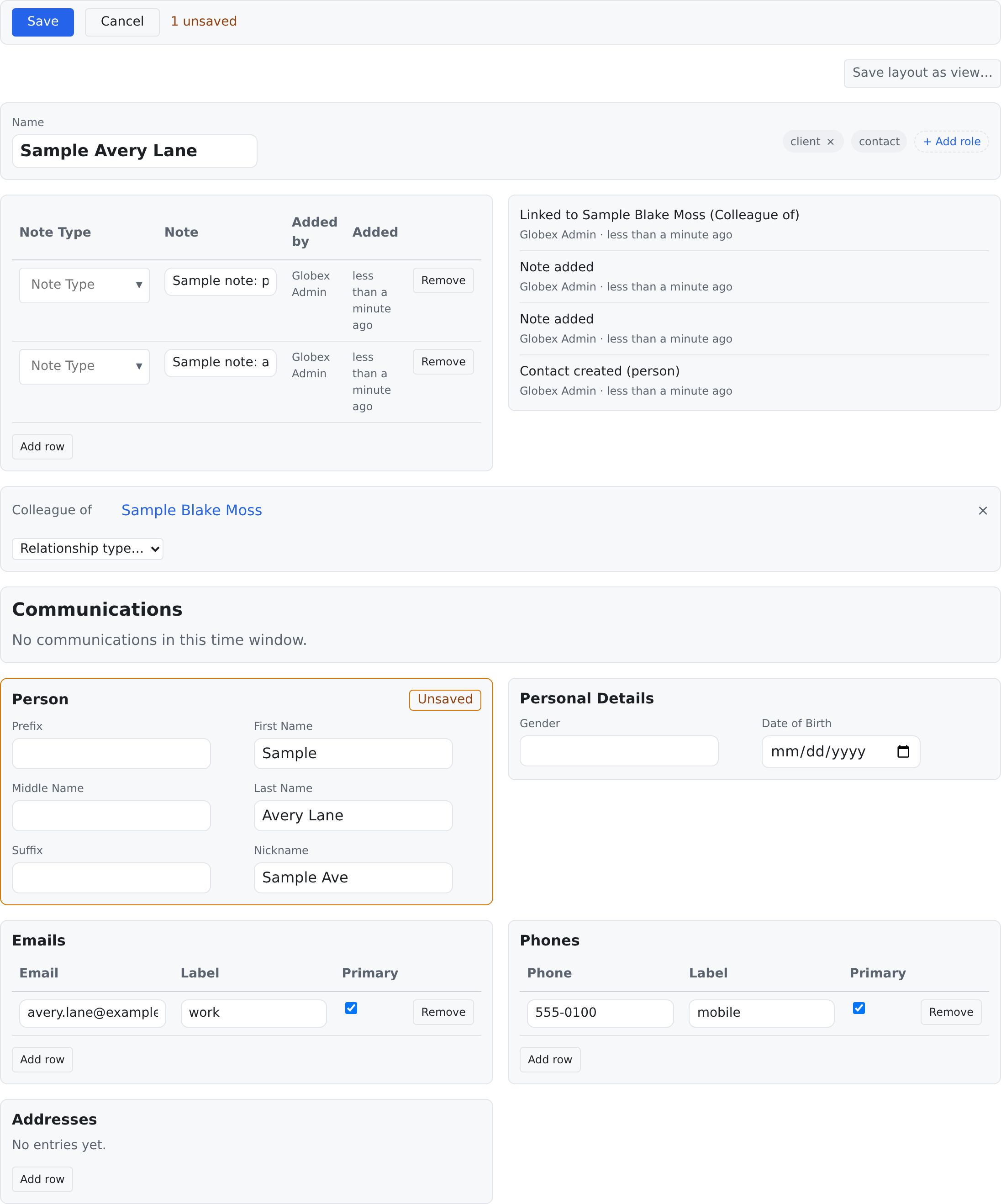
Each changed card is saved on its own, one after another, and the bar says how it went. "2 saved · 1 failed" means exactly that. A card that failed keeps your changes and shows the reason inside it, and the page stays in edit mode so you can fix it and press Save again. The cards that saved are already stored. When every card has saved, the page leaves edit mode.
Cancel leaves edit mode. If cards are unsaved, it asks first: You have unsaved changes. Discard them and stop editing? Discard changes puts every card back the way it was and leaves edit mode; Keep editing keeps your changes. With nothing unsaved, Cancel leaves edit mode at once. If you try to leave the page while cards are unsaved, the app asks too: Discard and leave, or Stay.
Some cards hold a single place, such as a contact's one spouse. If that place is already filled when you save, the app asks Replace existing? and names who is there now. Choose Replace to swap them, or cancel to keep things as they are.
Tables under a row
A table can be made on the rows of another table (Admin → Extension tables → A row of another extension table), and attached under it from the parent table's row (Tables under this one…). Such a table is never a card of its own. It shows under the row it belongs to:
- In a table card, a row that has tables under it gets a small expander at its start, naming them ("▸ Visit log"). Click it to open the row's drawer; the tables under that row show there, one level in. A row inside the drawer can have its own drawer. The card option Start with the tables under each row open opens them all at once.
- Under a one-row card (a set of extra fields), the tables under that row show directly beneath the fields.
- In the relationships card, a relationship's extra fields can have tables under them, and a relationship can carry a list of rows directly (for example the days a worker serves a client). Both show under the relationship, as rows.
Editing works the same way as everywhere on the page: click Edit page, change the rows in the drawer, and press the drawer's own Save — it saves at once, through the same door as the card above it, and the row it belongs to is checked first (a row you cannot see, or one that was removed, answers parent record not found). What you may see or change follows the table above it unless the table has its own permission: a table with none of its own inherits its parent's, and the parent inherits the record's.
Every change under a row shows on the record's activity feed, named after what it hangs from: Visit log row added under Service agreement. A change under a relationship shows on both people's feeds.
The edit cart
When you change cells in a list, or use the bulk edit bar, the changes do not save straight away. They collect in the edit cart, a Pending Edits panel beside the list. Think of it as a shopping cart for changes. See Working with Lists for editing in a list.
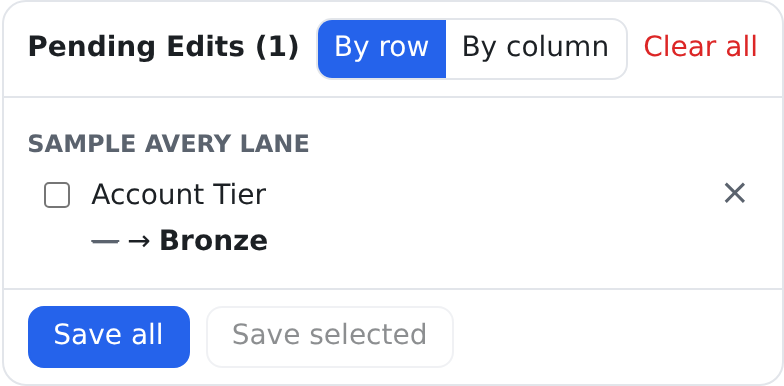
- The title counts the changes waiting, for example Pending Edits (1). Click the title to fold the cart down to it, and again to unfold it.
- Each entry shows the field with its old value → new value. A change to many records is tagged bulk, and a deletion is tagged delete.
- By row groups the entries by record. By column groups them by field.
- × on an entry takes that change back. Clear all empties the cart once you confirm.
- Save all saves everything. Or tick some entries and click Save selected; the rest stay in the cart.
While the cart saves, its entries say saving…. The saved ones leave the cart a moment later. One that failed stays with the reason, so you can fix it or remove it. This holds for a bulk change too: when some of its records were not saved, it stays in the cart and says how many and why. A message sums up the save, such as "3 saved · 1 failed". If your settings say to stop at the first failure, a failure undoes the whole save and the message says so.
When someone else changed the record first
Every save checks that the record is still the way it was when you loaded it. If someone else saved it in between, your save stops. Nothing is overwritten.
In the edit cart, the entry stays and shows what happened:
- This record was modified by another user.
- Your change: the old value and your new value.
- Current server value: what the record holds now.
Then you choose:
- Force save: save your value over theirs. This needs the permission to resolve conflicts (
crm.contacts.conflict_resolveon a contact list). - Discard: drop your change and keep theirs.
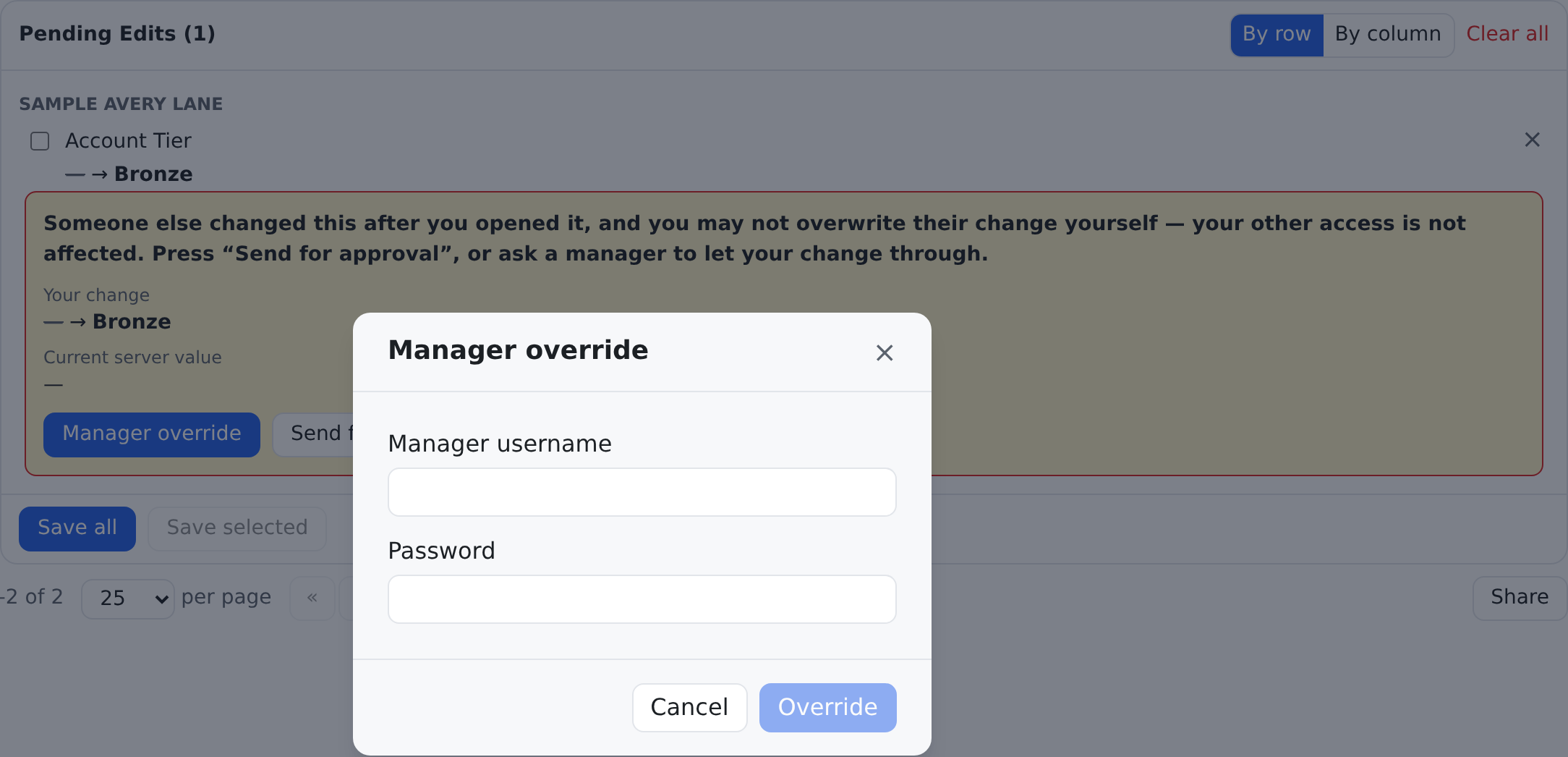
If you press Force save but may not force a save, the entry says so, and that it is the conflict that stops you, not your access to the record. It offers:
- Manager override: a colleague who may resolve conflicts types their Manager username and Password right there, and the save goes through on their say-so. Wrong details keep the window open with the reason.
- Send for approval: your change is filed as a request for someone who may approve it, and the entry shows Awaiting approval.
- Discard, as above.
On a record's page, the card that met the newer version says so (for example "record was modified by another user") and keeps your changes. Click Cancel to load the current version, then make your change again.
When the app asks for your password
Some actions, such as deleting records, ask you to confirm your password first: Confirm your password, then Confirm. Once you have confirmed it, you are not asked again for a while. When several saves need it at the same moment, you are asked once, not once per save.
Who can do what
For contacts, these permissions decide what you can do:
| To do this | You need |
|---|---|
| Open a contact's page | crm.contacts.read |
| Add a contact, change one, save the edit cart | crm.contacts.write |
| Delete contacts | crm.contacts.delete, and your password |
| Force a save over someone else's change | crm.contacts.conflict_resolve |
| Offer a manager override | crm.manager_override |
Whether a card on a record's page can be changed follows the permissions of the data it shows. See Who Can See What.
Related pages
- Working with Lists: editing cells and bulk changes, which feed the edit cart.
- Record-page widgets: every kind of card a record page can hold.
- Contacts: what the cards on a contact's page mean.