Linking Records
Records rarely live alone: a child has parents, a client was referred by someone, a file belongs to a case. Links connect records to each other, with readable wording in both directions and rules that keep the connections sensible.
Where links live
A contact's links appear in the Relationships card on its page: a single card for all the link types it shows, each row naming the type and the other contact. Click the other contact's name to open their page. One link is shown from both sides with the right wording for each: if Anna is linked to Ben as "Child of", Anna's page says Child of Ben and Ben's page says Parent of Anna. It is one link, not two — remove it from either side.
The card shows the link types its administrator chose for it, so a link type that is not on the card does not appear there. How the card is set up is on Record-page widgets.

Adding a link
- On the contact's page, press Edit page. The Relationships card shows its add row at the bottom.
- Pick the link type from Relationship type… (Child of, Spouse of, Referred by...).
- Find the other contact with Pick a contact… — start typing a name and choose from the matches. You always pick by name, never by ID.
- Press + Add. The link is saved at once.
If the contact you need does not exist yet, create it first, then link to it. To remove a link, press × on its row while the page is in edit mode.
Link rules
Link types can carry rules, and the app enforces them when you link:
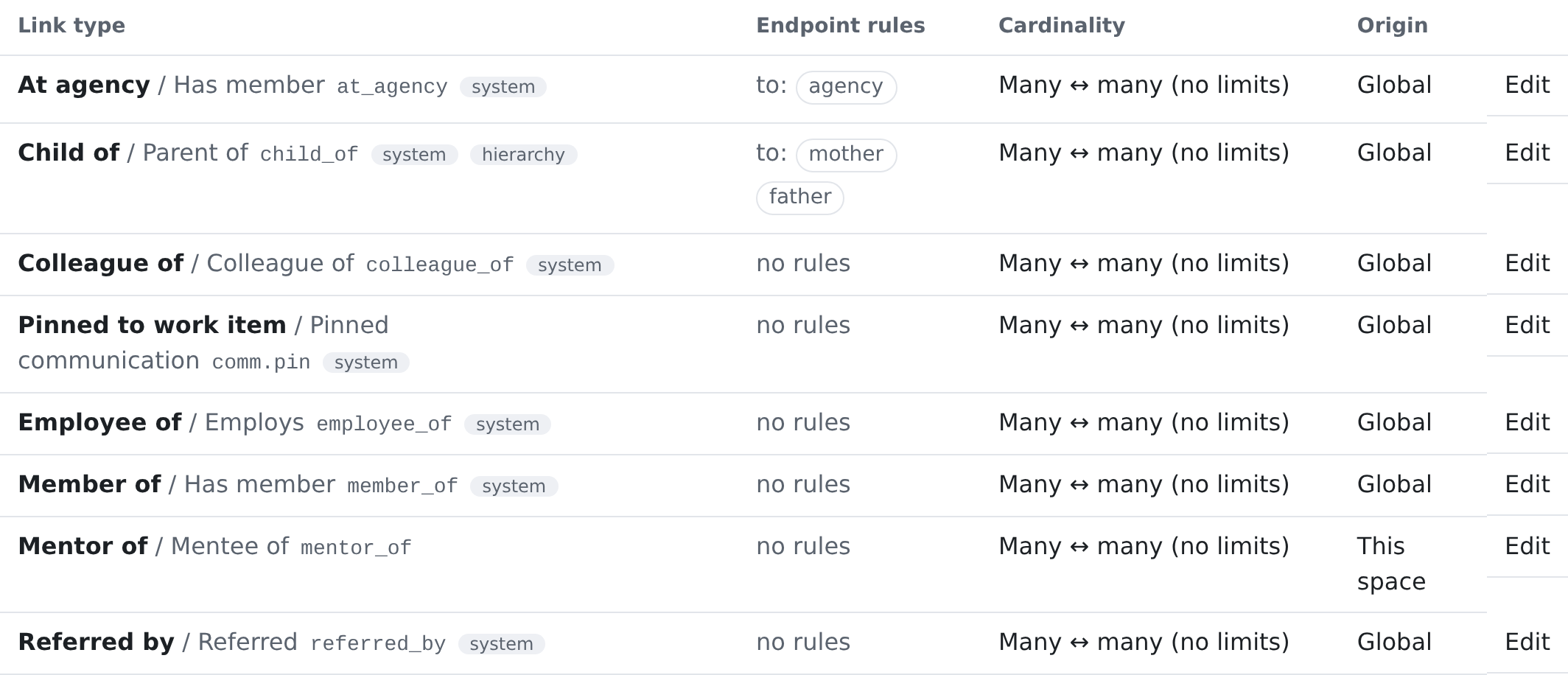
- Who can be linked. A type can require each end to be a certain kind of contact, or to hold a certain role. For example, Child of only accepts a link to a contact holding the Mother or Father role. If the record you picked does not qualify, you get a clear message saying why — assign the needed role first, then link.
- One-per-slot links. Some types allow only one holder — a client has one Mother. If the slot is taken you are asked: "This slot is already filled by Jane Sample — replace?" Choosing Replace swaps the link; the old connection is closed, not silently erased. Cancel leaves everything as it was.
- No self-links and no duplicates. A record cannot link to itself, and the same link cannot be added twice on the same placement path (see below — a contact CAN be linked to the same agency once per branch it sits under).
Family trees and hierarchies
Some link types are hierarchical — they build trees, like org charts or family structures. A record may sit under more than one parent (a child with two guardians, a team reporting into two leads), and each line of ancestry is kept distinct, so "everyone under this branch" always answers correctly.
Linking to a record that sits in a hierarchy
When the record you are linking TO sits inside a hierarchy (say, an agency under two umbrella organizations), the picker offers it once per branch — e.g. "Sample Agency (North Group › East)" and "Sample Agency (West Care)". Pick the placement the link belongs to; the link remembers it and always displays the full chain (North Group › East › Sample Agency). Linking the same two records on another branch is a second, independent link — each placement carries its own extra fields (like Role at agency). Removing one placement never touches the other. If the hierarchy above the record is restructured later, stored placements follow their branch automatically.
Fields on a link
A link type can carry its own fields — a Role at agency, a status, a start date. They show under each link in the Relationships card. In edit mode you change them there and press Save under the link; each link keeps its own values.
These fields can also be filtered on, in views and in the widgets that read them: Employee of › Status equals Active. See Filtering & Searching.
One card, every link type
A contact's links of every type sit in the one Relationships card — family, colleagues, employers, agencies, referrals. Both directions are always listed, so it never matters which side created the connection. A contact's files are not links: they sit in the Attachments panel (see Files).
Removing links
Removing a link disconnects the two records — it never deletes either record. History of who linked and unlinked what stays in each record's activity feed.
Two records of the same contact
When two contact records are really one person or business, link them as the same contact. The link is the system's Same contact as type: it shows on both records in its own strip of the Relationships card — Same contact as Jon Smith — to anyone who may see both records, and to nobody else. It is made from the possible-duplicates page (Link on an open pair), from the compare panel, or from the Relationships card like any other link.
Compare & pull (on the strip, or on a linked pair of the possible-duplicates page) opens the two records side by side with every field that differs on its own row. Press → or ← to pull that value from one record into the other — one field at a time: a name part, the description, a phone, e-mail or address only one side has, a custom field. A pulled phone, e-mail or address is added to the other record (never doubled when it already has the same one in another format); a pulled name part replaces the other record's. Each pull is an ordinary edit of the record it lands on, so its version, its history line (pulled from Jon Smith by Dana on 26 Oct) and the audit trail are the hand edit's; the record it came from is never changed and keeps its own line. A value you may not see — a sensitive field — is shown hidden and cannot be pulled.
Unlink asks the same two questions as leaving a possible duplicate: a note, and whether to leave the pair for now (a stronger match brings it back) or as two different contacts. Merge instead arrives with its own update.
For administrators: defining link types
With the link-types permission you can define the vocabulary. Press + Add link type, or Edit on a row; the form holds:
- Key (slug), Label (from → to) and Inverse label (to → from) — for example "Child of" / "Parent of";
- “From” endpoint rules and “To” endpoint rules — a Contact type (or Any) and Add a required role…; several roles mean any one of them qualifies;
- Relationship fields — attach a relationship-fields table, whose fields then show under every link of this type;
- Cardinality — Many ↔ many (no limits), One → many (the “from” side is exclusive) or One ↔ one (both sides exclusive); the hint under it says what people will see. For an exclusive type, Exclusive slot reaches says whether the slot is the whole record or one placement path;
- Who may add or remove links of this type — leave it empty and anyone who may edit the contact can link with it (the default, and what every existing type does); name a permission to narrow it to the people who hold that permission. The system's own types (such as Same contact as) keep the system's choice: you may change their wording in your space, not who may link with them;
- Hierarchy (tree/DAG), Read-only surface and Enabled.
A new type is ready to use at once. To offer it on contact pages, add it to the Relationships card's Link types in the Page Designer (see Record-page widgets).
Where to find it
| Screen | Where it lives | What it is for |
|---|---|---|
Link Types — /admin/link-types | Settings → Data model → Link Types | define the link types described above — their names in both directions, and their rules |
Opening it needs permission to read link types; saving needs the manage permission.
Who can do this
| To do this | You need |
|---|---|
| Open the Link Types screen | crm.link_types.read |
| Add or change a link type | crm.link_types.manage |
| See a contact's links (only links to contacts you may see) | crm.contacts.read |
| Add or remove a link | crm.contacts.write, unless the link type names its own permission — then that one |
| Link two contacts as the same contact, or unlink them | crm.contacts.duplicates.link |
| Pull a field from one linked contact into the other | crm.contacts.duplicates.pull and crm.contacts.write |
The two duplicate keys come together in the Duplicate stewards group.
A link type can also become a column in a designed table, showing the contacts on the other end of each link — see Designing Table Views.
Related pages
- Roles & Extension Fields — extra fields, including the fields a link type carries.
- Contacts — the rest of the contact page.