Your Account
Your sign-in details, your language, your password, your rights, your default space and signing out all start from the user menu — the button with your initial and your username at the bottom of the navigation column on the left.
The user menu
Open it and you get five entries:
| Entry | What it opens |
|---|---|
| Settings | the Settings page: your own pages under My workspace, and the administration pages you may open |
| My account | your own sign-in details, My language and Change my password — see below |
| Notification preferences | which events notify you, and how — see Notifications |
| Groups & rights | who you are acting as in this space, what your groups grant here, and why a control may be locked — with Elevate when you need it |
| Log out | ends your session on this device |
My account
My account is open to everyone who is signed in — no permission is needed to look after your own account.
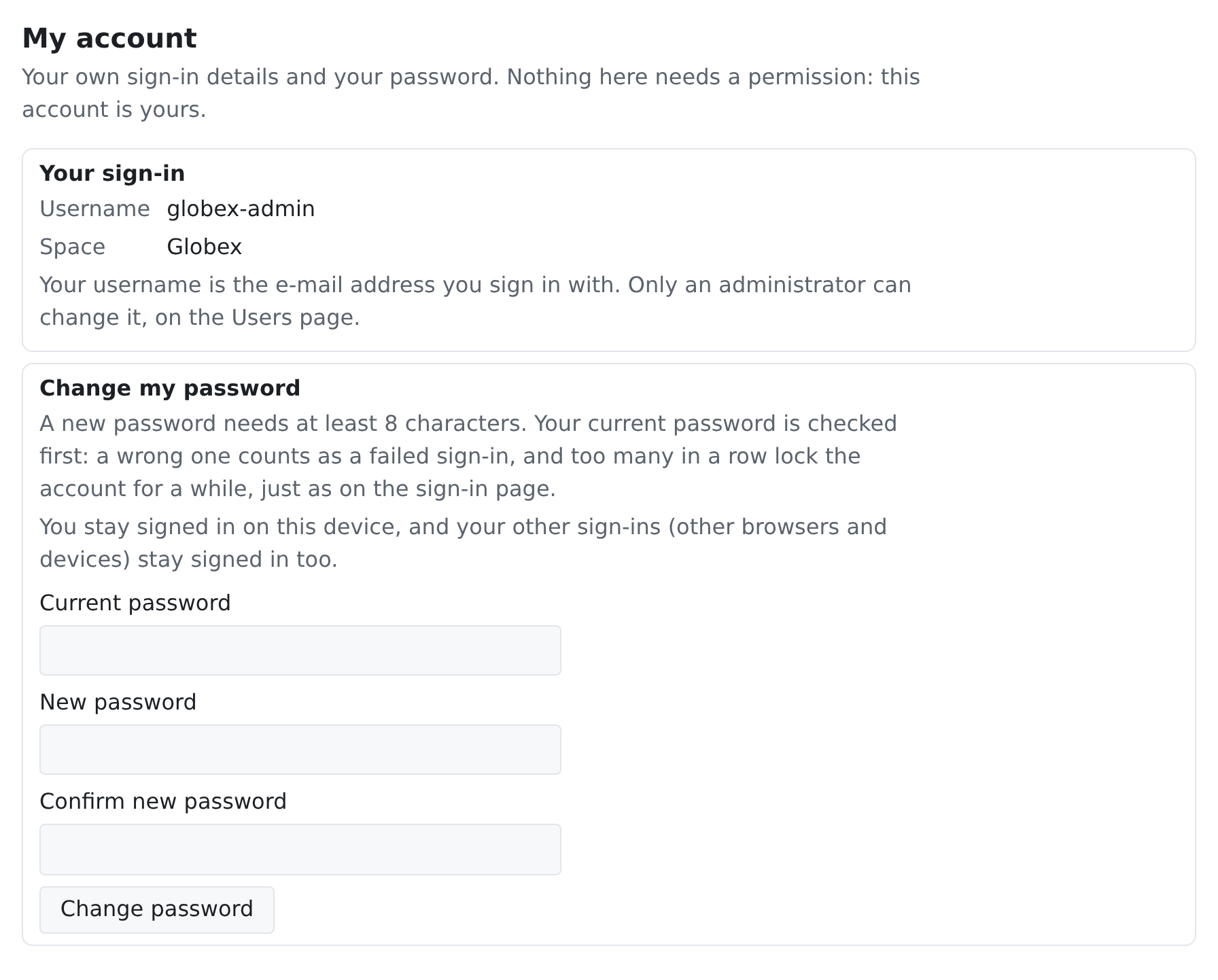
Your sign-in shows, read-only:
- Username — the email address you sign in with.
- Space — the space you are working in.
- Home account — shown only when you reached this space through a linked account. Your password belongs to that home account, so changing it here changes it in every space you reach with that account.
You cannot change your username or name yourself: an administrator keeps your user's details on the Users page — see Users & Spaces.
Changing your password
- Open My account from the user menu and find Change my password.
- Enter your Current password, then the New password and Confirm new password. The page tells you the rule before you type: a new password needs at least 8 characters.
- Press Change password. Your password was changed. confirms it and the fields are emptied.
What the page tells you, and why:
- Your current password is checked first. A wrong one is refused with Invalid username or password and counts as a failed sign-in, exactly as on the sign-in page: too many in a row lock the account for a while.
- Every refusal is shown in the server's own words — for example New password is too short — must be at least 8 characters. The page itself only checks that the confirmation matches.
- Your other sign-ins. You always stay signed in on the device you used. Whether your other sign-ins (other browsers and devices) are signed out too is your administrator's choice — a System settings option that also signs you out everywhere else when you change your password; it is off unless they turn it on. If you may read settings, the page says which way it is set in your space; otherwise it says that your administrator decides.
- While an administrator is impersonating you, the change is normally refused: it is a sensitive action, and it would check the administrator's own password, not yours.
The same change can also be made on the stand-alone Change your password screen at /auth/password-change — the one the application takes you to when your password must be changed.
Forgot it? On the sign-in page, Forgot password? sends a reset link to your username's email address. The page the link opens asks for a Code from your email above the new password: We emailed you a 6-digit code. Enter it here together with your new password.
Language
The interface is fully translatable, and your language choice is personal:
- Your language is saved just for you, separately in each space you work in. Choose it on My account under My language:
1. The page says which language it is shown to you in now. 2. Pick another from the Language list. It lists every language this system has turned on — its name and code, nothing else. 3. Press Save language. The page reloads in the language you chose.
- Only a language on that list can be saved. Anything else is refused with the server's own words, which name the languages you can choose from.
- Every member can see the list: it comes with the Home group everyone belongs to. If your login is not in that group, the page says so instead of showing the list — ask your administrator.
- Your organization may also define a regional wording variant (for example, industry-specific terminology layered on top of a base language). If a variant does not cover a label, the base language shows through.
Spaces and your default
If you belong to several spaces, the space switcher at the bottom of the navigation column, just above the user menu, moves you between them. Beside it, Set as default makes the space you are in your default: sign-ins land you there directly instead of asking every time. The button is not shown while you are already in your default space.
Signing out
Log out in the user menu ends your session on the current device. Sessions also expire on their own after inactivity; signing back in returns you to your default space.