Templates
Set up one space well, and you should never have to rebuild that setup by hand. A template packages a space's configuration so it can be applied to another space in one step — and later compared, updated, and re-extracted.
The page opens with a list of templates. Each row shows the template's label, its version (v1, v2 …) and badges: Main template or Sub-template, Platform or Space-owned, and Global sub-template where it applies.
What is in a template
A template carries configuration, not data. Press Items on a row to see exactly what one carries, counted by kind:
| Kind | Examples |
|---|---|
| Role, Extension attachment | Client, Member, with their attached extensions |
| Custom table, Custom column | Insurance details, Enrollments |
| Link type, Value list | Child of / Parent of; a list of statuses |
| Setting | Defaults and tunables |
| Widget page, Widget placement, Saved view, Menu item | Pages, their widgets, and the menu |
| Permission group, Folder template | Ready-made sets of permissions; a folder layout |
| Work-item type, Work-item pipeline, Work-item blueprint | How work is tracked |
| Scheduling event type, Scheduling rule profile, Scheduling constraint | How scheduling works |
Contacts, notes, files, and other records are never part of a template.
Applying a template
Applying is a guarded action — you may be asked to re-enter your password.
- Open Templates from Settings.
- On the template's row, click Apply here.
- The confirmation reads This copies "…" into the current space. Existing local overrides are kept (they will show as drift). Confirm, and the page reports how many items were written and how many were skipped.
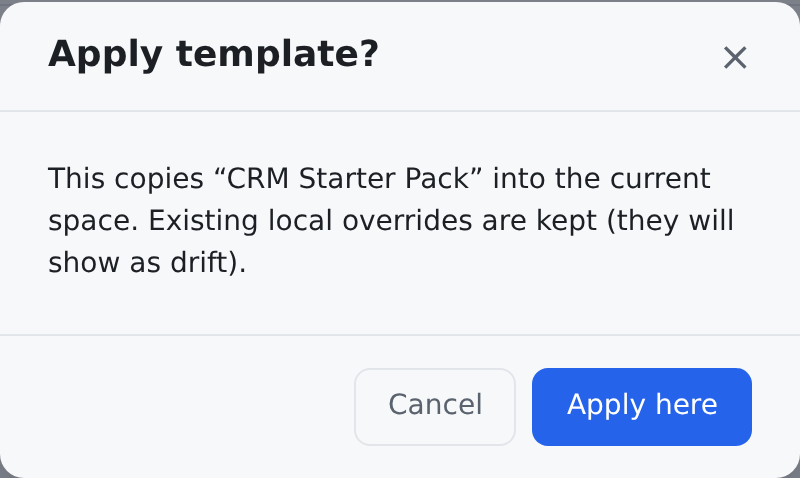
Applying is safe to repeat: items that already exist and match are left untouched, so re-running an apply never duplicates anything. Everything a template creates is stamped with its origin, which is what makes the drift report below possible. Settings that came from a template show a From template badge, and you get a warning before overriding one locally: overriding detaches it, so template updates will no longer change it.
Compose & Apply: a main template plus sub-templates
A space can be built from one Main template plus any number of Sub-templates layered on top.
- Under Compose & Apply, click Choose templates. Pick the main template and the sub-templates.
- If two sub-templates define the same item, the set shows how many conflicts need an explicit winner. Resolve conflicts lets you pick the winning sub-template for each, and set the Sub-template order.
- Use this template set, then Apply template set, and choose how the space stays connected:
| Apply mode | What it does |
|---|---|
| Apply once | Copy the selected items without keeping a template link. |
| Link and notify | Keep a link and notify this space when a new version is published. |
| Link and update automatically | Keep a link and automatically apply future published versions. |
Linked templates
Linked templates lists the templates this space is linked to, with each one's Role, Mode and Pinned version. You can change a link's mode, press Update my space to take the latest published version, and Add sub-template to link another.
Local changes and the drift report
Spaces evolve after a template is applied. Drift diff compares the space's current configuration against the template, item by item:
| Status | Meaning |
|---|---|
| CHANGED | The space edited an item that came from the template |
| REMOVED | The space deleted an item the template provides |
| ADDED | The space created an item of a template kind that is not in the template |
| UNCHANGED | Still exactly as the template delivered it — hidden unless you tick Show unchanged items |
For any item that differs, Compare shows it In this space and In the template, side by side.

Run the drift report before applying a template update — it tells you exactly where the space has intentionally diverged, so you can decide per item instead of guessing.
For a linked template, Linked drift sorts the items into Locked (your local change is kept when the template updates), Changed, unlocked and Following (the item follows the template).
Extracting a template from a space
Built a space you are proud of? Turn it into a template:
- Choose Extract from this space.
- Give it a Key, a Label and, if you like, a Description. Preview tells you how many items would be extracted, by kind, without saving anything.
- Click Extract. The space's configuration is snapshotted into a new template.
- Apply it to the next space you set up.
Publishing, splitting and deleting
- Publish releases a new version of a template, with an optional Release note. Spaces linked with Link and update automatically take it at once; spaces linked with Link and notify are told about it. The result says how many of each.
- Split moves some of a template's items into a new sub-template: pick the Items to move, give the new sub-template a key and a label, and click Create sub-template.
- Delete removes a template and its items from the catalog. A template that is still applied in a space is refused, and configuration already applied stays untouched. System templates cannot be deleted.
Where to find it
| Screen | Where it lives | What it is for |
|---|---|---|
Templates — /admin/templates | Settings → Interface & navigation → Templates | the template manager — everything on this page |
Who can do this
| To do this | You need |
|---|---|
| Open the page; see items and drift; extract, publish, split and delete | crm.templates.manage |
| See the linked templates and linked drift | crm.templates.read |
| Apply a template or a template set; change or update links | crm.templates.apply |
A new space can be created straight from a composed template set — see Users & Spaces.
Related pages
- Roles & Extension Fields — the things templates package.
- Settings — the settings cascade and the from-template badge.