Record-page widgets
A record page, such as a contact's page (/contacts/<id>), is a widget page that shows one record. Its cards are widgets that read that record: its own fields, the rows of its extension tables, its links, its files and its messages. They are built in the widget builder like any other widget, and placed on the page in the Page Designer. How the builder works as a whole is on Widgets: the full guide.
Every option below is named exactly as the builder shows it. Words in quotation marks are the hint the builder shows under that option.
| Widget | Shows | Data from |
|---|---|---|
| Record header | The record's name, its type badge and its role chips | the record itself |
| Field group | A group of fields, shown and edited together | the record, or an extension table with one row per record |
| Child table | A list of related rows, as a table or as a feed | an extension table with many rows per record |
| Form | A form layout of the record's fields | the record itself |
| Relationships | The contact's links of every type, in one card | the contact's links |
| Files | The files attached to the record | the record's attachments |
| Communications | Calls, messages and email with the contact, newest first | the contact's messages |
These widgets need a record. On a dashboard there is none, so they show nothing there.
Record header
What it shows
The record's title line, the fields you choose under it, the contact-type badge and the contact's roles as chips. In edit mode the fields you allow can be changed in place, and roles can be added and removed from the chips.

Where to use it
At the top of a record page, the full width of the page. The contact page carries one.
Data source
Record fields: the record the page shows. There is no other source to pick.
Editor options
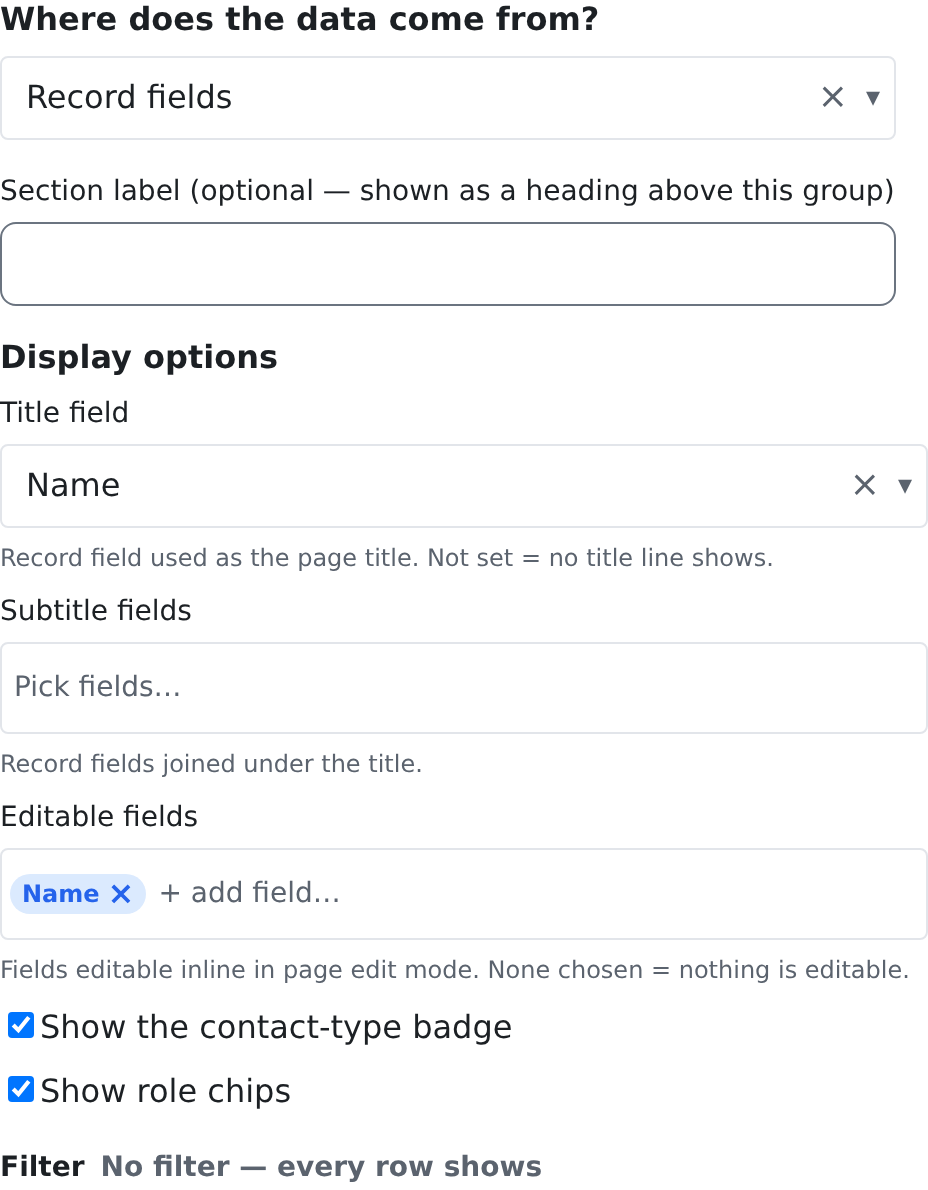
| Option | What it does | Default |
|---|---|---|
| Title field | The field shown as the page's title. | Not set: no title line shows |
| Subtitle fields | Fields shown under the title, joined on one line. | None |
| Editable fields | Fields that can be changed in place when the page is in edit mode. | None: nothing is editable |
| Show the contact-type badge | Shows the contact's type (for example Person) as a badge. | Off: the badge shows only when ticked |
| Show role chips | Shows the contact's roles as chips, with their add and remove buttons. | Off: the chips show only when ticked |
Filter
None. The header shows one record, so there are no rows to filter.
Who can see it
The record's read permission: crm.contacts.read for a contact. Editing a field in place, and adding or removing a role from the chips, needs crm.contacts.write (the role doors /api/contacts/roles/grant and /api/contacts/roles/revoke require it). The alert strip under the header shows only with crm.alerts.view.
Good to know
- Nothing shows unless you set it: no title field means no title line, and the badge and chips stay hidden until ticked.
- Each chip's remove button and the Add a role… picker show only in edit mode.
Field group
What it shows
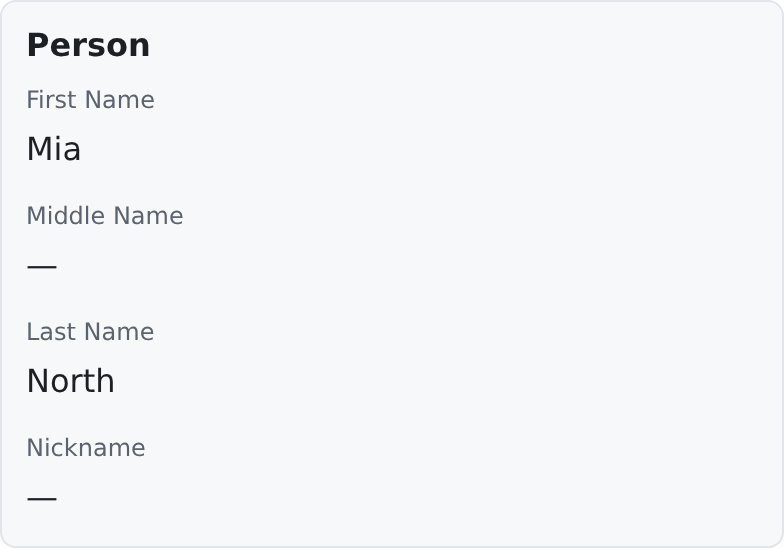
A group of fields of one record, with their labels, shown together. In edit mode the fields can be changed and are saved with the page.
Where to use it
On record pages, for a block of related fields: a person's name parts, personal details, any custom extension that holds one row per record.
Data source
Record fields, or an extension table with one row per record (for example Person Details). When the extension has no row for this record yet, the first save creates it.
Editor options
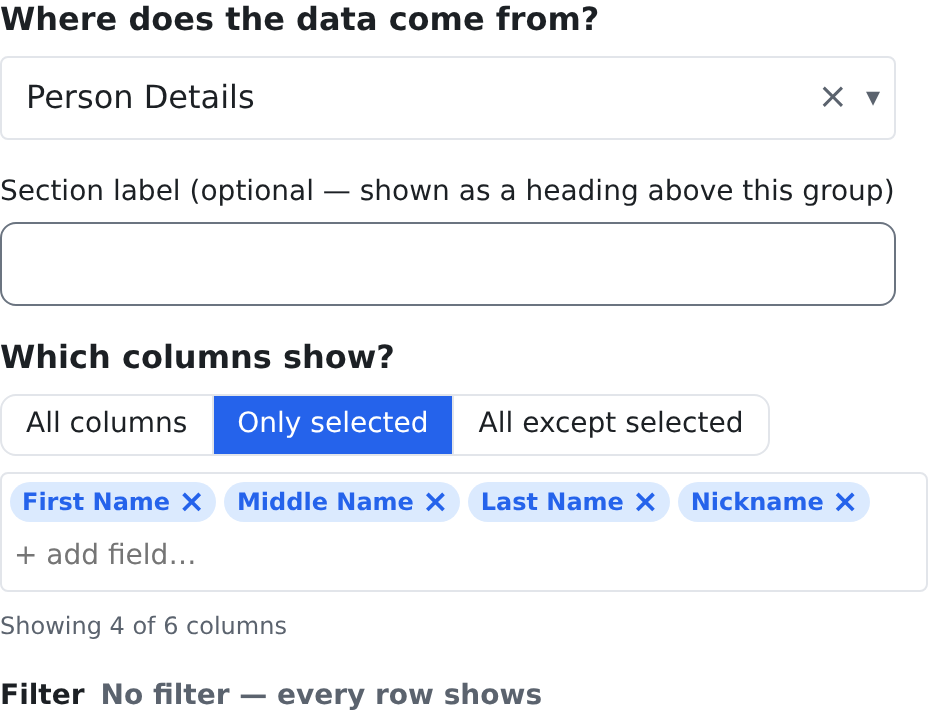
The fields are chosen under Which columns show?: All columns, Only selected or All except selected. With Only selected, the fields show in the order you pick them. Until you choose, the widget shows nothing. The Field group has no other display options.
| Option | What it does | Default |
|---|---|---|
| Which columns show? | Which fields of the source show, and in what order. | No choice yet: the widget shows nothing |
Filter
None. A field group shows one row, so there are no rows to filter.
Who can see it
The source's read permission. An extension table that has no permission of its own uses the contact's: crm.contacts.read to see it and crm.contacts.write to edit it. A sensitive field, such as a date of birth, shows masked to a person without crm.contacts.read_sensitive.
Good to know
- This card was placed with a Visibility role (see Cards by role below): it shows only on contacts that hold the contact role.
- A field that is empty on this record still shows its label, so you can see what is missing.
Child table
What it shows
The related rows of one record from an extension table that holds many rows per record: phones, emails, addresses, notes, the activity feed, or a custom child table. It shows them in one of two ways:
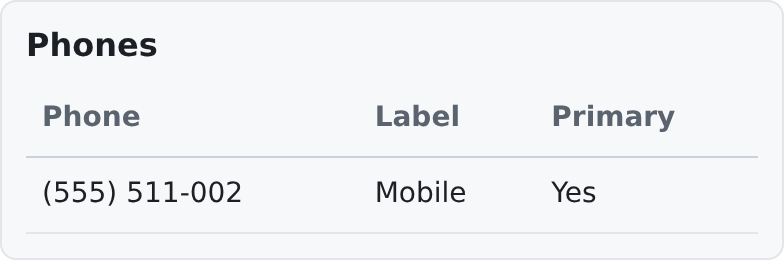
- Table (grid): one row per line, with the columns you choose. In edit mode rows can be added, changed and removed, and they are saved with the page.
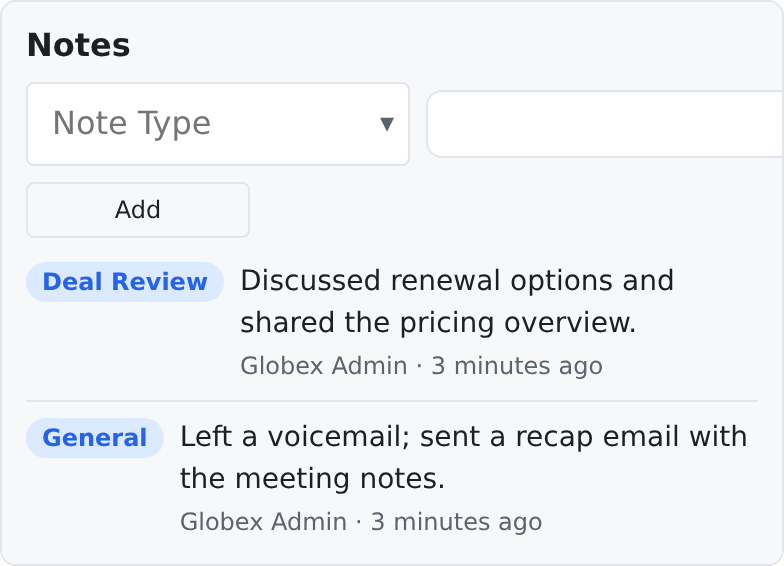
- Feed (list): one entry per row, newest or oldest first, with who added it and when. With Allow adding in view mode, an add box sits on top of the feed and works without entering edit mode.
Where to use it
On record pages. The contact page uses the feed for Notes and Activity, and the table for Emails, Phones and Addresses.
Data source
An extension table with many rows per record (Extension table · rows in the source picker).
Editor options
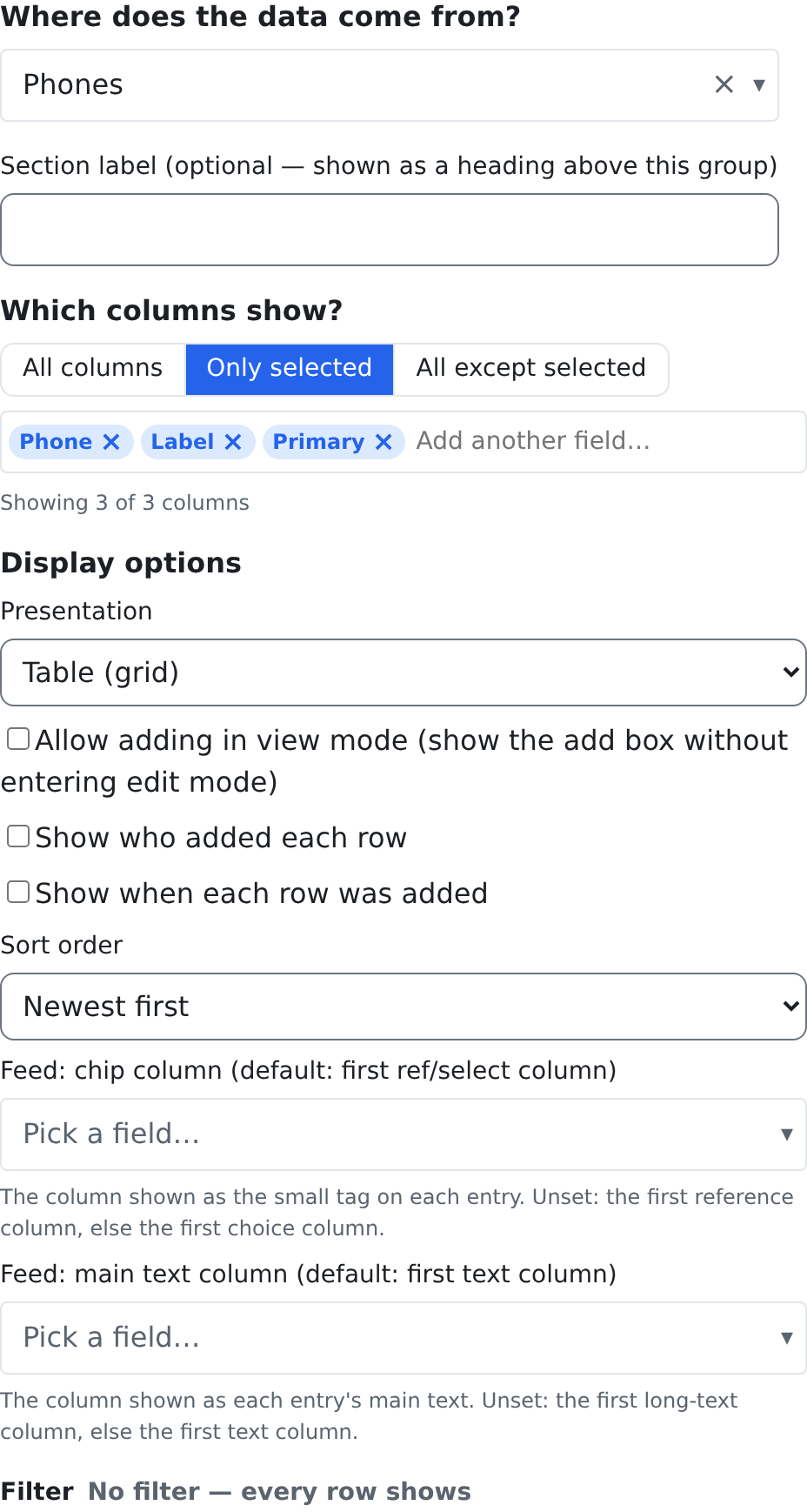
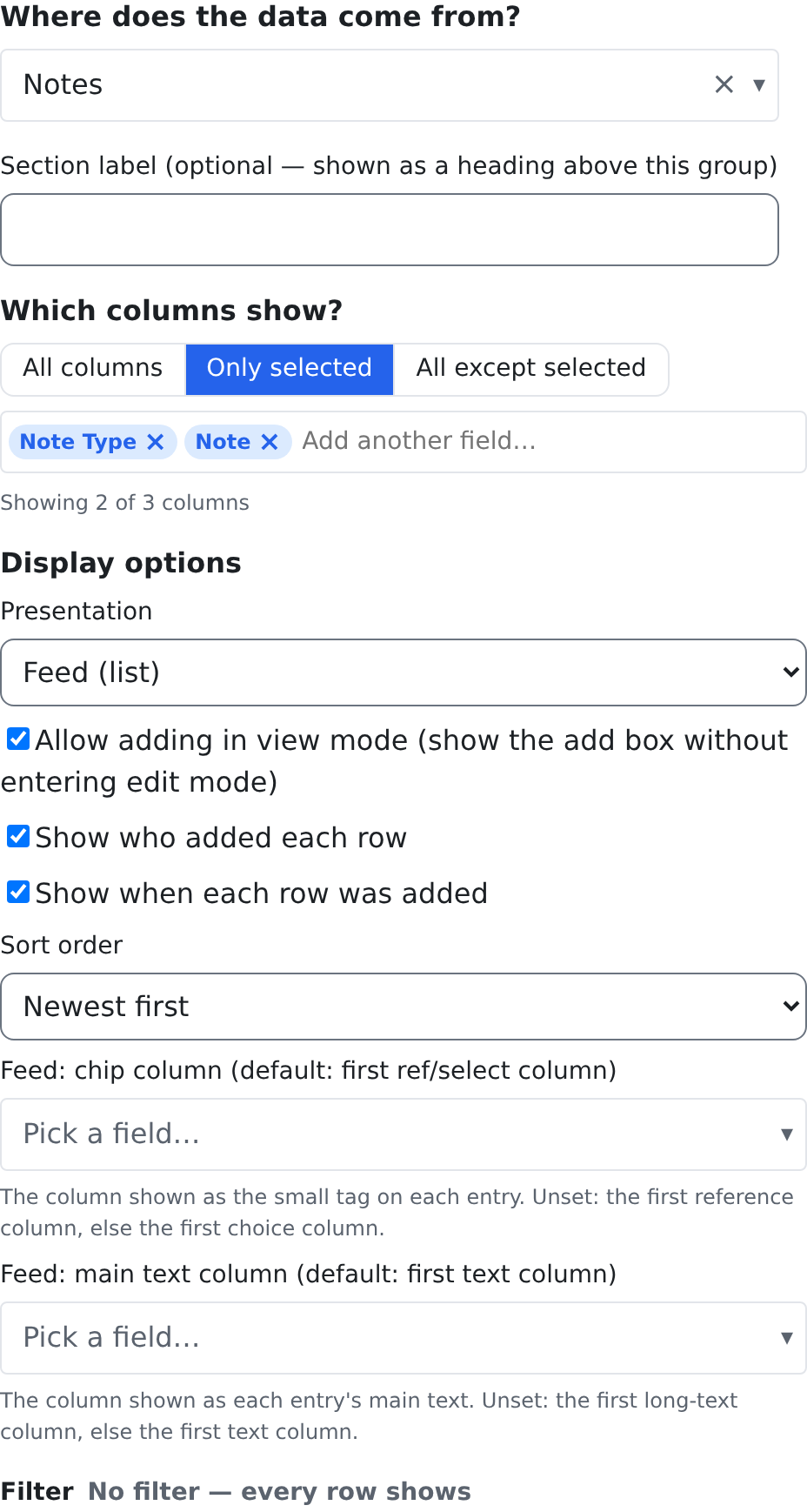
The columns are chosen under Which columns show?: All columns, Only selected or All except selected. Until you choose, the widget shows nothing.
| Option | What it does | Default |
|---|---|---|
| Presentation | Table (grid) or Feed (list). | Table (grid) |
| Allow adding in view mode (show the add box without entering edit mode) | Shows an add box on the card, so a row can be added without entering edit mode. | Off |
| Show who added each row | Shows who added each row. | On |
| Show when each row was added | Shows when each row was added. | On |
| Sort order | Newest first or Oldest first. | Newest first |
| Feed: chip column (default: first ref/select column) | In a feed, "the column shown as the small tag on each entry" (for example the note's name). | "the first reference column, else the first choice column" |
| Feed: main text column (default: first text column) | In a feed, "the column shown as each entry's main text". | "the first long-text column, else the first text column" |
Filter
Yes. A child table's rows can be filtered like any other rows, with the same filter builder as on the lists: see Filters.
Who can see it
The extension table's read permission, and its write permission to add or change rows. Notes have their own: crm.notes.read and crm.notes.write. An extension table with no permission of its own, such as phones, emails and addresses, uses the contact's: crm.contacts.read and crm.contacts.write.
Good to know
- One kind, many cards: notes, activity, emails, phones and addresses are all Child tables with different sources and options. A new custom child table needs no new widget kind.
- On narrow cards, switching off Show who added each row and Show when each row was added keeps the table compact. The contact page does that for emails, phones and addresses.
Form
What it shows
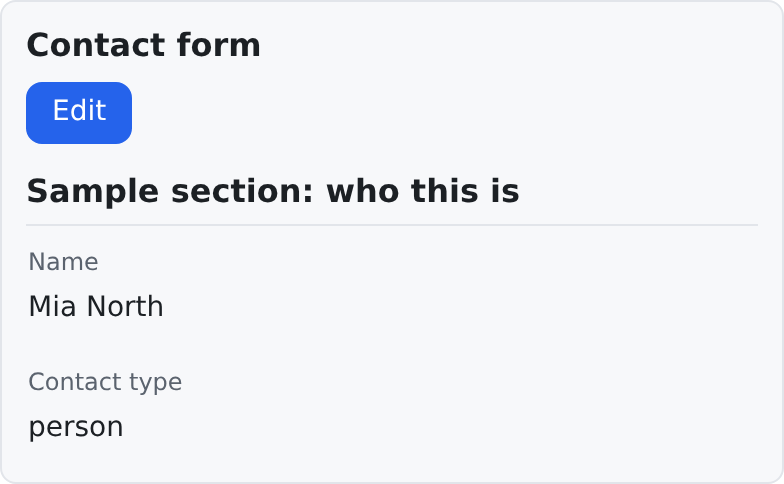
A form layout of the record's fields: the layout named by its form key, as kept on the Form layouts screen. In edit mode the fields can be changed and are saved with the page.
Where to use it
On record pages, when the fields should follow a form layout (its sections, its required fields) rather than a plain list of fields.
Data source
Record fields: the record the page shows. The fields and their order come from the form layout.
Editor options
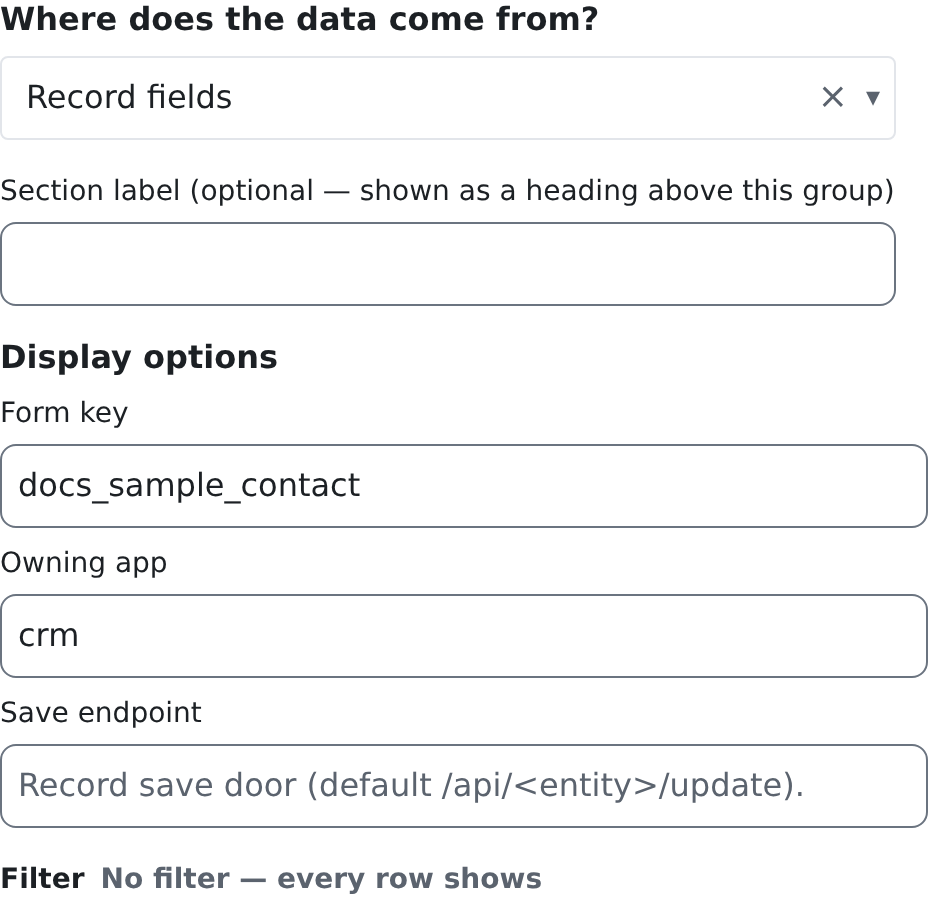
| Option | What it does | Default |
|---|---|---|
| Form key | "Which saved form layout to show, by its key" (see Form layouts). It is required. | Not set: the card says that no form is configured |
| Owning app | "The app the form layout belongs to". | "the CRM when unset" |
| Save endpoint | Where the form's changes are saved. | /api/<the page's record type>/update, for example /api/contacts/update |
Filter
None. A form shows one record, so there are no rows to filter.
Who can see it
The record's read permission (crm.contacts.read for a contact) and crm.forms.read, which the form layout door requires. Saving needs the record's write permission (crm.contacts.write). A field or a section of the layout that names a permission the person does not hold is left out of the form, not just hidden.
Good to know
- The layout comes from the Form layouts screen, with its layers: a person's own layout, the space's, then the global one. Change the layout there, and every Form card with that key shows the change.
- Leave Save endpoint empty unless you know the record's save door is a different one.
Relationships
What it shows
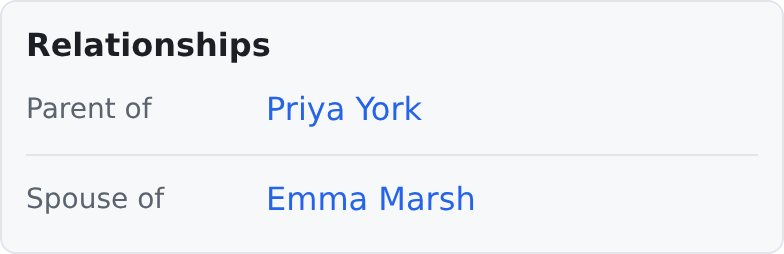
All the contact's links of the types you choose, in one card: parents and children, spouses, colleagues, referrals, employers, memberships. Each link names the other contact and the type. In edit mode a link can be added (pick a type, then a contact) and removed.
Where to use it
On contact pages. The contact page carries one, full width.
Data source
The contact's links. The card reads them itself, so there is no source to pick.
Editor options
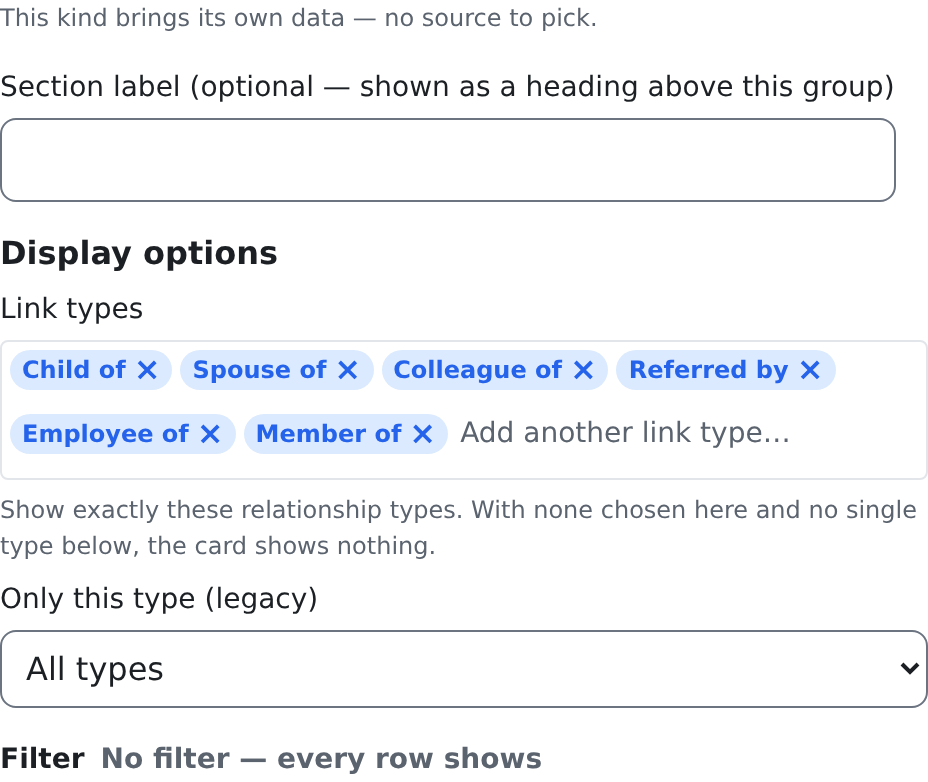
| Option | What it does | Default |
|---|---|---|
| Link types | "Show exactly these relationship types", for example child of and spouse of. Pick one, then Add another link type… for the next. | None: "With none chosen here and no single type below, the card shows nothing." |
| Only this type (legacy) | "Show only this one relationship type (the older setting; Link types wins when set)." | Not set (the list shows All types) |
Filter
None. The card shows the link types you choose under Link types; that is its filter.
Who can see it
crm.contacts.read, the contact's read permission: the links door reads with the same key as the contact itself. Adding or removing a link needs crm.contacts.write.
Good to know
- When a link type allows only one link (a person has one mother, for example) and that place is taken, adding a new one asks "This slot is already filled by … — replace?" first.
- Each link shows on both contacts: on one as child of, on the other as its reverse.
Files
What it shows
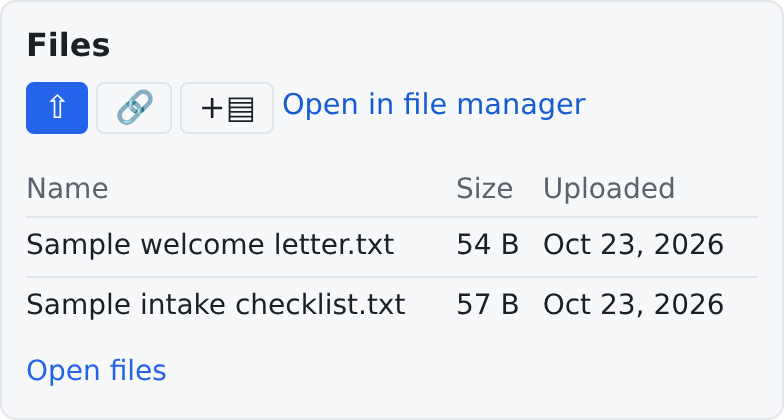
The files attached to the record, with the columns you choose, filtered by folder, type and how recent they are. With uploads allowed, the card also carries three buttons: upload (⇧), attach an existing file (🔗) and a new folder (+▤), and the links Open in file manager and Open files.
Where to use it
On record pages: a contact's documents, a work item's attachments.
Data source
The record's attachments. The card reads them itself, through the same doors as the record's attachments panel, so it never shows a file the record's own panel would not.
Editor options
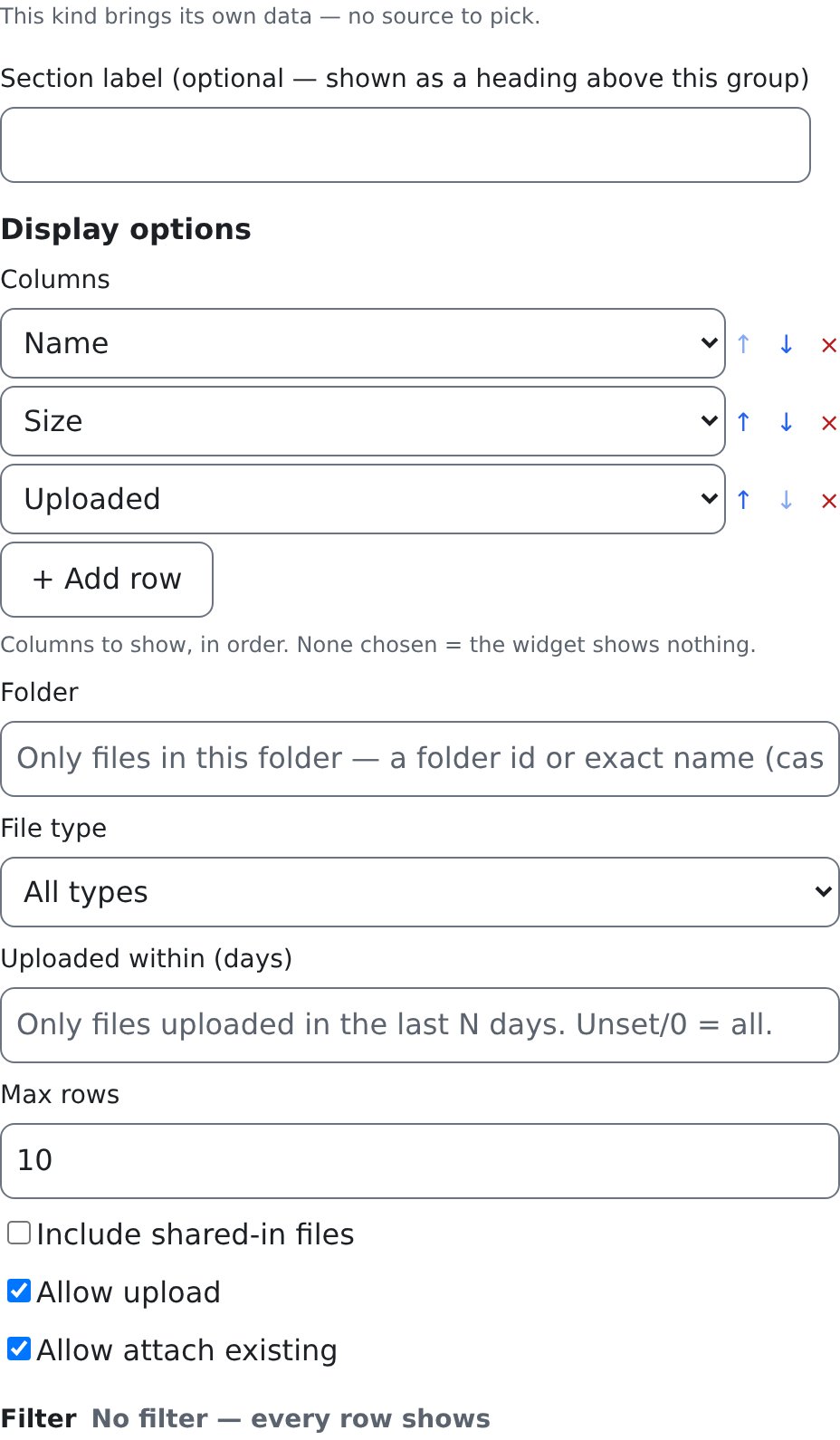
| Option | What it does | Default |
|---|---|---|
| Columns | The columns shown, in order: Name, Size, Uploaded, Folder, Type, Version, Description, Channel… | None: the card shows nothing |
| Folder | Only files in this folder, by its id or its exact name (any case). __root__ shows only the files in no folder. | Not set: every folder |
| File type | Only files of one type, or All types. | All types |
| Uploaded within (days) | Only files uploaded in the last so many days. | Not set (0): every file |
| Max rows | At most this many files, after the filters. | Not set (0): every file |
| Include shared-in files | Also shows files shared into this space, tagged shared. | Off |
| Allow upload | Shows the upload button (⇧): the file is uploaded and attached to the record. The viewer "still needs the permission to upload files and the right to edit the record". | On |
| Allow attach existing | Shows the attach-existing button (🔗) and the new-folder button (+▤). | On |
Filter
The card has its own filters, in its options: Folder, File type, Uploaded within (days) and Max rows. It has no Filter section.
Who can see it
crm.files.read: both doors the card reads from require it. Uploading also needs crm.files.upload and the right to edit the record; attaching an existing file needs crm.files.read and the right to edit the record; a new folder needs crm.files.folders.manage. A button you may not use is not shown.
Good to know
- Switching Allow upload and Allow attach existing off makes the card read-only for everyone. Switching them on never gives anyone a button their permissions do not allow.
- The card shows files of the page's record only. On a dashboard there is no record, and it shows nothing.
Communications
What it shows
The calls, messages and email with the contact, newest first, with a choice of thread. A row opens to its message. Each message has Reply…, which points the composer at it, and, if you may pin messages, Pin to work item…. On a business contact, Business rollup adds the messages of the people linked to it. The header shows who the thread is assigned to. Under the list, the composer answers in the selected thread, starts a first message to the contact, or adds an internal note.
Where to use it
On contact pages. The contact page carries one, full width, under the contact's cards and above Attachments, Tasks and Schedule.
Data source
The contact's messages. The card reads them itself, so there is no source to pick.
Editor options
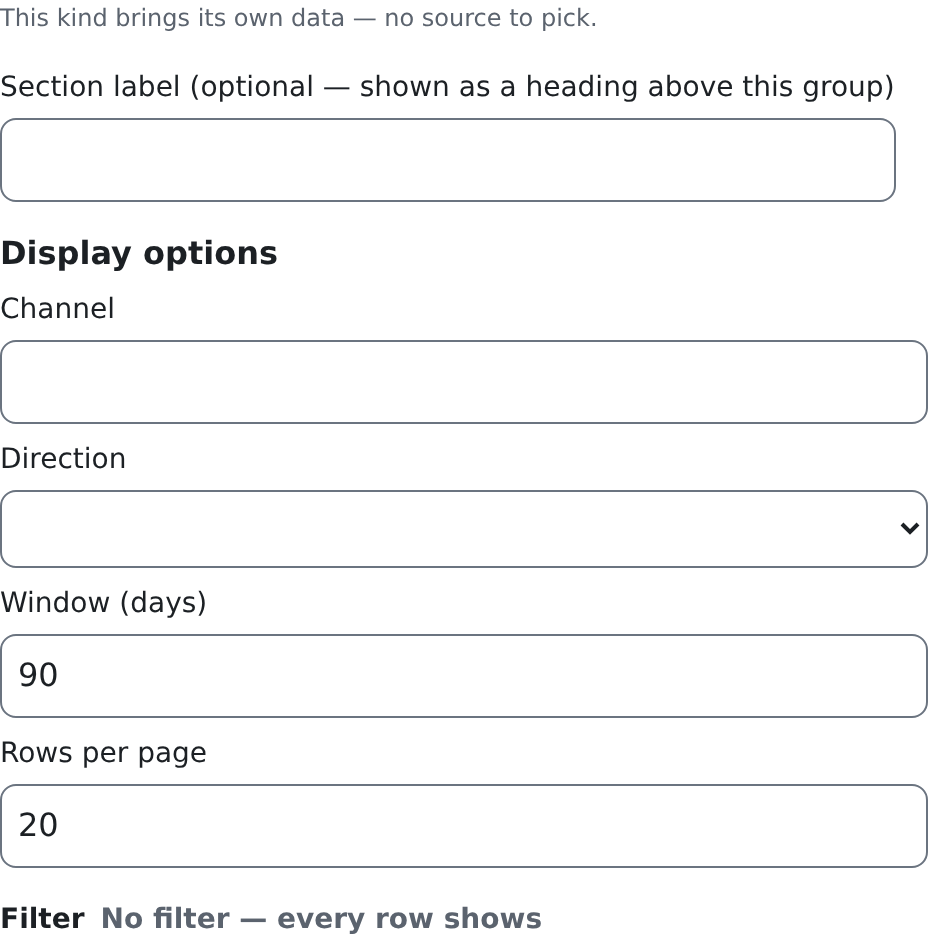
| Option | What it does | Default |
|---|---|---|
| Channel | Only messages of one channel, for example email or call. | Not set: every channel |
| Direction | Only Inbound, Outbound or Internal messages. | Not set: every direction |
| Window (days) | How many days back the card reaches, from 1 to 3650. | 90 |
| Rows per page | How many messages load at a time; Load more brings the next ones. | 20 |
Filter
The card's own options are its filter: Channel, Direction and Window (days). It has no Filter section.
Who can see it
comm.messages.view. Without it the card is not shown at all. Sharing a message needs comm.messages.share.
Good to know
- When the window holds no messages, the card says "No communications in this time window." Widen Window (days) to reach further back.
- There is no picture of this card here: the sample space these pictures were taken in has no messages.
Attachments, Tasks and Schedule
These three cards are the panels a contact's page always had under its cards. They are now cards like the others: the Page Designer places them, so you can move them, resize them, hide them for a role, or put them inside a section. Each card works exactly as the panel did and keeps the panel's permission check. None of them has options in the builder.
Attachments shows the files attached to the contact, with the folder rail, uploads, attaching an existing file, file requests, versions, share links and sending a file for signature. The viewer needs crm.files.read; without it the card is not shown at all. Each button inside also needs its own permission, for example crm.files.requests.manage for a file request.
Tasks shows the work items assigned to the contact, with Show done, a quick add and each task's detail. The viewer needs crm.work_items.read; without it the card is not shown at all.
Schedule shows the events the contact takes part in, with quick booking and each event's detail. The viewer needs crm.scheduling.view, or crm.scheduling.view.own to see only their own events; without either the card shows nothing.
Cards by role
Some cards belong only on some contacts: a medical card for clients, a school card for students. A card is shown by role through its Visibility in the Page Designer: Required role(s) — contact must hold at least one. The card then shows only on the pages of contacts who hold one of those roles, and it is left out of the page for everyone else.
The contact page is built this way. Its Person, Personal Details, Emails, Phones and Addresses cards are placed on the page and each requires the contact role. A role added to a contact brings the cards that require it the next time the page loads.
A card is never added to a page because of a role alone. Earlier versions did that: a role's extensions appeared on the contact page by themselves, without a placement. Now every card on a record page is a placement you can see, move and remove in the Page Designer. The role decides only whether it shows. To add a card for a new role, place it on the page and set its Required role(s). See The Page Designer & Widget Library.
A Visibility role is a way of shaping the page, not a security fence. What a person may see is still decided by their permissions, as each section above says.