Notifications
The bell in the header keeps you informed: records shared with you or assigned to you, imports finishing, approvals waiting on you, workflow failures, integration problems, alerts and more. Everything arrives in one inbox, updates live, and is tunable per notification type.
The inbox
Click the bell to open your Notifications. The badge shows your unread count and updates in real time while you work — no refresh needed.
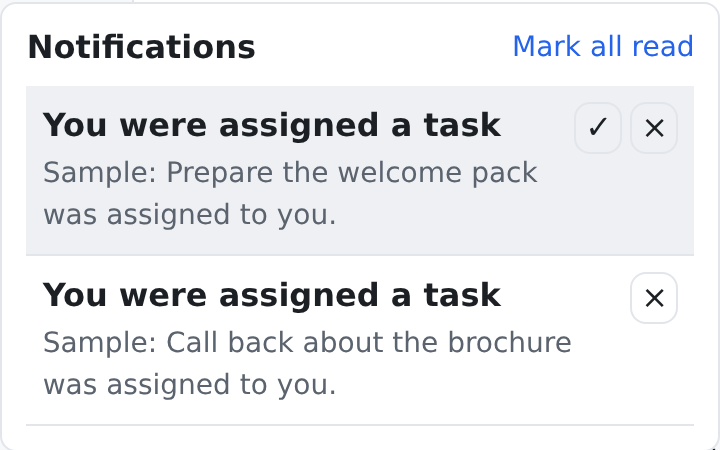
- Each entry shows a title and a short line saying what happened, in your own language. Unread entries are highlighted.
- Click an entry to mark it read and jump straight to the record, import, approval or workflow run it is about.
- ✓ (Mark as read) marks one entry read, and Mark all read clears the badge.
- × (Dismiss) removes an entry from your inbox.
- When there is nothing new, the inbox says You are all caught up — nothing new.
What you get notified about
The full list is on your preferences page; these are the ones most people meet:
| Notification | When it happens |
|---|---|
| Contact shared | Someone shares a contact into your space. |
| Record assigned | A record is assigned to you. |
| Import finished | An import job you started completes (with how many rows were added and how many failed). |
| Approval requested / Workflow approval requested | A change, or an automation step, needs your approval. |
| Approval decided | An approver accepted or rejected your request. |
| Workflow failed / Workflow dead-lettered | An automation run failed, or gave up and needs human attention. |
| Integration unhealthy / Integration needs re-authorization | An integration connection stops working or needs signing in again. |
| Alert (information) / Alert (warning) / Alert (urgent), Alert summary, Daily alert digest | An alert rule found something. |
| System alert | A system-level notice that needs attention. |
Work items, scheduling, files, phone calls and messages add their own types as well.
Some high-frequency events (Workflow started and Workflow completed) are shown as live indicators only instead of filling your inbox.
Preferences: choose your channels
Open Notification preferences from the user menu to control, per notification type, how you want to receive it. Each row is an Event; each column a channel:
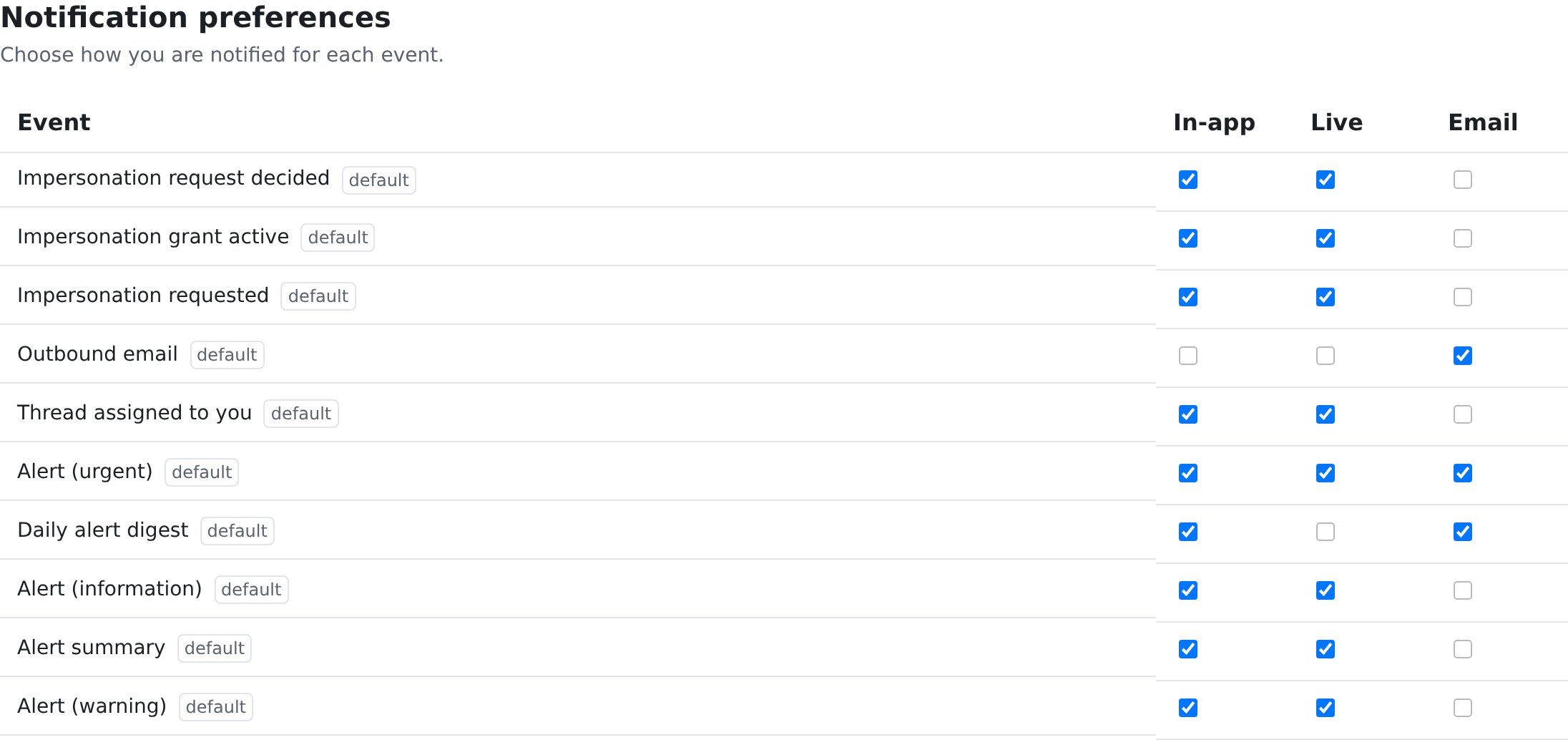
- In-app — the entry is kept in your inbox.
- Live — the entry and the badge appear the moment it happens, while you are online.
- email — the notification is also sent to your email address.
A row you have never changed carries a default tag. Your choice is saved as soon as you tick or untick a box. Your choices are personal — they follow you across spaces and never affect anyone else.
Your ticks can only narrow what a type already sends: each type has its own standard channels, and ticking a channel that type does not normally use does not add it. For example, Daily alert digest comes in-app and by email; Alert (urgent) also comes by email.
administrator or a workflow widens a notification's audience, your mute is respected.
(for example, workflow failure reviews) based on their permissions — if you stop receiving one
you believe you need, check with your administrator. See Who Can See What.
To see every alert the system can raise and who gets each one — and which ones currently reach
nobody and go to the space admins instead — see Every alert and who gets it.
Where to find it
| Screen | Where it lives | What it is for |
|---|---|---|
Notification preferences — /settings/notifications | your user menu, and a card under My workspace on the Settings page | the per-type channel choices described above |
It needs no permission beyond being signed in — these are your own preferences.
Alerts are a separate thing with their own preferences, including quiet hours and a daily digest: a notification tells you something happened, an alert tells you something is still true and needs attention. See Alerts.